Generating random letters is a quick way to create secure passwords, design classroom activities, or test software without bias. A Random Letter Generator lets you produce uppercase, lowercase, or mixed-case letters in seconds, with options to include only vowels, only consonants, or allow repeated characters. Whether you need a single letter or up to 100 at once, the process is straightforward and requires no downloads or technical skills. The tool runs directly in your browser, ensuring your data stays private while delivering results instantly.
Random letters are useful in many everyday situations. Teachers use them to create spelling tests or word games, while developers rely on them to generate test data for applications. Gamers might need them for character names or puzzles, and security-conscious users often include random letters in passwords to improve strength. Unlike manual methods—like drawing letters from a hat or using spreadsheets—an online generator eliminates human bias and saves time. You can adjust settings on the fly and copy results with one click, making it ideal for tasks that require speed and accuracy.
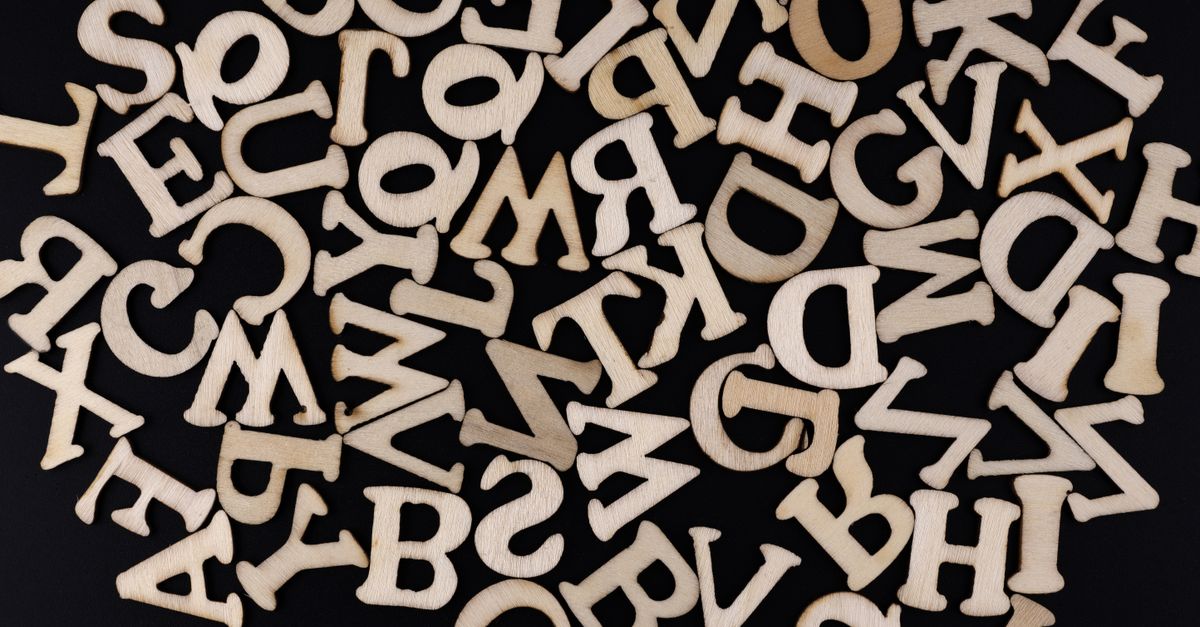
When You Need Random Letters
Random letters serve a variety of purposes, from practical to creative. Here are some common scenarios where a Random Letter Generator can help:
| Use Case | Why It Helps | Example |
|---|---|---|
| Password creation | Avoids predictable patterns and increases security by mixing cases and excluding vowels or consonants. | Generate 12 mixed-case letters with no repeats for a strong password. |
| Classroom activities | Creates fair, unbiased letter sets for spelling bees, word scrambles, or phonics exercises. | Generate 10 lowercase vowels for a vowel-sound practice worksheet. |
| Software testing | Provides consistent, random input to test how applications handle text data. | Generate 50 uppercase letters to test a form’s character limit. |
| Game design | Generates random names, codes, or puzzle pieces without manual effort. | Create a 5-letter code for a scavenger hunt using mixed case. |
| Coding practice | Offers quick, random data for exercises in string manipulation or algorithms. | Generate 20 consonants to practice sorting or searching in Python. |
For tasks that require more than just letters, such as generating random names or teams, tools like the Random Name Picker or Random Team Generator can complement the Random Letter Generator. For example, you might use random letters to create unique usernames before splitting participants into teams.
How to Generate Random Letters in moments
Using the Random Letter Generator is simple and requires no prior experience. Follow these steps to create random letters tailored to your needs:
- Visit the Random Letter Generator page on any device with an internet connection.
- Enter the number of letters you want, from 1 to 100, in the "Count" field.
- Select the letter case: uppercase, lowercase, or mixed.
- Optionally, choose to include only vowels, only consonants, or allow repeated letters by checking the relevant boxes.
- Click the "Generate" button to produce your random letters.
- Use the "Copy" button to save the results to your clipboard for immediate use.
The tool updates instantly, so you can tweak settings and regenerate results as often as needed. For example, if you’re creating a password, you might start with 12 mixed-case letters, then adjust to exclude vowels for added complexity. The flexibility makes it easy to adapt to different tasks without starting over.
Customizing Random Letters for Specific Needs
The Random Letter Generator offers several options to fine-tune your results. Here’s how each setting affects the output:
- Count: Choose how many letters to generate, from 1 to 100. This is useful for tasks like creating short codes or long strings for testing.
- Case: Select uppercase, lowercase, or mixed case. Mixed case is ideal for passwords, while lowercase works well for phonics exercises.
- Vowels/Consonants: Limit the pool to vowels (A, E, I, O, U) or consonants (all other letters). This is helpful for language activities or when you need to avoid certain sounds.
- Allow Repeats: Enable this to include the same letter more than once in the output. Disabling it ensures all letters are unique, which is useful for games like Bingo or word scrambles.
For example, if you’re designing a word game where players must use all the letters provided, you might generate 7 unique lowercase letters with no repeats. On the other hand, if you’re testing how an application handles repeated characters, you could generate 20 mixed-case letters with repeats allowed. The tool’s versatility makes it suitable for both creative and technical projects.
If you’re working on a coding project, you might also find the guide on generating random characters in Python helpful. It explains how to achieve similar results programmatically, which can be useful for automating tasks or integrating randomness into larger applications.
Random Letters for Passwords and Security
Including random letters in passwords is one of the most effective ways to improve security. Passwords with mixed-case letters, numbers, and symbols are harder to guess or crack than those using common words or patterns. The Random Letter Generator simplifies this process by letting you create a foundation of random letters, which you can then enhance with numbers or symbols.
For example, you might generate 10 mixed-case letters with no repeats, then add a few numbers and symbols to meet password requirements. Here’s a quick example of how to build a strong password using the tool:
- Generate 10 mixed-case letters (e.g., XkLpRqTmYn).
- Add 3 numbers (e.g., 472).
- Include 2 symbols (e.g., !#).
- Combine them into a final password: XkLpRqTmYn472!#.
This method ensures your password is long, complex, and free of predictable patterns. For even stronger security, avoid reusing passwords across different accounts. If you need help managing multiple passwords, consider using a password manager, which can also generate and store random passwords for you.
For more tips on creating secure passwords, the Consumer Financial Protection Bureau offers guidelines on password best practices, including how to balance complexity with memorability.
Random Letters in Education and Games
Teachers and game designers often use random letters to create engaging, interactive activities. For example, a spelling test might start with 5 random vowels and 5 random consonants, which students then use to form words. Similarly, a word scramble game could provide 7 random letters that players must rearrange into valid words. The Random Letter Generator makes it easy to produce these letter sets quickly and fairly.
Here are a few ideas for using random letters in educational or recreational settings:
- Phonics practice: Generate 10 lowercase vowels for students to identify and pronounce.
- Word scrambles: Create a set of 7 unique letters (e.g., a, e, r, t, s, p, l) and challenge players to form words like "start" or "paste."
- Bingo cards: Use random letters to fill a 5x5 grid for a custom Bingo game. For a ready-made solution, try the Bingo Card Generator.
- Spelling bees: Generate 3-5 random letters and ask students to list as many words as possible that start with those letters.
- Board games: Create random letter codes for treasure hunts or puzzle-solving challenges.
For classroom activities, you can also combine the Random Letter Generator with other tools. For instance, after generating letters, use the Pie Chart Maker to visualize the frequency of vowels vs. consonants in the results. This adds a data analysis component to the activity, helping students develop multiple skills at once.
Troubleshooting Common Issues
While the Random Letter Generator is designed to be user-friendly, you might encounter a few common issues. Here’s how to resolve them:
| Issue | Solution |
|---|---|
| No letters appear after clicking "Generate." | Check that you’ve entered a valid number (1-100) in the "Count" field. If the field is empty or contains a non-number, the tool won’t produce results. |
| Letters don’t match the selected case. | Ensure you’ve selected the correct case option (uppercase, lowercase, or mixed). If mixed case is chosen, the tool will randomly alternate between uppercase and lowercase letters. |
| Repeated letters appear when "Allow Repeats" is unchecked. | This can happen if the letter pool is too small (e.g., generating 10 vowels from only 5 unique vowels). Try increasing the count or allowing repeats. |
| Results include unexpected characters (e.g., numbers or symbols). | The tool only generates letters, so this issue is unlikely. If you see other characters, refresh the page or clear your browser cache. |
| The "Copy" button doesn’t work. | Some browsers block clipboard access on non-secure pages. Ensure you’re using the tool on a secure (HTTPS) connection, or manually select and copy the text. |
If you’re using the tool for coding or testing, you might also run into scenarios where you need random letters in a specific format, such as an array or list. In these cases, you can copy the generated letters and paste them into your code, or use a programming language like Python to generate letters programmatically. For guidance, check out the guide on generating random characters in Python.
If you're weighing options, How to Generate Random Numbers for Any Task covers this in detail.
If you're weighing options, Generate Random Teams in Excel Without Complex Formulas covers this in detail.