A date list generator is a small online tool that prints a chronological sequence of calendar dates between a start date and an end date, using a fixed whole-day step you choose, and the Date List Generator produces up to 10,000 such dates in one copyable list without uploading anything to a server.
Beginning a date-list task often feels harder than it should. You might be planning a 30-day challenge, sketching a content calendar, building a habit tracker, or testing a form that expects every date in a quarter. Writing those dates by hand is slow and error-prone, and spreadsheets hide subtle off-by-one mistakes near the end of a month. A purpose-built generator removes that busywork while keeping the calendar rules honest. The result is a plain, deterministic list where every line is a real YYYY-MM-DD calendar date, every step is the exact number of days you asked for, and every entry can be re-checked on a second visit. That makes the output useful for personal planning, content schedules, developer test data, and classroom exercises that need a clean reference list.
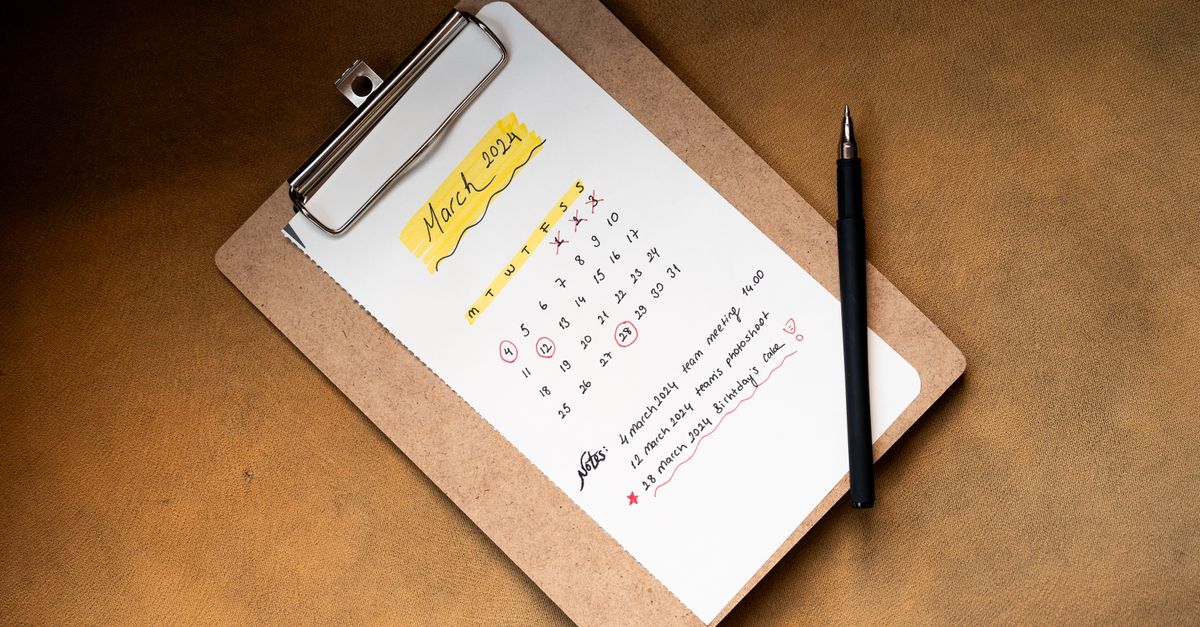
What a Date List Generator Does
A purpose-built tool like Date List Generator does one job and does it transparently. You supply two endpoints and a step, and it returns every date that falls on the step from start to end. The output is one date per line, optionally prefixed with the weekday name, and ready to paste into any plain-text destination. Two ideas keep the output predictable.
- Calendar days, not timestamps. Every entry is treated as a calendar date rather than a moment in time. There is no midnight value, no UTC offset, and no daylight-saving transition inside the tool, so the same start and end produce the same line on any device.
- Strict format. The accepted input and output shape is four-digit year, two-digit month, and two-digit day in the form YYYY-MM-DD. That matches the calendar model used by HTML date inputs, which keeps parsing boring and reliable.
The Three Inputs You Always Need
Every date list, no matter how long, is shaped by the same three beginner-friendly inputs. Memorize this trio and you can read or build almost any sequence at a glance.
- Start date. The first day on the list. Always included in the output, written as a strict YYYY-MM-DD value such as 2024-09-01.
- End date. The last possible day on the list. The tool only includes it when the chosen step lands exactly on it; otherwise the line just before the end becomes the final entry.
- Day step. A whole number from 1 through 366 that controls how the list walks from start toward end. A step of 1 lists every eligible calendar day, 7 produces a weekly cadence, and larger values produce any custom interval in days.
The tool validates each piece separately. An end date earlier than the start is rejected, an impossible calendar value such as 2024-02-30 is rejected, and a step that is not a whole number or falls outside 1 to 366 is rejected. A bad input tells you, rather than silently producing a wrong list.
How to Build a Date List Step by Step
Follow these concrete steps inside the Date List Generator to produce a ready-to-paste list. The exact layout shifts as the tool evolves, but the three core controls stay the same.
- Open the tool and pick a start date. Use the first field to choose the first day you want on the list, typed or selected as YYYY-MM-DD.
- Pick an end date. Set the second field to the same day as or a date after the start. If you are unsure how the boundary will behave, err on the later side so a smaller step still lands on the end.
- Enter the day step. Type a whole number. Use 1 for every day, 7 for a weekly cadence, or any integer between 1 and 366 for a custom cadence.
- Generate the sequence. Press the generation button. The tool converts each endpoint to an internal day count, computes the exact number of rows, and renders them one per line.
- Read the summary line. The summary tells you whether the step landed on the end date and how many lines were produced. If the count exceeds 10,000, the request fails and no partial list is returned.
- Copy the output. Use the copy button to place the plain text on your clipboard, then paste into a spreadsheet, schedule draft, test fixture, or content plan. If clipboard permission is denied, the visible read-only text area can still be selected manually.
That is the entire beginner loop. Everything else in this article is a refinement.
Choosing a Step That Matches Your Goal
The step is where a beginner's date list either feels random or feels purposeful. Match the cadence to the real rhythm of the work, not to a calendar default. A 30-day step feels monthly, but it drifts across months of different lengths, so prefer 28 or 31 when a steady beat matters. Try a quick mental check before generating, using this example: from 2024-01-30 to 2024-02-08 with a two-day step, the distance is 9 days, so the tool produces floor(9 ÷ 2) + 1 = 5 dates: 2024-01-30, 2024-02-01, 2024-02-03, 2024-02-05, and 2024-02-07. The end date 2024-02-08 is not on the list because the step of 2 does not land exactly on day 9, and the summary line will report that the end was skipped.
| Step value | What it produces | Beginner use case |
|---|---|---|
| 1 day | Every calendar day in range | Habit logs, daily journals, 30-day challenges |
| 7 days | Same weekday each week, anchored to the start | Weekly planners, recurring meetings, rotations |
| 14 days | Every two weeks | Biweekly payroll, alternating review cycles |
| 28 days | Approximate monthly, drift-free | Steady content cadence, reminder checks |
| Custom, 1 through 366 | Any regular interval in days | Quarterly milestones every 90 days, halfway markers, custom rotations |
A seven-day step is the safest default for weekly work because a Gregorian week has exactly seven consecutive calendar days, so the weekday stays the same across the run. If step 7 lands on a Monday once, it lands on a Monday forever.
Common Beginner Uses for a Date List
The first instinct is to treat a date list generator as a planning toy, but beginners keep finding real jobs for one. The plain output fits almost anything that expects a column of dates.
- Content calendars. Plot blog posts, social posts, or email sends on a fixed cadence and drop the list straight into a planning sheet.
- Habit and challenge trackers. Build a 30-day or 100-day grid for journaling, fitness, or reading without typing each day by hand.
- Classroom and study material. Generate exam windows, lab dates, or weekly assignment anchors and reuse the list every term.
- Test data for software. Seed an empty form, calendar picker, or database column with a known sequence of dates that matches a real production format.
For beginners who prefer spreadsheets, paste a generated list into the first column of Google Sheets or Excel and use it as the seed for formulas, filters, and pivot tables. A complete walkthrough of that flow lives in the how to create a date list in Google Sheets guide, which pairs naturally with the generator.
Limits and Validation to Watch For
For a beginner, the limits are easier to remember if they are grouped into three buckets.
- Calendar realism. January has 31 days, April has 30, and February has 28 or 29. A year divisible by four is a leap year unless it is divisible by 100, and a year divisible by 400 is always a leap year. That makes 2000-02-29 valid while 1900-02-29 is not. The generator enforces these rules, so an impossible input never silently rolls into May.
- Range and step limits. Years from 0001 through 9999 are supported. Steps must be whole numbers from 1 through 366, and the end date must be on or after the start. Date ranges that ask for more than 10,000 rows fail before output, with the calculated count reported.
- Strict YYYY-MM-DD. The accepted input and output use four-digit years, two-digit months, and two-digit days. That matches the WHATWG HTML date format, so the values line up with what browsers expect from date inputs.
Optional weekday labels, when added, are fixed English names such as Monday and Friday. They are derived from the same calendar-day ordinal as the date, with Monday as the first weekday, so identical inputs produce identical lines on every device. Adding weekday names changes only the displayed line, never the underlying date sequence.
When a Plain Date List Is Not Enough
A date list generator is a calendar tool, not a business-day engine. It does not know about public holidays, weekends, religious calendars, school breaks, market sessions, or anyone's location. A daily list is also not proof that each listed day is operationally available. If the destination system only accepts working days, or if it skips weekends automatically, filter the output separately.
The tool does not support month or year steps because months have uneven lengths and years contain either 365 or 366 days. A step like every month would need an overflow policy for dates such as January 31 or February 29. For calendar-month or calendar-year arithmetic, the right tool is a dedicated date arithmetic utility, not a day-step generator. Likewise, if the goal is to pick a random date for fixtures or games, a uniform random sampler will give a different result than stepping through a range.
For the everyday case where a beginner simply wants a transparent, auditable list of calendar dates between two strict endpoints, the Date List Generator is the right starting point. Pick a start, pick an end, choose a whole-day step, and let the browser do the counting.
If you're weighing options, Math Worksheet Generator Example: A Sample Walkthrough covers this in detail.