A block building game online gives you a free 5-by-5 grid where every cell can hold up to four stacked bricks drawn from three labeled materials, while five transparent activity milestones award 200 points each toward an exact 1,000-point cap and a one-click export saves the current model as a local 1,200-by-900 PNG. Brick Builder Studio fits that description precisely, runs in any modern browser, and stays editable at every point in the session, including after you have already maxed out the score.
That single sentence carries the core promise: a free, browser-based block building game where you choose materials, stack bricks, earn milestones for exploration rather than for hitting a target silhouette, and walk away with a portable image of whatever you made. The remainder of this guide walks through how the studio works, what the grid actually lets you do, how the score is calculated, how PNG export behaves on your device, and a few practical tips that make creative play easier.
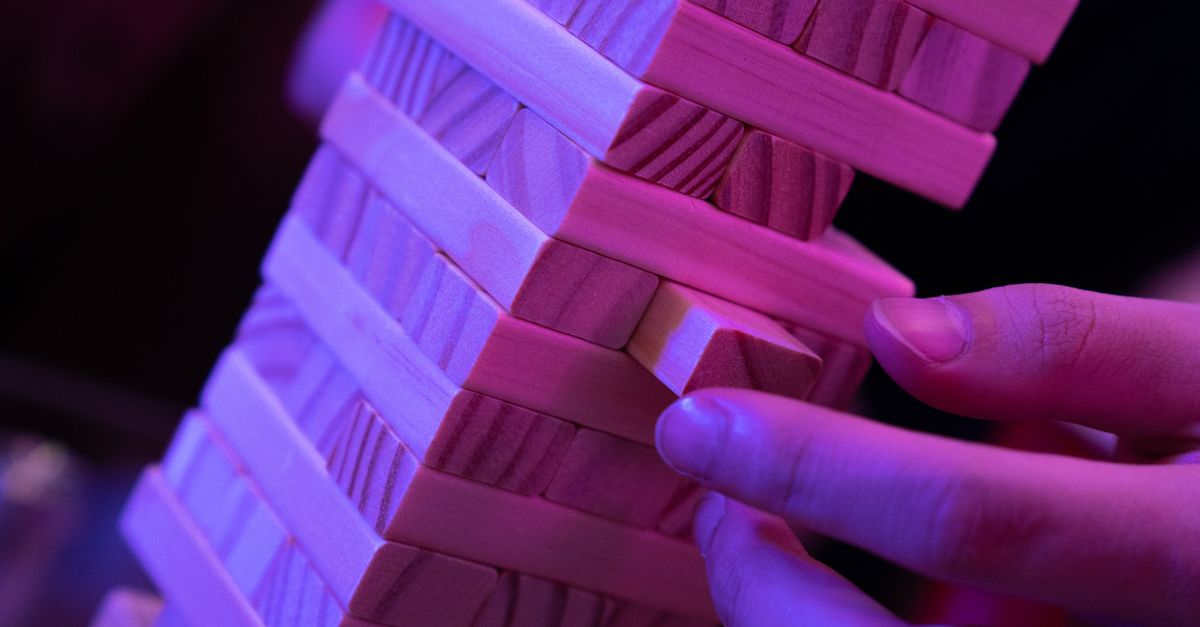
What the Brick Builder Studio actually offers
Brick Builder Studio is a free-form browser construction toy centered on a five-by-five grid. Each cell on the board can hold between zero and four bricks, and every brick is tagged with one of three fictional visual labels called Clay, Sand, and Slate. There is no required silhouette, no permit sequence, no budget, no finite inventory, no physics simulation, and no hidden solution. The board starts empty and remains editable throughout the session, including after every activity milestone has been earned.
The studio treats pointer, touch, and keyboard input as equals. Pointer and touch users tap a cell first and then use the explicit Add brick or Remove top actions, which means an existing stack can be inspected or shortened without accidentally placing a new brick on top of it. Keyboard players move a grid cursor with the Arrow keys, place with Enter or Space, delete with Backspace or Delete, and switch between Clay, Sand, and Slate with the 1, 2, and 3 keys. Modified shortcuts are intentionally ignored. Every cell also exposes its row, column, current height, capacity, and top material to assistive technology, and the board uses a roving keyboard focus with shared touch-target sizes for action controls.
For anyone who wants a more constrained stacking challenge that does require matching specific silhouettes, our Block Stacking Puzzle: Rotate and Match Five 5×5 Targets guide covers a separate target-driven variant worth exploring alongside this free-form studio.
How to build, edit, and earn the five milestones
- Open Brick Builder Studio in your browser and pick a starting material from the Clay, Sand, or Slate selector.
- Select a cell on the empty 5×5 grid by clicking or tapping it, or move the keyboard cursor with the Arrow keys.
- Use Add brick on screen, or press Enter or Space, to place the selected material on top of that cell's stack.
- Switch materials at any time with the 1, 2, or 3 keys, or by clicking another label, and repeat placement across as many cells as you like.
- Pick any stack and use Remove top, or press Backspace or Delete, to delete only the highest brick from that cell.
- Watch the live status area as the five milestones light up one by one for 200 points each until the score reaches 1,000.
- Keep adding or removing bricks after reaching 1,000 if you want to refine the model, or jump to Export PNG to save the current build.
- Use Restart only if you want a clean slate, because it is the single action that clears the model, the selected material, the milestones, and the score.
Grid limits and material labels at a glance
The studio uses fixed dimensions that you can rely on as you plan a build. The board is always 5 columns by 5 rows for 25 cells in total, and each cell can stack between zero and four bricks. Materials are limited to the three labels described above, and there is no way to introduce a fourth visual style or to push a single stack past the fourth layer. The following table summarizes the structural constants you will work with throughout a session.
| Property | Value |
|---|---|
| Grid size | 5 columns × 5 rows (25 cells) |
| Bricks per cell | 0 to 4 layers |
| Available materials | Clay, Sand, Slate |
| Required target silhouette | None |
| Physics, budget, or hidden solution | None included |
| Action that clears the studio | Restart only |
Because every cell is independent, you can mix empty cells, single bricks, and four-high towers in the same build without triggering any conflict or warning. The live status area reports the current total brick count, number of occupied cells, height of the tallest stack, number of distinct materials present, earned milestones, and score, so you can always check what your model looks like in numbers. This status panel sits beside the grid and stays reachable on narrow screens where the board and the milestone ledger stack vertically without hiding any control.
How the 1,000-point score is calculated
The score records five visible creative milestones rather than judging one correct layout. Each milestone has a unique ID, is awarded exactly once, and is worth 200 points, so earning all five produces an exact maximum score of 1,000. Milestones remain recorded after they are earned, and removing a brick can change the current model without erasing the credit you already received for that milestone. Adding or removing bricks after 1,000 remains available, and this persistence is shown beside the grid so the score is never confused with a structural rating. The five milestones are defined as follows.
| Milestone | Trigger | Points |
|---|---|---|
| Groundwork | Place the first brick on the empty board | 200 |
| Footprint | Occupy at least four different cells | 200 |
| Tower | Build one stack that reaches at least three bricks high | 200 |
| Palette | Have all three materials (Clay, Sand, Slate) appear somewhere in the current model | 200 |
| Studio build | Place at least twelve bricks spread across at least eight cells | 200 |
Because the cap is 5 × 200, the score formula is exact and deterministic, and no combination of edits can push the displayed total above 1,000. The five milestone IDs are unique, so even if you remove a brick that previously satisfied one of the triggers, the credit stays recorded rather than being re-awarded later. Once you reach 1,000 you can keep refining the build, removing bricks, and adding bricks without ever needing to clear the studio, and the score will simply stay pinned at the maximum.
Pointer, touch, and keyboard controls compared
The studio exposes the same placement, removal, and material choices through two parallel input paths so that pointer, touch, and keyboard users get equivalent control. Pointer and touch users select a cell first and then trigger Add brick or Remove top as a separate action, which protects existing stacks from accidental growth. Keyboard users navigate with the Arrow keys, place with Enter or Space, remove with Backspace or Delete, and switch materials with 1, 2, or 3. The table below compares the two paths side by side.
| Action | Pointer or touch path | Keyboard path |
|---|---|---|
| Select a cell | Tap or click the cell | Arrow keys move the grid cursor |
| Place a brick on the selected cell | Tap the Add brick control | Enter or Space |
| Remove the top brick from the selected cell | Tap the Remove top control | Backspace or Delete |
| Choose Clay / Sand / Slate | Tap the material label | Press 1, 2, or 3 |
| Save the current build as a PNG | Tap the Export PNG control | Not bound to a key |
| Reset the studio to an empty board | Tap the Restart control | Not bound to a key |
Modified shortcuts such as Ctrl, Alt, Shift, or Meta combinations are deliberately ignored so accidental chord presses never trigger an action. Every action control shares a common touch-target size, and on narrow screens the board and the milestone ledger stack vertically without hiding controls or forcing a desktop viewport. The studio also exposes each cell's row, column, current height, capacity, and top material to assistive technology through a roving keyboard focus, so screen reader users can inspect any stack before editing it.
Exporting your build as a local PNG
Export PNG creates a fresh 1,200-by-900 canvas in your browser and redraws the current pure brick model onto it. The export traverses the same tested row, column, level, and material snapshot that the game logic uses, so what you see in the studio is exactly what the image will show. It does not capture an unrelated page screenshot, fetch an external image, load a remote font, call an API, or upload your model anywhere.
The generated image is offered as brick-builder-studio.png through a temporary local object URL, which means the file is built and saved entirely on your device. Because the export is driven by the in-memory model rather than the live DOM, your build also remains unchanged after exporting, so you can keep editing the same session and export again later if you want a revised version. If you ever want to start over, only the Restart action returns the studio to its deterministic empty state; exports never clear the model on their own.
Creative building tips that work well in the 5×5 space
Because the studio does not require any target shape, the most efficient route to the 1,000-point cap is to plan around the five milestones instead of around a visual idea. Place your first brick anywhere to earn Groundwork, then spread into at least four cells to pick up Footprint, and stack one tower to at least three layers before you forget. Switching materials early ensures Palette lights up as soon as the third label appears, and finishing the Studio build milestone is mostly a matter of distributing twelve bricks across eight or more cells rather than concentrating them in one or two stacks.
A few practical habits make the studio easier to use. Build tall towers in the corners so they do not block your cursor when you move around the rest of the grid. Use keyboard 1, 2, and 3 to swap materials faster than clicking the selector on every placement. Treat the live status area as your honest readout: total bricks, occupied cells, tallest stack, material count, earned milestones, and score all update as you edit. If you want a completely fresh starting point, hit Restart to return to the deterministic empty board; otherwise just keep playing, because no milestone ever blocks further edits and no edit ever wipes an earned milestone.
Once the build looks the way you want it, hit Export PNG to capture the current snapshot without disturbing the in-progress session, and keep iterating. Because every milestone is awarded exactly once and the score is capped at 1,000, you can experiment freely without worrying about losing points, and you can compare several exports from the same session to see how the same starting board evolves as you add and remove bricks.
Finally, remember that the five-by-five grid, the four-layer limit, the three labels, the milestone thresholds, the 1,000-point cap, and the export layout are all original product fixtures. They do not represent real brick dimensions, load capacity, structural engineering, construction codes, architecture guidance, or material performance. Brick Builder Studio is recreational creative software, so the value of the build is the time you spend shaping it and the PNG you take with you, not any claim about how the bricks would behave in the real world.
Related reading: Build a City Game: Play the 5-Permit Puzzle to 1,000.