A strong PDF password is a long random string whose strength is measured in bits of entropy — length multiplied by the base-2 logarithm of the character pool — and 16 characters drawn from all four character sets gives about 103 bits, well past the 100-bit threshold that current NIST and OWASP guidance treats as strong against offline brute-force attacks.
The job most readers search for under "generate password to PDF" is the small but critical first half of protecting a document: producing a password worth using. The PDF format supports two separate passwords — an "open" password that encrypts the entire file with AES-256 and a "permissions" password that only gates editing and printing — and both should be long, random, and unique. A locally-run password generator lets you produce one in your browser using the platform's cryptographically secure RNG, then copy it directly into whatever tool you use to apply encryption to the file. Because the password is never transmitted, it never appears in a server log, a browser history entry, or a cloud sync — it exists only in the tab where it was generated until you paste it into your PDF tool.
The rest of this article walks through what a PDF password actually has to defend against, how to set the generator's length and character toggles, how to read the strength and entropy estimate the tool displays, and the small details — modulo bias, ambiguous characters, Fisher–Yates shuffling — that decide whether a "random" password is genuinely random.
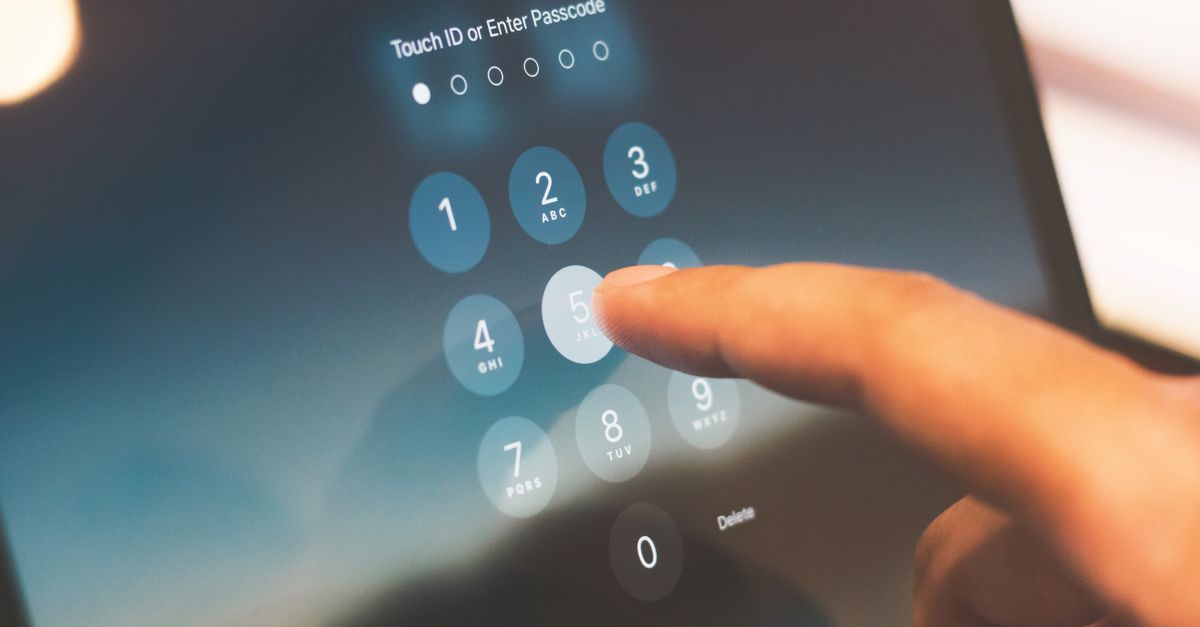
What kind of password a PDF actually needs
Modern PDFs are typically encrypted with AES-128 or AES-256, both of which are essentially unbreakable at the cipher level — the attack surface is the password, not the algorithm. An attacker who steals the file runs an offline brute-force: they hash candidate passwords at GPU speeds and compare. Every password you choose is therefore evaluated in terms of how many guesses an attacker would need, and that count grows exponentially with entropy in bits: each added bit doubles the work.
Two practical consequences follow. First, length dominates complexity: doubling length roughly squares the work, while doubling the pool size (for example, adding symbols) only multiplies it. Second, a PDF password that protects financial records, medical data, or anything else with a long secrecy lifetime should clear the same 100-bit bar modern guidance applies to other high-value accounts.
| Length | Pool size (upper + lower + digits + symbols = 86) | Approx. entropy (bits) | Verdict |
|---|---|---|---|
| 8 | 86 | 51 | Weak — guessable in hours on a modern GPU rig |
| 12 | 86 | 77 | Fair — fine for throwaway documents |
| 16 | 86 | 103 | Strong — the recommended floor for PDF passwords |
| 20 | 86 | 129 | Very strong — comfortable margin for cold-stored archives |
The pool size comes from adding the four character sets together: 26 uppercase + 26 lowercase + 10 digits + 24 commonly accepted symbols = 86. The full entropy formula is entropy = length × log2(poolSize); with 86, log2(86) ≈ 6.43 bits per character. The figures above use that formula and the values for 12 and 16 characters match what the official estimator displays.
Generate the PDF password in your browser
The cleanest workflow is to open a locally-run generator, pick your settings, copy the result, and paste it directly into the open-password or permissions-password field of your PDF tool without ever typing it by hand. Nothing leaves the tab, so nothing is exposed.
- Open the password generator in your browser.
- Set the length to 16 or higher — 20 is a comfortable default for high-value PDFs that may sit in cold storage for years.
- Leave uppercase, lowercase, digits, and symbols all enabled so the pool stays at 86 characters.
- If you need to type the password by hand, toggle "exclude ambiguous characters" to drop 0, O, 1, and l; otherwise leave it off to keep the full pool.
- Read the entropy estimate the tool displays — confirm it sits at or above 100 bits.
- Click Generate new password to roll a fresh string, or Copy if the displayed value already meets your needs.
- Paste the password into your PDF tool's open-password field, then close the generator tab so the password only lives in the destination.
The same workflow works whether you are protecting a single invoice or a folder of contracts. Because the generator does not remember anything between runs, every document gets its own unique string and a breach of one file does not compromise another.
Why a CSPRNG beats Math.random for this job
The single biggest variable in PDF password strength isn't which characters you include — it's the source of randomness. Browsers expose two very different APIs. Math.random is fast but predictable: it is a non-cryptographic PRNG whose internal state can often be reconstructed from a handful of consecutive outputs, which means a "random" 16-character string built on top of it can carry dramatically less real unpredictability than its length suggests.
crypto.getRandomValues, in contrast, is a CSPRNG — a cryptographically secure random number generator — designed so that even an attacker who observes every previous output cannot predict the next value. The password generator draws its characters from crypto.getRandomValues, the same primitive browsers use for TLS keys and other security-sensitive operations, so the string you copy out has the full entropy its length promises. The MDN documentation for this API describes it as the appropriate choice whenever "you want a cryptographically random value."
That distinction matters more for PDFs than for typical website logins, because the password on a PDF faces a much stronger attacker: anyone with a copy of the encrypted file can grind through guesses on their own hardware, offline, at billions of hashes per second on a consumer GPU. A predictable PRNG collapses under that workload; a CSPRNG holds.
Reading entropy and the strength meter
The generator reports strength as Shannon entropy in bits, computed exactly as length × log2(poolSize). Reading the meter is straightforward:
- Under 60 bits — weak, fine for throwaway test files only.
- 60 to 100 bits — fair, acceptable for low-value documents.
- 100 bits and above — strong, the recommended range for any PDF you would not want leaked.
Worked example: with all four character sets enabled, the pool is 26 + 26 + 10 + 24 = 86 characters, so log2(86) ≈ 6.43 bits per character. A 16-character password therefore carries 16 × 6.43 = 102.88, which the tool rounds and displays as roughly 103 bits — the figure that justifies the "strong" verdict.
Two subtler details are also worth reading. First, the generator uses rejection sampling: instead of mapping raw 32-bit random integers onto the character set with a plain modulo, it discards any value that would land in the biased remainder range and redraws. That keeps every character equally probable, which protects the full entropy of the chosen length. Second, at least one character from each selected type is guaranteed, then the result is shuffled with the Fisher–Yates algorithm so the guaranteed characters don't end up in fixed positions an attacker could exploit. Both steps are invisible in the UI but visible in the strength meter holding steady as you re-roll.
Apply the password to your PDF the right way
Once the string is in hand, applying it correctly is its own decision. Most PDF tools expose two distinct password fields:
- Open password — required to view the document at all. The file is encrypted with AES-128 or AES-256 and is unreadable without the password. Use this for anything sensitive.
- Permissions password — only restricts editing, printing, or copying. The document opens without a password, so this does not provide confidentiality. It only discourages casual modification.
For genuine protection, walk through these steps in your chosen tool:
- Open the PDF in your tool of choice — Adobe Acrobat, macOS Preview, PDFsam, qpdf, or whatever your platform provides.
- Find the encryption or "protect" option — in Acrobat it is under File → Protect Using Password, in Preview it is File → Export → Encrypt, in qpdf it is the --encrypt flag.
- Choose AES-256 if the tool offers a cipher selection — never accept the legacy RC4 option.
- Paste your generated open password into the user-password field, then confirm it in the second box.
- Save the file and verify by closing and reopening the PDF to confirm the password was actually applied.
- If you also want a permissions password, generate a second unique password and paste it into the owner/permissions field — do not reuse the open password.
A 16-character random string on top of AES-256 is the practical sweet spot: long enough that an offline attacker cannot realistically brute-force it within the document's secrecy lifetime, and short enough to remain manageable.
Privacy: why locally-generated PDF passwords stay private
The most underappreciated property of a browser-based generator is that the password never leaves the device. Generation runs through crypto.getRandomValues on the client, character selection happens in JavaScript inside the tab, and the result sits in the tab's DOM until you copy it. There is no network request carrying the password, no server-side log to scrub, and no analytics endpoint that sees the value — closing the tab destroys it.
That local-only chain matters because the threat model for a PDF password is asymmetric. The document itself often travels: it is emailed, uploaded to a shared drive, archived in a backup. Anything that touched the password during generation — a server log, a sync, a chat message — becomes part of the attack surface, even after the document is moved. Generating the password entirely on the device that will also paste it into the PDF tool keeps the secret's footprint to a single clipboard transfer.
For an extra belt-and-braces step, run the generator in a private browsing window so the tab is not persisted, and clear the clipboard after the PDF tool has accepted the password.
Common mistakes that weaken PDF passwords
A few predictable mistakes show up over and over when people choose PDF passwords by hand. Avoid each of them:
- Reusing a master password. If the same string protects your email, your bank, and a contract PDF, a single breach exposes the others.
- Substituting symbols for nearby letters like P@ssw0rd!. These are exactly the patterns attackers try first, and modern cracking rulesets rank them near the top.
- Picking a "passphrase" that is actually a famous phrase. Song lyrics, movie quotes, and book openings all appear in breach dictionaries.
- Relying on Math.random from a custom script. The output is fast but predictable; for security secrets, always reach for a CSPRNG.
- Forgetting which password went with which file. Pair every PDF with a unique value and store the mapping in a password manager so you do not lose access.
For a complementary angle on choosing length and pool settings, see how to generate a secure password using local tools. Modern guidance from NIST SP 800-63B and the OWASP Authentication Cheat Sheet both favor long random passwords kept in a manager over forced complexity rules, which is exactly the regime a CSPRNG-backed generator produces.
Generating the password is the half most readers skip, and it is also the half that decides whether the resulting file is actually safe. A 16-character random string from a CSPRNG, applied as an open password on AES-256 encryption, gives any document roughly 103 bits of entropy — a margin that holds up against offline brute-force even years after the file is shared.
For a deeper look, see How to Determine Password Strength the Right Way.