VS Code does not ship with a dedicated arrow function shortcut; the conventional fix is to author a user snippet that expands a few characters into () => {} and bind the expansion to Tab inside the JavaScript or TypeScript file scope. Once the snippet is installed, typing the trigger text and pressing Tab produces the arrow body, with the cursor positioned inside the braces for further typing. The same idea covers longer forms such as const name = (props) => { ... } or a React functional component with an export. Surrounding that snippet, a small set of default editing commands covers nearly everything else you do while writing arrow functions: format the document after a refactor, comment a line, comment a block, duplicate a line, or open the integrated terminal. The VS Code Keyboard Shortcuts reference keeps that set in one searchable table with separate Windows, Linux, and macOS mappings, so the snippet is paired with the keys that actually expand it on your machine.
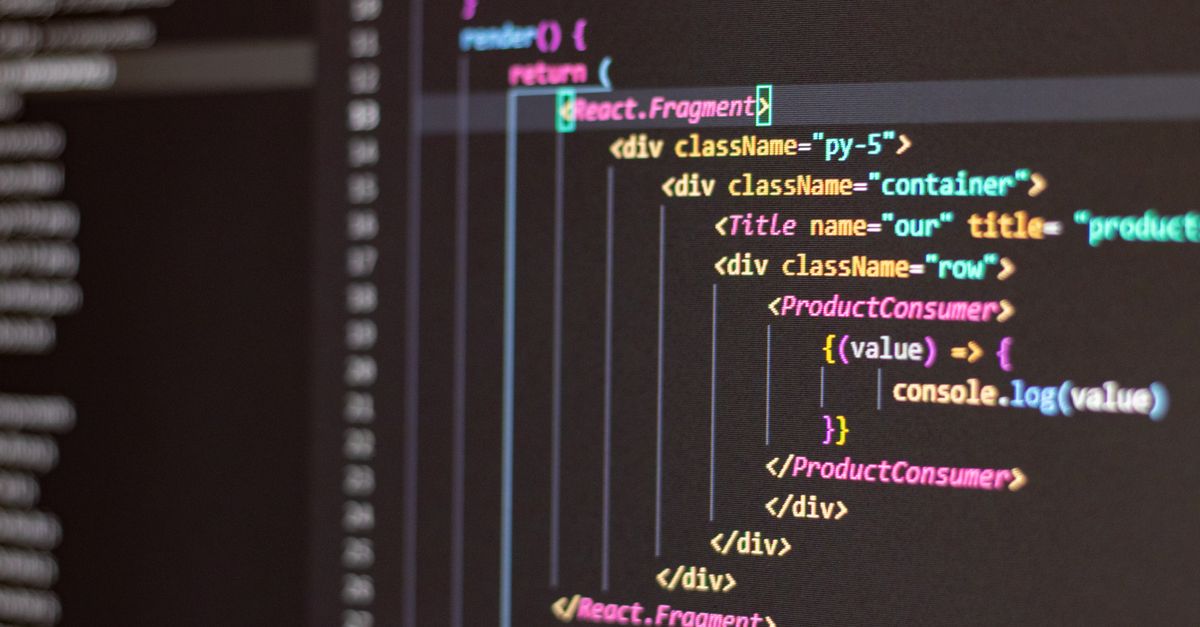
Why VS Code Ships Without a Built-In Arrow Function Key
VS Code is a language-agnostic editor. The default keymap covers navigation, selection, search, panel toggles, and a handful of code actions that are useful in every file type. The arrow function is a JavaScript and TypeScript syntactic concept, so the editor treats it the same way it treats any other token: you type the characters => directly. There is no documented single-key shortcut that produces => on the default Windows, Linux, or macOS keymap, because doing so would conflict with input in dozens of other languages where > is a comparison operator or part of a generic operator.
The editor instead exposes a snippet system that runs only when a trigger word is followed by a designated key (Tab by default). A user snippet for an arrow function is therefore not a hidden default; it is an explicit configuration the developer writes once. The result is more portable than a custom keybinding because it survives keymap extensions, profile resets, and the VS Code Keyboard Shortcuts editor getting overwritten later. The trade-off is that you have to author the snippet yourself the first time.
Configure a User Snippet for Arrow Functions
- Open the Command Palette with Ctrl+Shift+P on Windows and Linux or Cmd+Shift+P on macOS, then type Snippets: Configure User Snippets and press Enter.
- Pick javascript.json for plain JavaScript, typescript.json for TypeScript, or javascriptreact.json / typescriptreact.json for JSX and TSX.
- Add a snippet entry inside the curly braces. The example below registers fa for a no-argument arrow, faa for an arrow with placeholder arguments, and far for a React functional component written as an arrow.
- Save the file. VS Code picks up the change without a reload and registers the prefixes as snippet triggers.
- Return to a .js, .ts, .jsx, or .tsx file, type fa, press Tab, and confirm the editor inserts () => {} with the cursor placed on the final tab stop.
The $1, $2, and $0 tokens are tab stops in order; $0 is the final cursor position. Inside the snippet body, double quotes must be escaped as \" if you need them in the generated text. If you work in TypeScript, duplicate the same shape into typescript.json with a body of ($1: $2) => { ... }.
Pair the Snippet With Default Editing Keys
The snippet does not exist in a vacuum. After it expands, you still need a handful of default commands to keep the file readable. The most useful ones while writing arrow functions are:
- Toggle Line Comment to silence a single-line arrow while testing a refactor.
- Toggle Block Comment to silence a multi-line arrow body or a JSX expression.
- Format Document to reformat a file you just converted from a function declaration to arrow syntax.
- Delete Line and Insert Line Below to move arrows around quickly without lifting your hands from the home row.
- Toggle Integrated Terminal to run a quick node -e or npx tsc --noEmit check.
All five of those commands are part of the 20-row default set surfaced by the VS Code Keyboard Shortcuts reference, and each one stores a distinct mapping for Windows, Linux, and macOS so you can compare what the editor actually receives on the platform in front of you.
Platform Differences That Affect Arrow Function Edits
Two of the most useful commands behave differently on each platform, which matters once you mix Format Document with a refactor that turns a function declaration into an arrow. The table below records the verified platform defaults; the live reference adds the full Windows, Linux, and macOS column set, the exact modifier spelling (Ctrl, Shift, Alt, Cmd, Option), and the category for every row. For a deeper side-by-side comparison, see the VS Code Keyboard Shortcuts defaults compared by platform guide.
| Command | Windows | Linux | macOS |
|---|---|---|---|
| Format Document | Shift+Alt+F | Ctrl+Shift+I | Shift+Option+F |
| Toggle Block Comment | Shift+Alt+A | Ctrl+Shift+A | Shift+Option+A |
Linux does not match Windows for either row. Windows shares the Shift+Alt pair across both commands, while Linux prefers Ctrl+Shift for the same two commands. macOS keeps the visual feel of Windows but swaps Alt for Option. If your machine runs Linux with a non-US layout, the reference still assumes a standard US layout; the actual key that lands in VS Code depends on what your layout maps to the printed character, which is one of the reasons a listed default can stay silent.
Look Up the Related Defaults With the Shortcuts Reference
The VS Code Keyboard Shortcuts reference is a focused, source-checked table of 20 common default commands. To use it while you are writing arrow functions:
- Choose Windows, Linux, or macOS at the top of the table. The default modifiers change accordingly and the modifier glyphs do not leak across platforms.
- Search by a command name such as format document, by a category such as editing, or by a key string such as Ctrl+P. Search runs against the fixed in-browser table and is case-insensitive on the command, category, and key text.
- Use the displayed shortcut in VS Code. If nothing happens, open the built-in Keyboard Shortcuts editor with Ctrl+K Ctrl+S on Windows and Linux or Cmd+K Cmd+S on macOS, search the same command name, and inspect the active binding plus its when clause. The Ctrl+K Ctrl+S combination is a chord: press the first pair, release, then press the second pair; it is not one simultaneous four-key press.
- If the binding has been overridden, the Developer: Toggle Keyboard Shortcuts Troubleshooting command shows which key VS Code receives and which command it dispatches, which is the most reliable way to confirm whether a custom keymap extension is intercepting your arrow function snippet expansion.
The reference deliberately stops at 20 commands. It covers Command Palette, Quick Open, Delete Line, Insert Line Below, Toggle Line Comment, Toggle Block Comment, Format Document, and Toggle Integrated Terminal as its eight golden mappings, plus twelve other navigation, search, settings, symbol, and file commands. The table writes modifiers as Ctrl, Shift, Alt, Cmd, Option, or Control so the search field works on readable text instead of platform glyphs. The reference is auditable and bounded; it is not a complete keymap dump.
What Breaks When a Shortcut Stops Firing
A snippet that worked yesterday can stop firing today for reasons that have nothing to do with arrow functions. The most common causes are:
- Other extensions overriding Tab. Tab is the default snippet expansion key. A formatter or AI completion extension can claim Tab and the snippet never fires, so the trigger text sits in the editor with a small suggestion popup instead.
- Custom keybindings. A rule in your keybindings.json for the same trigger text wins over the built-in snippet behavior.
- Keymap extensions. Vim, Emacs, and JetBrains keymap extensions each ship their own snippet expansion rules and can route Tab into mode-specific commands.
- Operating system reservations. Linux window managers can grab Ctrl+Shift+I or Shift+Alt+A before VS Code sees them, which is why Linux users see more "the shortcut does nothing" reports than Windows users for the Format Document and Toggle Block Comment rows above.
- Function key interception. F1, F2, and F12 are sometimes intercepted by laptop firmware or BIOS settings and never reach VS Code.
- Layout and context. VS Code renders keys according to the active keyboard layout, and a binding's when clause can exclude the file scope you are editing in.
Defaults are not guarantees for every installation. Treat the reference as a baseline, not a contract; treat your own Keyboard Shortcuts editor as the source of truth.
When the Reference Does Not Have the Command
The 20-row scope is the limit. The reference omits debugging sequences beyond common symbol actions, task bindings, notebook-specific commands, accessibility-specific alternatives, Vim or Emacs keymap entries, and localized layout variants. It does not install an extension, read VS Code settings, monitor global keyboard input, change keybindings.json, or detect conflicts on your machine. For the full keymap and the customization model (chords, when clauses, context conditions), see the official VS Code keybindings documentation. If the command you need for working with arrow functions is missing, open VS Code's Keyboard Shortcuts editor and search the command name there, or consult the Microsoft platform shortcut PDF for your operating system. The reference is built to be auditable and bounded, not comprehensive.
If you're weighing options, How to Compare Approaches to Generate ANSI Color Codes covers this in detail.