Turning SVG code into an image means rendering the SVG markup text itself as a static PNG — not parsing or rasterizing the graphics that the markup describes. The output is a clean, screenshot-style picture of the code, with line breaks preserved, monospaced text, and either a light or dark background. That makes it useful for documentation, tutorials, design reviews, bug reports, and social posts where you want the source visible at a glance without inviting people to copy and paste. To do it locally in the active tab, paste the full SVG markup into Code to Image Generator, choose a theme, font size, and padding, then download the resulting PNG file. Because nothing is parsed, executed, evaluated, or uploaded, angle brackets, script-looking strings, and ampersands in the markup stay as ordinary glyphs. The input remains inert text the entire time; the PNG contains rendered pixels only. Local-only processing also means there is no risk of accidentally executing embedded event handlers when the image is viewed later in a wiki, slide deck, or chat.
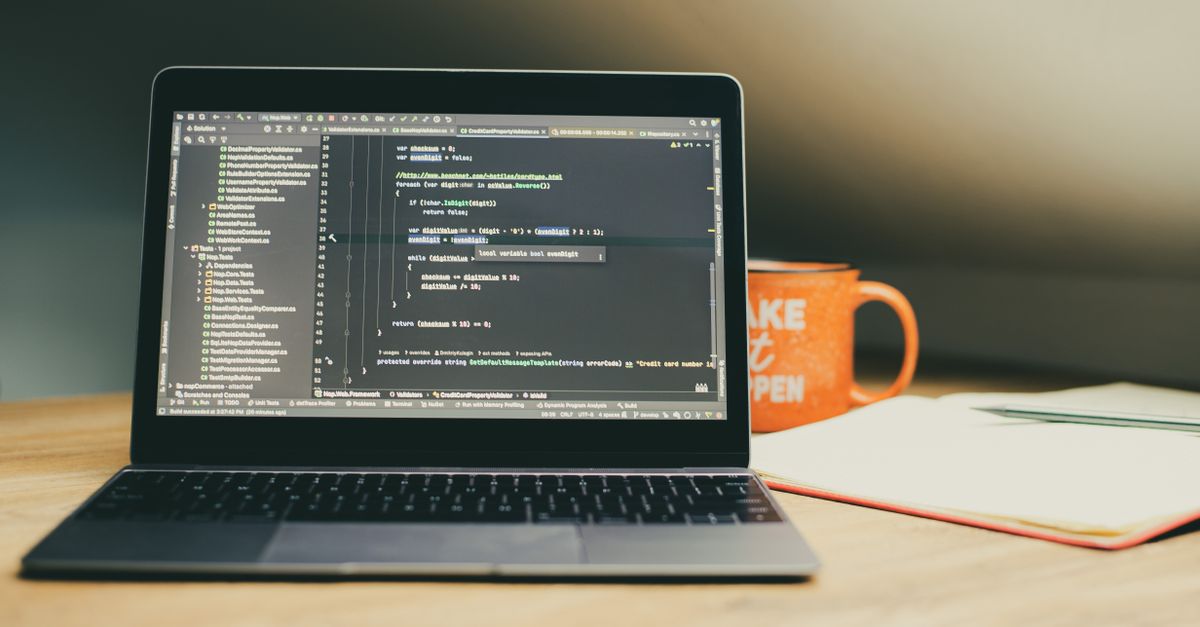
What "SVG code to image" actually means
The phrase "SVG code to image" is overloaded. It can mean two very different things, and mixing them up leads to the wrong tool.
- Render the SVG means parse the markup, draw the actual graphics (a circle, a path, a chart), and export a raster file. That requires an SVG engine such as a browser DOM, Inkscape, or a server-side renderer like resvg or librsvg.
- Snapshot the SVG markup means treat the markup as text, wrap it in a code-style frame, and produce a PNG that looks like a screenshot from an editor. The PNG is a picture of the code, not a picture of what the code draws.
The Code to Image Generator does the second one. It accepts the SVG source as inert text, paints every preserved line onto an offscreen Canvas with a fixed monospace font and a single foreground color, and encodes that Canvas to PNG. There is no SVG parser, no path tessellation, and no syntax highlighter in the pipeline, so the result is intentionally language-agnostic: every character — opening tags, attributes, namespace declarations, entities — appears as a glyph of the same color.
Why capture SVG markup as a PNG
Snapshotting the source rather than rendering the graphic is the right call in several common situations:
- Tutorials and teaching. Readers see exact attribute names, namespace prefixes, and whitespace, which a rendered thumbnail hides.
- Code review and bug reports. The shape of indentation, line breaks, and stray characters often carries the bug; a pretty icon erases the evidence.
- Documentation that must not execute. A static image is safe to embed in wikis, PDFs, and slide decks where live SVG would be blocked, sandboxed, or stripped by the host.
- Social posts where markup matters. Posting the raw markup on platforms that drop or sanitize <svg> tags preserves the content as a readable picture.
None of those use cases benefit from a real rasterizer, and several of them are actively harmed by it — a beautiful rendered icon hides the very bug you wanted to show.
Pre-flight: pick a snippet that fits the limits
Before opening the tool, scan the SVG for size. The tool enforces hard limits and will reject, rather than silently truncate, anything that exceeds them:
| Limit | Maximum |
|---|---|
| Total input size | 50,000 UTF-16 code units |
| Total logical lines | 200 |
| Single longest line | 2,000 code units |
| Canvas edge | 8,192 pixels per side |
| Canvas area | 32,000,000 pixels |
| Final PNG size | 20 MiB |
If the SVG is larger, split it into chunks, strip comments, or collapse repeated attribute groups before pasting. Disallowed control characters and unpaired Unicode surrogates are rejected with an explicit error rather than being replaced or dropped. LF, CRLF, and CR are all recognized as line separators, so copy-paste from Windows, macOS, or Linux edits stays intact.
Make SVG code to image in your browser
- Open Code to Image Generator in your browser. Nothing leaves the tab.
- Paste the complete SVG markup — opening <svg>, all child elements, the closing tag, and any leading XML prolog. Empty lines and a final trailing line break are preserved as image rows.
- Pick a light or dark theme, choose a font size between 12 and 32 pixels, and choose padding between 16 and 96 pixels.
- Click generate. The browser measures each preserved line with the local monospace font stack, allocates a Canvas at natural output dimensions, paints the opaque background, draws every line left-aligned with a top baseline, and encodes the bitmap as PNG.
- Read the result summary: actual width and height in pixels, the preserved line count, and the final PNG size in bytes.
- Click download to save code-image.png. The download is the natural-size offscreen Canvas, not the on-screen preview, so the file is never silently downsampled to fit the page.
If the source, theme, font size, or padding changes, the previous result and its local ObjectURL are revoked automatically and a new busy state is entered. That makes it safe to iterate without leaking memory across edits.
Canvas dimensions, font, and padding math
Understanding how the dimensions are calculated helps you choose settings that fit both the snippet and the target image. The browser first measures every preserved line with the selected monospace font at the selected size. The largest finite measured width becomes the content width; that value is rounded up and padded on both sides by the chosen padding in pixels. Height uses a line height equal to the ceiling of one and one-half times the font size, multiplied by the preserved line count, plus the top and bottom padding. After the Canvas is resized, the drawing context is re-acquired and the font, baseline, alignment, foreground, and background are explicitly reapplied before any text is drawn.
Worked example with font 16, padding 32, an SVG of 8 preserved lines, and a longest line that measures 290 pixels wide:
- Line height: ceil(16 × 1.5) = 24 px
- Width: 290 + 32 + 32 = 354 px
- Height: 24 × 8 + 32 + 32 = 256 px
- Canvas area: 354 × 256 = 90,624 px (well under 32,000,000)
Both edges stay well below the 8,192-pixel ceiling, so this input will generate cleanly. If the font size is doubled to 32 with the same text, width and height each roughly double because the font is now twice as wide and the line height is now twice as tall — a useful rule of thumb when sizing for retina screens or thumbnailing long snippets.
What the PNG contains — and what it does not
The exported PNG stores rendered pixels. The original source text is not embedded, the chosen font is not bundled, and no syntax tokens are marked. That distinction has practical consequences:
| Stored in the PNG | Not stored in the PNG |
|---|---|
| Background color pixels | The editable source text |
| Foreground glyph rasterization | Language-aware token coloring |
| Padding and line layout | Font files or font metadata |
| Blank-line row spacing | Execution results or runtime output |
Because the tool uses one foreground color and a single font stack, keep the original SVG source separately whenever editability, exact character recovery, accessibility for screen readers, or archival fidelity matters. The PNG is for compact visual sharing, not for replacing the source file.
Pitfalls when turning markup into a snapshot
A few recurring mistakes show up the first time someone tries this workflow:
- Expecting syntax highlighting. There is none — every glyph shares the foreground color. If colored tokens matter, render the SVG in a real editor first.
- Pasting with smart quotes. If the editor replaced straight quotes with curly quotes, the Canvas will paint them too. The image still looks fine, but the source is no longer a 1:1 copy of the file.
- Assuming pixel-identical output across machines. Font fallback, hinting, and antialiasing vary by operating system. Two developers on different platforms will see slightly different glyph edges at the same font size.
- Embedding secrets. API keys, internal URLs, and personal data inside the markup become pixels. Scrub the source before sharing the PNG in a public channel.
For format-specific linting, namespace cleanup, or minification of the SVG itself, a dedicated formatter handles that work better than a screenshot will.
Other code you can capture this way
The same workflow applies to any code text you want to share as a static image. JSON snippets render with their quotes, brackets, and commas visible. CSS rule sets keep their indentation. Markdown source stays readable as plain monospaced text. As long as the input is below the limits and contains no disallowed control characters, the result is the same: a bounded PNG, drawn locally, with the theme and padding of your choice. For machine-readable formatting of structured text, the JSON Formatter and XML Formatter preserve structure rather than freezing it into pixels.
For the underlying drawing primitives used to lay out each line, the WHATWG canvas specification defines how fillText paints glyphs and how measureText reports the width used to size the Canvas. Both run inside the active tab, so the PNG downloaded at the end is built from the same calls a local script could make.
Related reading: HTTP Status Codes Bulk Lookup: Filter the Full Registry.
Related reading: How to Validate JSON Files in Visual Studio Code.