Microsoft Edge lets you edit HTML in two distinct ways: through F12 DevTools on a live page, or through a browser-based HTML and CSS editor with a sandboxed preview. The Online HTML Editor takes the second route and runs entirely inside the browser tab you already have open, so the markup and CSS you type never leave the browser. The editor keeps a strict separation between your code and what it shows you: an HTML panel, a CSS panel, and a preview pane that is rebuilt only when you ask for it. Because the preview sits inside a sandboxed iframe with a deny-by-default Content Security Policy, scripts, forms, popups, navigation, and remote resources are all refused, which is exactly the surface most people want when they are learning tags or sketching a static component. This article walks through how to open it in Edge, what each panel does, and how the restricted preview protects you while you experiment.
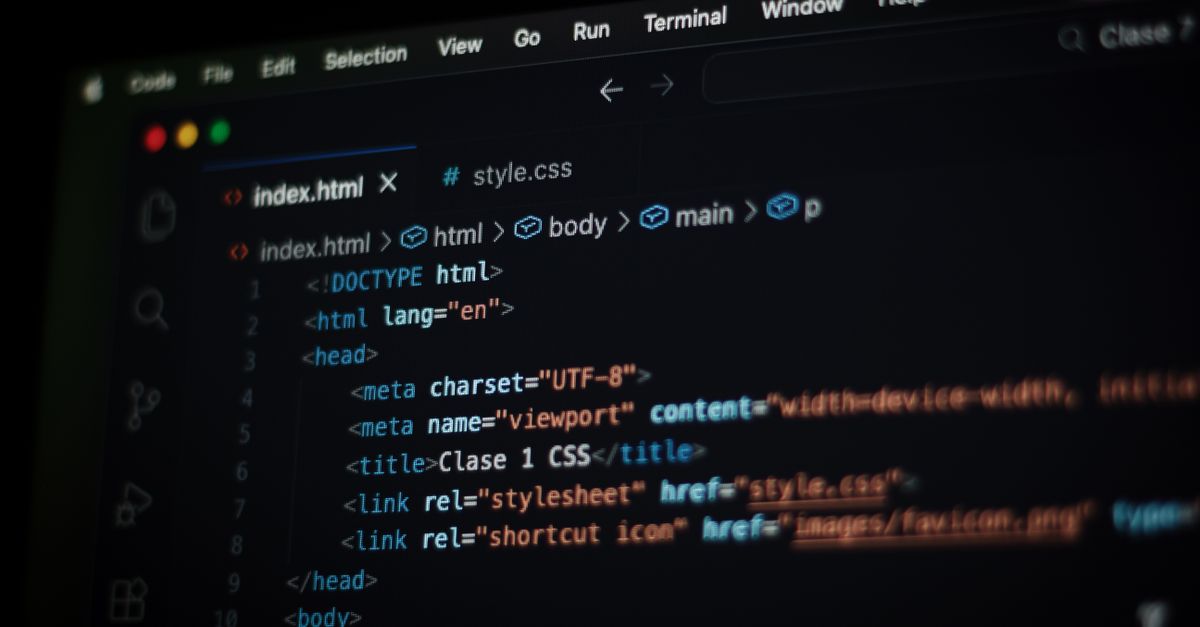
Two ways to edit HTML in Microsoft Edge
Microsoft Edge ships with developer tools that can edit any page already loaded in the browser. Press F12 (or Ctrl+Shift+I) to open DevTools, pick the Elements panel, and double-click a tag, attribute, or text node to change it on the fly. Edits only affect that session; refreshing the page restores the original markup sent by the server. That workflow is ideal for diagnosing layout, color, or spacing on a real website.
For writing new snippets from scratch, however, DevTools is awkward. There is no convenient place to paste a full bounded HTML document with companion CSS, no way to reset to a clean state, and no guarantee that a stray script in your example will not interfere with the page you are testing on. A standalone HTML and CSS editor in your browser is better suited for that job.
DevTools Elements vs the side-by-side editor
Both tools can edit HTML, but they were built for different jobs. The table below lines up the practical differences you will feel in a normal Edge session.
| Capability | Edge DevTools Elements | Online HTML Editor |
|---|---|---|
| Edit markup on an existing live page in Edge | Yes | No — uses a separate sandboxed iframe |
| Write a new bounded HTML/CSS snippet from scratch | Awkward | Yes — two side-by-side plain-text panels |
| Executes your JavaScript | Yes, in the page context | No — sandbox blocks scripts |
| Loads external stylesheets, fonts, images | Yes, under the page policy | No — CSP denies by default |
| HTML input size limit | None fixed | 50,000 characters |
| CSS input size limit | None fixed | 30,000 characters |
| Render trigger | Immediate, on each keystroke | Explicit Update preview button |
| Best for | Diagnosing a live site | Learning markup, sketching components |
What the Online HTML Editor does in Edge
The Online HTML Editor opens in a browser tab and presents an HTML editor on the left, a CSS editor on the right, and a local preview. Both editors accept plain text only and stay within fixed size limits — 50,000 characters for HTML and 30,000 characters for CSS. There is no file upload, no account, and no API call; the content of both editors lives in the current browser tab.
Pressing Update preview assembles a complete HTML document and places it inside an iframe using the srcdoc attribute, which is documented on MDN as a way to embed an entire document inline. That iframe carries an empty sandbox token list, which means scripts, popups, form submission, top-level navigation, downloads, and same-origin access are all unavailable, exactly as described in the MDN reference for the iframe sandbox attribute. The result is a preview that shows your markup without executing it.
Together, those two defenses form a deny-by-default surface: even if your snippet tried to load a remote stylesheet, fetch an image, or submit a form, the request would be refused before it left the iframe.
How to edit HTML in Edge with the side-by-side editor
Follow these steps to work with bounded HTML and CSS snippets inside Microsoft Edge.
- Open the Online HTML Editor in a new browser tab.
- Type or paste your bounded HTML snippet into the left editor. Keep the markup self-contained — no external stylesheets, fonts, images, scripts, or iframes.
- Add your CSS rules to the right editor. Inline declarations and stylesheet rules both work; remote font or background-image URLs will be refused by the preview.
- Press Update preview. The tool builds a fresh srcdoc document, applies a deny-by-default Content Security Policy, places it in a sandboxed iframe, and shows the result.
- Inspect the rendered preview, return to either editor to change values, and press Update preview again to re-render. The preview does not auto-refresh as you type.
A simple way to verify the sandbox is working: drop a <script>alert(1)</script> tag into the HTML editor, press Update preview, and observe that nothing runs. The same test applies to <img src="https://example.com/cat.png"> — the image will not load.
What the restricted preview actually blocks
The preview iframe is built around two defenses that combine. The sandbox attribute is given an empty token list, so none of the powerful capabilities are granted. On top of that, a Content Security Policy is delivered inside the srcdoc document with all resource types denied by default; the only styles that load are inline declarations, and the only images allowed are data URLs or Blob URLs.
Form submission is also disabled, base URLs are removed, and any second CSP you include inside your markup cannot relax the outer one because browser policies combine rather than replace each other. CSS closing-style sequences are neutralized before the stylesheet is injected, so a CSS value cannot break out into a new HTML element. None of this changes the underlying HTML you typed — your code is preserved verbatim in the editors — but the preview surface is smaller than a normal page.
You can paste a snippet, see how the layout reflows, copy the result out, and reuse it elsewhere without worrying that your Edge session has been altered.
Editor limits and what you cannot preview
Both inputs are bounded. The HTML editor accepts up to 50,000 characters and the CSS editor up to 30,000 characters. For perspective, the markup panel can hold roughly 800 to 1,000 lines of typical HTML, and the CSS panel can hold about 400 to 600 lines, so most static component experiments fit comfortably. The arithmetic is straightforward: 50,000 characters minus 30,000 characters equals a 20,000-character margin in favor of the HTML editor.
A few classes of markup will not look right in the preview even though they are technically allowed:
- External stylesheets, web fonts, background images, and CDN-hosted scripts are blocked by the sandbox.
- <video>, <audio>, and <iframe> elements will not fetch remote media or content.
- JavaScript will not execute. If you need isolated JS, use the separate JavaScript Playground for isolated worker code.
Because srcdoc rendering depends on the host browser, the preview uses Edge's own CSS engine, form controls, and defaults. The page is given a small neutral body margin and a system font as a baseline, which is why your own CSS remains the authoritative content.
When DevTools is still the right tool
The Online HTML Editor is a writing and testing surface, not a replacement for the Edge developer tools. Stay with F12 when you are inspecting the DOM of a page you did not build, profiling performance, watching network requests, debugging a deployed site, or stepping through JavaScript. None of those jobs are what the editor is for.
Likewise, the editor does not replace a full IDE, a build system, cross-browser testing, or a production CSP audit. Treat it as a quick scratchpad for bounded markup, layout experiments, and small static components. When you copy a snippet into a real project, recheck accessibility, semantic structure, responsive behavior, and the destination site's security context. The preview is a controlled testing surface, not a sanitizer for content you intend to publish.
Related reading: Convert HTML to a JavaScript String Safely.
Related reading: Convert JSON to HTML Table in JavaScript Safely.