Before mixing two HEX colors digitally, beginners should understand that the result is a weighted average of the two colors’ red, green, and blue channels, with the blend ratio controlling how much each color contributes.
That definition separates a screen-color workflow from physical color mixing. The Color Mixer blends stored 8-bit sRGB values, making it suitable for websites, apps, icons, charts, and other on-screen work. It does not predict how acrylic paint or printer ink will appear on paper.
Build the right mental model before mixing
A six-digit HEX color represents three numeric channels: red, green, and blue. Each channel occupies a value from 0 to 255. When the Color Mixer combines two colors, it works with those channel values directly. It does not treat the inputs as named paint colors or rely on a traditional artist’s color wheel.
The ratio determines the contribution of each input. A ratio of 0 produces pure Color A, while a ratio of 1 produces pure Color B. At 0.5, each output channel is the mathematical midpoint of the corresponding input channel values, rounded to an integer. In the interface, this is shown as a percentage split, such as 70% A / 30% B.
For each red, green, and blue channel, the implementation uses the same direct weighted-average calculation:
result = round(A × (1 − ratio) + B × ratio)
The ratio is limited to the range from 0 to 1. Output channels are constrained to 0–255 and rounded, so the result remains an ordinary digital RGB color. This is simple sRGB linear interpolation: the stored channel numbers are averaged directly, rather than through a gamma-corrected optical-light model.
Confirm the formats and outputs before you start
Beginners should know which input syntax the tool accepts and what it returns. The Color Mixer accepts both HEX and RGB notation, and each field also has a native color swatch for visual selection.
| Input method | Example | What to know |
|---|---|---|
| Short HEX | #f00 | A compact three-digit form is accepted in either color field. |
| Full HEX | #3b82f6 | The six-digit form is suitable for precise digital values. |
| RGB string | rgb(59, 130, 246) | Use the standard rgb() function notation. |
| Visual swatch | Click the swatch beside a field | Choose a color visually instead of typing its value. |
Input parsing is forgiving: uppercase and lowercase letters are accepted, extra spaces are ignored, and the leading hash mark is optional. That means values such as #3B82F6 and 3b82f6 can be treated as the same six-digit color.
The result panel shows both the lowercase six-digit HEX value and the corresponding RGB string. The Copy button copies the result HEX to the clipboard. This makes the output directly reusable in stylesheets, design tools, and other systems that accept standard digital color values.
Create a blend with a controlled ratio
A dependable first blend starts with clear inputs, a deliberate ratio, and a check of the exact result rather than relying on visual guesswork.
- Enter Color A. Type the first color as a short HEX value such as #f00, a full HEX value such as #3b82f6, or an RGB string such as rgb(59, 130, 246). Alternatively, click the native swatch beside the field and choose it visually.
- Enter Color B. Use the same accepted formats for the second color. Check that each field contains the intended endpoint before changing the ratio.
- Set the blend ratio. Drag the slider from 0% to 100%. At 0%, the result is pure Color A; at 100%, it is pure Color B; and at 50%, both colors are weighted equally; each output channel is the rounded mathematical midpoint of the corresponding input channels. Read the ratio label so you know the current split of A and B.
- Read and inspect the result. The result panel updates instantly with the exact HEX and RGB values. Look at the gradient bar as an eleven-step preview, including both endpoints, to see how the transition changes across the range.
- Copy the selected value. When the result is right, click Copy to place the result HEX on your clipboard and use that exact value in your project.
The order of the colors matters except at the midpoint. Because the ratio is the weight assigned to Color B, placing a color in the other field and keeping the same percentage creates a different blend. Recalculate the setting rather than assuming the inputs are interchangeable.
The gradient contains eleven evenly spaced steps for visual comparison, but the slider can be used to choose a ratio between those preview positions. Treat the gradient as a way to locate a promising intermediate color and the result panel as the authority for its exact HEX and RGB values.
Choose the ratio around the change you need
A 50% blend is only one point on a continuous scale. Beginners often benefit from choosing a ratio based on the amount of visual change they need rather than treating equal parts as the default.
- Use 0% when you need pure Color A. This is useful for checking that the first endpoint has been entered correctly.
- Use a small Color B contribution for a subtle shift. A result near either endpoint stays closer to that endpoint, which can help when refining an interface state or building a restrained color scale.
- Use 50% for an equal-weight blend. This is the appropriate choice when you want both input colors weighted equally.
- Move closer to 100% when Color B should dominate. The result will progressively approach the second color as the ratio increases.
The percentage label makes the choice reproducible. Record it alongside the input values rather than remembering only the final color, because the same output can sometimes be reached through more than one color pair.
Separate screen-light blending from paint mixing
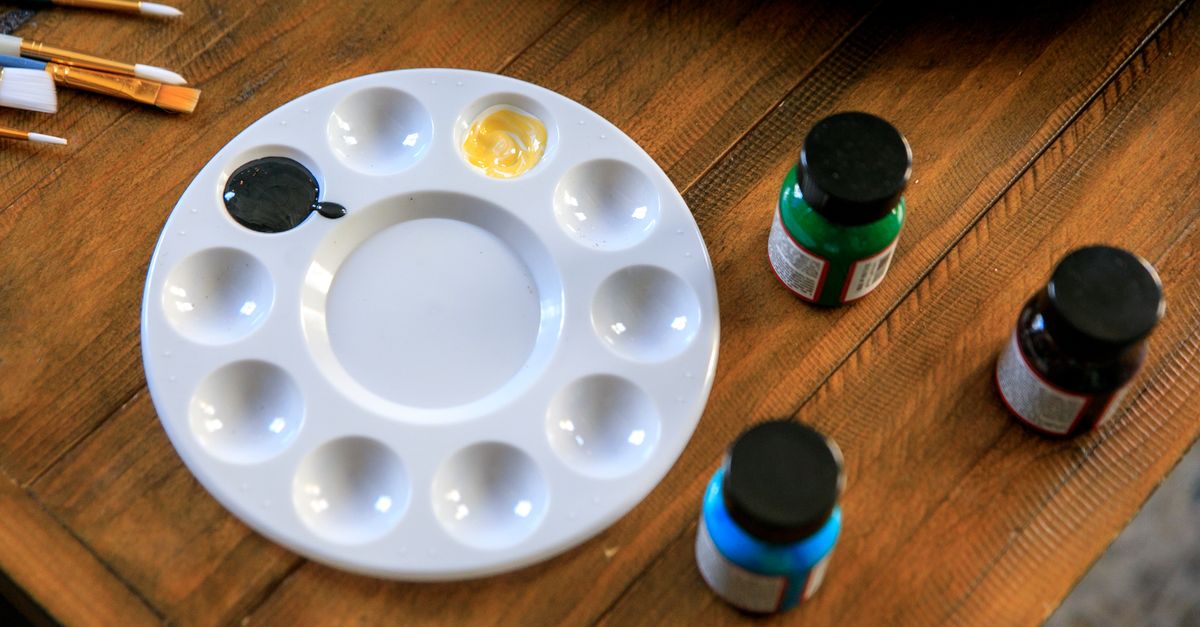
The most important limitation is also the easiest to overlook: a digital HEX blend is not a physical pigment mixture. The Color Mixer combines numerical screen-light values in sRGB. It is not a subtractive paint system, and it does not simulate pigments absorbing light, ink interacting with paper, or the physical behavior of acrylics.
That difference can make a mathematically correct digital result look unlike a result produced from the same named colors on a palette. Traditional paint mixing also depends on the pigments involved, their proportions, the order they are combined, and the surface. A channel average cannot reproduce those material effects.
For websites, apps, icons, charts, and interface graphics, the sRGB method is the relevant model because it produces repeatable values based on the same endpoint colors and ratio. For predicting real acrylics or printer inks on paper, treat the digital result only as an initial reference and rely on a physical test or print proof for the final appearance.
Match the mixing method to the design task
The right workflow depends on what the blended color will be used for. Digital UI work and physical color production require different expectations from the same two input colors.
| Task | Practical approach | Important limitation |
|---|---|---|
| Digital gradient | Use the two endpoint colors, move through several ratios, and inspect the eleven-step gradient. | Copy the exact HEX from the result panel for each selected stop. |
| Hover or focus state | Blend the existing state color toward the target color, then copy the resulting HEX. | Record the ratio so the state can be reproduced later. |
| Chart or interface palette | Sample multiple ratios and save the exact values as separate palette entries. | Do not treat evenly spaced ratios as automatically accessible or visually balanced. |
| Print, ink, or paint | Use the digital blend only as an initial color reference. | Physical samples are needed because the tool does not model pigments or paper. |
If a blended color will become text or sit behind text, check that separate color pair for contrast rather than assuming that a mathematically pleasing blend is readable. Color harmony and accessibility are separate checks, even when both use exact digital values.
Make the result reproducible and ready to use
A small color specification habit prevents most avoidable rework. For each blend that matters, keep these details together:
- Color A: Record the first input in its original position.
- Color B: Record the second input in its original position.
- Ratio: Save the percentage split displayed by the tool, not an approximate slider position.
- Output: Copy the lowercase six-digit HEX rather than retyping a value from a screenshot.
- RGB view: Use the displayed RGB string when checking individual channel values or compatibility with another format.
All color calculations run locally in the browser. Colors, values, and inputs are not uploaded to a server, and the tool requires no sign-up or usage limits. That makes it practical to compare several ratios, revisit a blend, and keep the final specification consistent.
The safest beginner habit is to set both endpoints first, adjust the ratio deliberately, inspect the exact output, and copy the result only when it meets the digital requirement. Treat the value as a precise sRGB screen color—not as a forecast of mixed paint or ink on a physical surface.
Related reading: Find Complementary Color by Hex: Decode, Invert, Verify.
Related reading: Convert HEX to RGB Formula: A Worked Example.