A random color generator palette starts with one click: every press of Generate draws new colors from the full 24-bit RGB space — 256 levels of red, green, and blue, for 16,777,216 possible combinations — and displays each one in three formats you can paste into real work (HEX, RGB, and HSL). The randomness is the point. Designers, illustrators, and front-end developers who already know their default tendencies use the tool to escape those habits and stumble onto pairings they would never have chosen deliberately. The three formats each serve a different job: HEX (#rrggbb) for CSS, Figma, and most design tools; RGB on a 0–255 scale for image editors and any code that mixes screen light; HSL (hue, saturation, lightness) for describing color the way people actually think about it. Click any swatch to copy its HEX, or click the RGB / HSL value to copy that format — no signup, no upload, nothing leaves your browser. The count field accepts anywhere from 1 to 100 colors at once, so a single click can hand you the bones of an entire palette rather than a single chip you have to roll over and over.
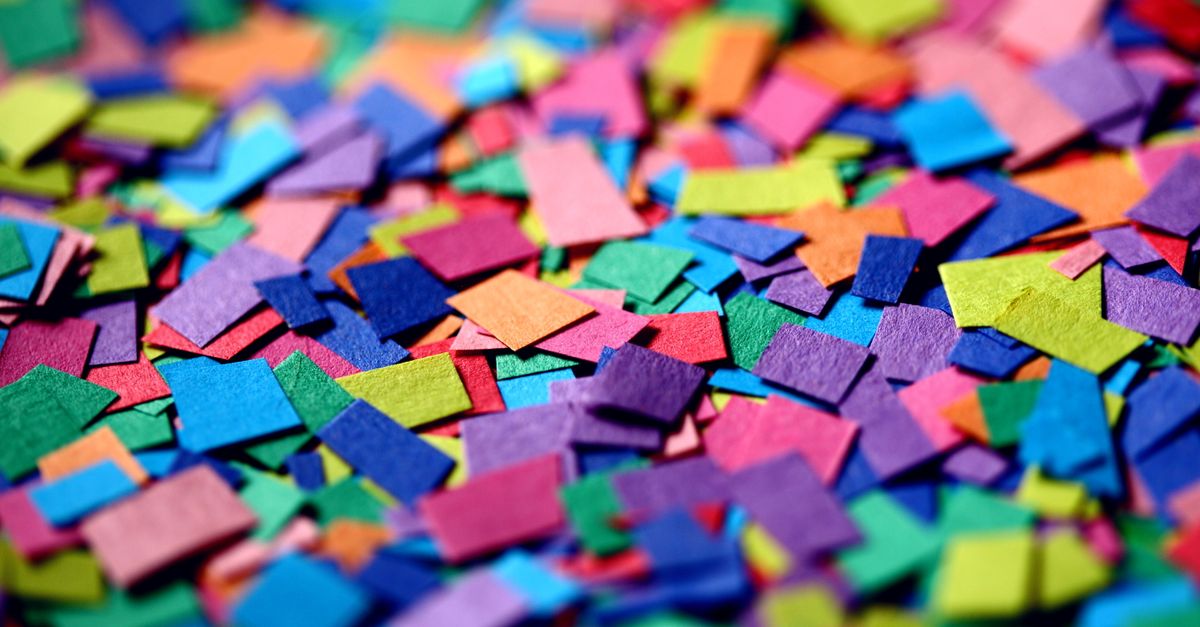
Why a Random Color Generator Solves the Blank-Swatch Problem
Staring at a blank canvas is the enemy of starting. When you already have a "go-to" palette — usually a handful of brand blues, grays, and accents — every new project starts to look like the last one. A random color generator breaks that loop because the choices come from outside your habits.
Every color is drawn uniformly from the entire 24-bit RGB color space. To see how big that space is, multiply 256 (red levels) by 256 (green levels) by 256 (blue levels): 256 × 256 = 65,536, and 65,536 × 256 = 16,777,216. That is the full range a standard display can show, and the generator pulls from all of it equally.
The result is combinations you would rarely reach for on purpose: clashing hues, unexpected mid-tones, off-axis neutrals. That unpredictability is the feature, not a bug. Designers use it to escape their default tendencies; illustrators use it to find a starter motif; front-end developers use it to color chart series, tag labels, avatars, and placeholder UI before the real data exists.
How to Build a Palette From Random Picks
Generating the colors is the easy part. Turning them into something you actually use takes three short decisions.
- Set how many colors you want in the count field (1 to 100). For a five-color palette, enter 5; for an eight-step ramp, enter 8. The tool produces exactly that many swatches in one batch.
- Click Generate to produce a fresh batch of random colors. Each swatch is drawn independently from the full RGB space, so two consecutive generations can be wildly different.
- Click any swatch to copy its HEX, or click the RGB / HSL value to copy that format. Paste straight into CSS, Figma, or a design file.
- Re-roll until the set feels right. Treat each batch as a starting point — if three of five swatches land, click Generate again to replace only the two that don't, or change the count to roll a smaller fix-up set.
That is the entire loop. The full cycle — count, generate, copy — takes a moment and never leaves your browser. No account, no upload, no waiting on a server.
Three Formats, One Swatch: HEX, RGB, and HSL
Each swatch shows the same color in three formats, and each format does a different job in real code and design files.
| Format | Example | Where it fits |
|---|---|---|
| HEX | #3a9d7f | CSS, Figma, most design tools |
| RGB | rgb(58, 157, 127) | Image editors, JS Canvas API, screen-light math |
| HSL | hsl(158, 46%, 42%) | Quick hue shifts, accessible nudging |
HEX is the shorthand most people paste into a stylesheet. RGB is how a screen physically mixes light — three channels on a 0–255 scale — and is what image editors and the JS Canvas API expose. HSL describes color the way humans actually think about it: pick a hue (0–360°), then dial saturation and lightness (0–100%). That structure makes HSL the easiest format to nudge a random result into something usable: bump the lightness, drop the saturation, and the same swatch becomes a tint or a shade of itself.
Palette Ideas You Can Generate Right Now
The fastest way to get value from the tool is to give yourself a job before you click Generate. A loose assignment turns a random batch into a coherent palette. Try these starting prompts:
- Five-color UI palette: enter 5, click Generate, treat the result as background, surface, border, primary action, and accent.
- Eight-step data-viz ramp: enter 8, generate, then sort by lightness in HSL to get an ordered gradient from lightest to darkest.
- Brand starter trio: enter 3, generate, decide which one is the lead and which two become supporting tints.
- Moodboard seed: enter 10 or more, generate, screenshot the batch, and use it as a visual anchor for the rest of the project.
- Avatar and placeholder fills: enter 20, generate, and use the swatches as throwaway background fills while real content is still being decided.
Each of these works because the randomness forces the eye to justify every choice instead of defaulting to it. For a closer look at how a random palette slots into a real design workflow, see Random Color Generator for Web Design: Real Workflows.
Random vs. Harmony-Based Palettes
A random palette is not the same as a harmonious one, and the two serve different jobs.
| Approach | What you get | When it fits |
|---|---|---|
| Random generator | Unpredictable, wide-ranging swatches from the full RGB space | Kickstarting ideas, placeholder UI, breaking creative blocks |
| Harmony rules (complementary, analogous, triadic) | Mathematically related colors built from a base | Final brand systems, illustration sets, anything that needs internal consistency |
Random palettes are best as a starting point. Once a set lands, you can rebalance it with HSL nudges — shift hue to group similar tones, lift or drop lightness to create a ramp — and then, if needed, move to a harmony-based tool like the Color Palette Generator for the final system. The two tools are not rivals; they cover different stages of the same job.
Beyond Inspiration: Practical Uses for Random Palettes
Random palettes are not only for moodboards. Front-end developers seed chart series, tag labels, and avatar backgrounds with random HEX values while real data is still being decided. QA and test engineers use them in fixtures and mock data to make sure color-coded UI does not break on edge inputs. Teachers and students use them to show how the same color looks the same in HEX, RGB, and HSL — a quick way to make the three models click for someone learning the difference. Each of these jobs wants raw, disposable color, not a curated brand system, and a random generator is exactly the right tool for them.
One Caveat: Always Check Contrast
Random colors are not guaranteed to be accessible. Two swatches that look fine side by side can fail WCAG contrast text-only and ship a real usability problem to users with low vision. If a generated color will carry text or meaning, check its contrast ratio against its background before you ship it.
A dedicated Color Contrast Checker is the safest way to do that — paste the HEX of the foreground and background, get the ratio, and see whether it passes AA or AAA at your text size. As a rough rule of thumb, body text needs a higher contrast ratio than large display text, and small UI labels need more separation than bold headlines. Treat any contrast failure as a fix to make, not a warning to ignore.
The fastest way to find palette ideas is to stop picking and let the tool pick for you. Set the count, click once, and let the 16,777,216-color space hand you combinations you would never reach for on purpose. Treat each batch as a starting point, copy the format you actually need, and only check contrast once the palette is ready to ship.
Related reading: Hex to RGB Palette Ideas: From HEX Codes to RGB Channels.