Procreate does not include a built-in CMYK color mode because the app works entirely in RGB, so the standard way to convert RGB to CMYK in Procreate is to read the RGB values from your swatch or ColorDrop and pass them through a browser-based converter such as the RGB to CMYK Converter, which returns the four CMYK percentages using the standard naive formula. The tool scales each RGB channel to 0–1, sets K equal to 1 minus the largest channel, and computes C, M and Y as the leftover values after subtracting that black component — then shows the matching CMYK, RGB and HEX side by side with a live color swatch so you can verify the conversion before sending your artwork to a print shop. Because Procreate cannot export CMYK directly, this read-and-paste workflow is the practical method most illustrators use when preparing a flyer, business card, poster or packaging file for production, and because the conversion runs locally in your browser, nothing is uploaded, the page works offline once loaded, and you can iterate on dozens of swatches without waiting on a server.
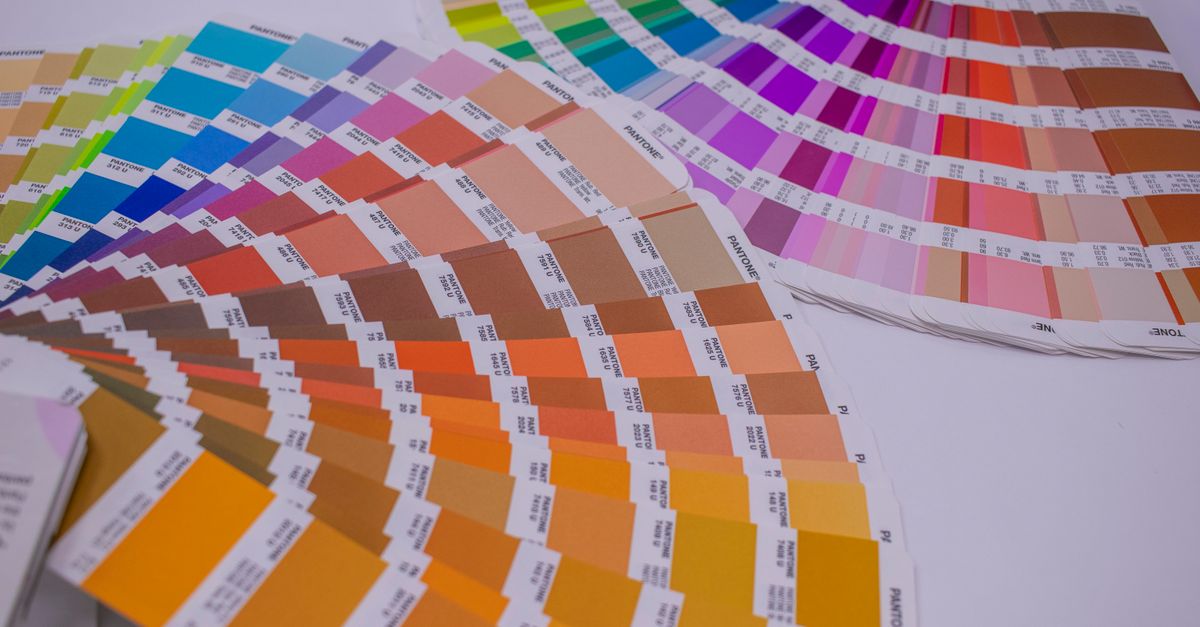
Why Procreate Doesn't Export CMYK Directly
Procreate is designed as a digital painting app for the iPad, and every layer, brush, effect and color picker inside it operates in the sRGB color space. There is no CMYK document mode, no color profile selector, and no export option that writes CMYK channel values into a PDF, TIFF or PSD. When you tap Share and save as a TIFF, PSD, PDF or PNG, the file is always RGB. Printers, however, work in CMYK — they need percentages of cyan, magenta, yellow and black ink to drive their plates. That gap between what Procreate can produce and what a press expects is the entire reason an external conversion step exists. Treating Procreate as your color source and a dedicated converter as your translation step keeps your painting workflow simple while still giving your printer usable numbers.
The same constraint applies to every other consumer-facing illustration app — Krita, Sketchbook, Concepts and most mobile drawing tools are RGB-only by design. CMYK is a print-shop specification, not a creative tool feature, and Procreate's developers deliberately stay on the screen-color side of that line.
Reading RGB Values From Your Procreate Art
Before you can convert anything, you need the actual RGB numbers for the colors you used. Procreate exposes those values in three convenient places.
- ColorDrop panel: tap the colored circle in the top-right of the canvas, then tap the current swatch to open the ColorDrop panel. The bottom of the panel shows the active color's HEX code and its RGB values as a row of three numbers separated by commas.
- Swatches palette: open the Swatches tab from the same color panel and long-press any saved swatch to reveal its RGB triplet.
- Color History: tap the clock icon at the top of the color panel to see every color you've used in the current session, each labeled with its RGB numbers.
Write down the three channel numbers exactly as shown — for example, R 255, G 0, B 0 — and you have everything the browser tool needs. If your artwork contains dozens of custom colors, repeat this for each one before converting, or sample them straight from a flattened TIFF in another app that exposes per-pixel RGB.
How to Convert RGB to CMYK in Procreate With a Browser Tool
- Open the RGB to CMYK Converter in any browser on your iPad, Mac or PC.
- Type your color into the RGB section, entering each channel as a number between 0 and 255.
- Watch the CMYK section populate automatically as four percentages between 0 and 100, alongside the HEX value and a live swatch preview.
- Compare the swatch against the color in your Procreate canvas to confirm the value matches what you intended.
- Click Copy next to the CMYK row to grab the four percentages in C, M, Y, K order, ready to paste into your printer's job ticket, a color callout in InDesign, or a spot-color reference in your PDF.
- If you need to go the other direction — for example, your printer sent you a CMYK swatch you want to preview on screen — switch to the CMYK input and type the four percentages; the tool returns the matching RGB triplet instantly.
Everything runs locally in your browser, so no color value is uploaded and the workflow stays fast and private. For long sessions with many brand colors, keep the tab open and convert each swatch one after another. Out-of-range inputs are clamped automatically, so you never get a broken result even if you mistype a channel.
The Math Behind the Conversion
The RGB to CMYK Converter uses the standard naive formula, which is the same calculation most quick-estimate tools rely on. From RGB, each channel is first divided by 255 to scale it into a 0–1 range. The K (black) value is then set to 1 minus the largest of those three scaled channels, because the three colored inks cannot produce a darker neutral than their weakest member. C, M and Y are whatever color is left after subtracting K from 1 and removing each channel's contribution. Pure black is a special case: when R', G' and B' are all 0, K is set to 100% and C, M and Y are forced to 0.
| RGB | HEX | CMYK | Notes |
|---|---|---|---|
| 255, 0, 0 | #FF0000 | 0, 100, 100, 0 | Pure red — the classic screen-to-print example |
| 0, 255, 0 | #00FF00 | 100, 0, 100, 0 | Pure green at full screen saturation |
| 0, 0, 255 | #0000FF | 100, 100, 0, 0 | Pure blue as it appears on screen |
| 0, 0, 0 | #000000 | 0, 0, 0, 100 | Pure black — handled as the K-only special case |
| 255, 255, 255 | #FFFFFF | 0, 0, 0, 0 | White paper, no ink at all |
Worked example for the pure red case. R' = 255 / 255 = 1, G' = 0 / 255 = 0, B' = 0 / 255 = 0. The largest channel is R', so K = 1 − 1 = 0 (0%). Because K is not 1, the standard formula applies: C = (1 − 1 − 0) / (1 − 0) = 0 (0%), M = (1 − 0 − 0) / (1 − 0) = 1 (100%), Y = (1 − 0 − 0) / (1 − 0) = 1 (100%). The result is CMYK 0, 100, 100, 0 — matching the table row above.
The K channel exists for a practical reason. In theory, layering cyan, magenta and yellow at full strength should make black, but in real printing that combination wastes ink, over-saturates the paper and rarely looks truly black. A dedicated black plate is cheaper, sharper, dries faster and is used for all text, which is why K is broken out as its own channel rather than being mixed from the other three.
Why Screen Colors Often Look Duller on Paper
RGB is additive: red, green and blue light combine, and full intensity of all three produces white. That's how monitors, phones and cameras make color. CMYK is subtractive: cyan, magenta, yellow and a black ink absorb light, and layering all four on white paper moves toward black. The two models cover different color spaces, and the CMYK gamut is physically smaller than the sRGB gamut. Neon greens, electric blues and vivid oranges live outside what process inks can reproduce, so the converter has to approximate them. That approximation is the real reason a bright screen color often looks muted once it comes back from the printer — it is not a conversion bug, it is a fundamental limit of ink on paper.
A few adjustments are worth considering before you commit a brand color. If your design relies on a saturated RGB green, red or blue, sample the CMYK output in the converter and compare the swatch to the original. If the shift is dramatic, ask your printer whether a custom spot color (a Pantone, for example) is available — spot inks are pre-mixed and bypass the CMYK gamut problem entirely, which is how most consumer packaging keeps its shelf-pop.
Getting the Final Numbers Right Before You Print
The naive conversion in the browser tool is excellent for quick estimates, brand-color sanity checks and understanding how the two models relate, but it is not ICC color management. A real print shop converts your file through a specific CMYK profile — US Web Coated SWOP, FOGRA39 for European coated paper, Japan Color and others — that accounts for the actual inks, paper stock, dot gain and press behavior of its equipment. The percentages returned by the naive formula will be close to but rarely identical to what the profile produces.
Use the RGB to CMYK Converter to get a sensible starting value, paste it into your layout file or job spec, then let your printer confirm or correct the numbers when they preflight your artwork. For one-off flyers, posters and business cards the difference is usually small; for packaging, high-end brochures and anything where color accuracy is contractual, the proof sheet from the press is the final word. Always double-check that the CMYK percentages you copy sit inside the ink-limit range your printer specifies — commonly 240% or 300% — because a C+M+Y+K sum above that limit will smudge, bleed or fail to dry on press.
If you're weighing options, RGB to HEX Alternative: A Browser Converter Worth Trying covers this in detail.
If you're weighing options, Convert RGB to HSV in OpenCV: Match the Exact HSV Scale covers this in detail.