A correct CMYK-to-RGB workflow uses ICC profiles for color-critical output and clearly labels profile-free percentage conversion as an approximation. The right method depends on whether the RGB value is for a screen mockup, a rough palette comparison, or a print specification.
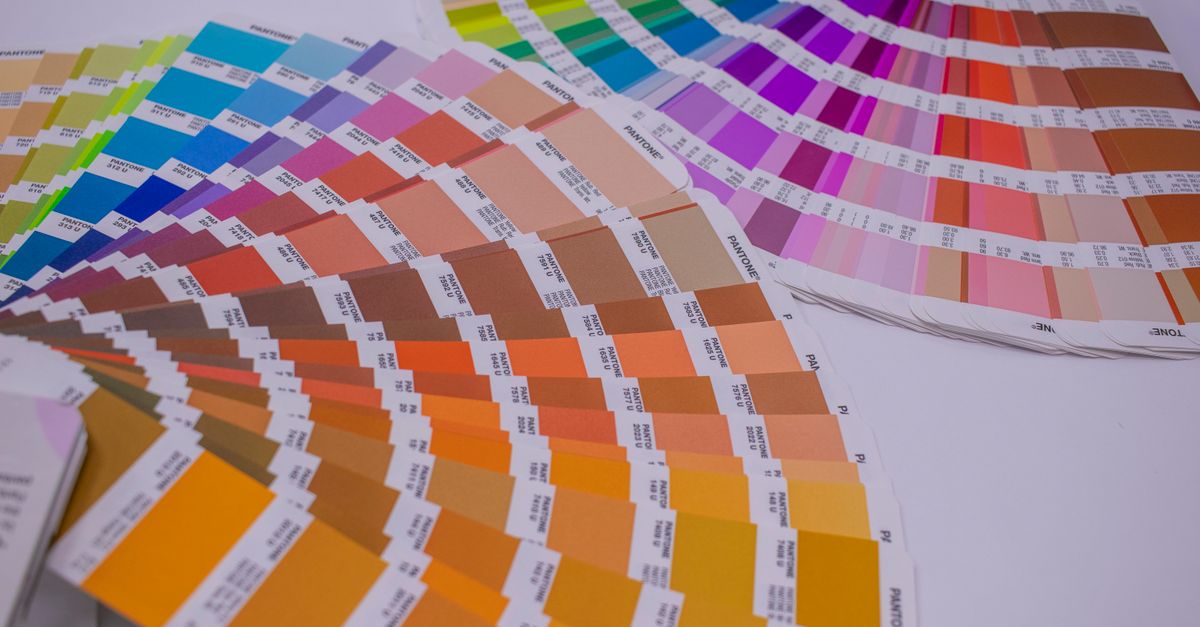
Set the accuracy target before converting
CMYK percentages do not describe one universal visible color. The press, ink set, paper, dot gain, rendering intent, and embedded ICC profile can all change how the same numbers look in print. A browser conversion that uses only the four percentages cannot account for those variables, so it cannot serve as a press proof.
That limitation does not make a naive conversion useless. It establishes a clear expectation: use it to see roughly how an uncalibrated CMYK recipe may appear on an sRGB-style screen. Use a profile-aware application when the RGB value must support print production, color matching, or another color-critical decision.
| Method | What defines it | Appropriate use | Main limitation |
|---|---|---|---|
| W3C naive approximation | Four device-CMYK ink percentages with no ICC profile | Rough interface mockups, palette comparisons, and quick screen checks | The result is approximate and cannot predict a particular press |
| Profile-aware conversion | Source and destination profiles plus a rendering intent | Print production and color-critical decisions | Correct profiles and software settings are required |
| Physical proof | Output evaluated using the printer's process and materials | Final validation before production | It represents only the conditions being proved |
If the deliverable is an interface mockup, an approximate screen conversion can be sufficient. If it is a print file, keep CMYK as the production source and move through a profile-aware workflow instead of treating RGB as the final print specification.
Convert percentages for a quick screen preview
Use the following procedure only when the goal is an approximate screen appearance. It works from an unprofiled CMYK recipe; it does not recover the missing profile or reproduce a printer's conditions.
- Collect the four CMYK percentages. Copy the cyan, magenta, yellow, and black values from the source recipe, and keep the original values available. Each input must be between 0 and 100 percent.
- Enter the ink values. Open the CMYK To RGB browser tool and set the cyan, magenta, yellow, and black controls to those percentages. The preview updates as the values change.
- Read all three outputs together. Review the approximate 8-bit red, green, and blue channels, the six-digit hexadecimal value, and the visible swatch. The numbers are useful for digital specifications, while the swatch helps reveal the general hue and brightness.
- Place the color in its intended context. Use the RGB or hex result in a quick interface mockup or rough palette comparison. Check it in the actual layout and on the display used for review, because an isolated swatch does not show every perceptual interaction with surrounding colors.
- Keep the print source intact. If the color will also be printed, retain the original CMYK values and continue through a profile-aware production workflow. Do not round-trip the print specification through the approximate RGB result.
The conversion and preview run locally in the browser, and the entered color values are not sent to a server. However, the tool does not load an ICC profile, so local processing does not make its output print-accurate.
See what the W3C approximation calculates
The browser calculation follows the device-CMYK fallback in W3C CSS Color 4. It is a mathematical conversion, not a simulation of a press, ink set, paper, or display profile.
After normalizing the percentages to the range from zero to one, the tool uses cyan for the red channel, magenta for green, and yellow for blue. Each display channel follows this formula:
1 − min(1, colorInk × (1 − black) + black)
The result is scaled to the 0–255 display range and serialized as an integer using half-even tie rounding. Black reduces the contribution of the color ink and adds darkness before the channel is inverted. No ICC profile is applied at any stage.
Worked example: With cyan at 0, magenta at 100, yellow at 100, and black at 0, the normalized values are 0, 1, 1, and 0.
- Red: 1 − min(1, 0 × (1 − 0) + 0) = 1, which scales to 255.
- Green: 1 − min(1, 1 × (1 − 0) + 0) = 0, which scales to 0.
- Blue uses yellow and produces 0 with the same calculation.
The approximate output is therefore RGB 255, 0, 0, with the hexadecimal value #FF0000.
This example confirms the fallback's behavior, but it does not predict how a press will reproduce the recipe. Dot gain, ink characteristics, paper, and rendering intent can all move the final printed color away from the screen approximation.
Use a profile-aware print workflow
When print accuracy matters, keep the CMYK recipe connected to the conditions in which it will be printed. Use this sequence instead of approving a browser-generated RGB or hex value:
- Preserve the original CMYK values. Treat them as the production source, not as disposable numbers that can be replaced by an approximate RGB result.
- Establish the source profile. Identify the CMYK profile associated with the recipe or its embedded profile. If it has no source profile, obtain the correct profile from the recipe owner or printer rather than assuming a generic CMYK space.
- Ask the printer for the output profile. The printer can identify the profile associated with the intended press, ink set, paper, and production conditions.
- Use profile-aware software. Assign the appropriate source CMYK and destination RGB profiles, and choose the rendering intent deliberately. Profile-aware applications account for the specified color spaces, intent, ink, and output device.
- Use a calibrated display and a physical proof. The screen supports evaluation of the profile-aware result, while the proof tests how the color is reproduced on the specified materials.
Different RGB values do not necessarily mean that one application has made an arithmetic error. Profile-aware software can produce different results because it uses different color-space, rendering-intent, ink, and output-device information. The naive browser conversion has none of those inputs, so it cannot be expected to match Photoshop, a printer, or another calibrated application.
Do not average conflicting values or select the one that looks preferable. Decide which target and workflow matter, then use evidence from that workflow. The browser result must not be treated as a press proof, contractual color target, or substitute for a calibrated conversion process.
Match the result to its intended use
| Scenario | Evidence to use | Evidence to avoid relying on |
|---|---|---|
| Web or interface mockup | The approximate RGB values, hex code, and swatch checked in the real layout | A claim that the preview predicts ink on press |
| Rough palette comparison | Side-by-side screen previews for broad color relationships | An exact print, brand, or contractual color target |
| Print production | Original CMYK, printer output profile, profile-aware conversion, calibrated display, and physical proof | A browser-only RGB value, hex code, or screenshot |
For screen work, evaluate the generated color alongside the other interface elements rather than judging it in isolation. For print work, record the source CMYK values, the source and output profiles, the selected rendering intent, and the proof status. That record makes it possible to explain why the preview and the production color differ instead of treating the discrepancy as a conversion failure.
The simplest rule is to match the method to the consequence of the decision. A W3C-style percentage conversion is suitable for a quick screen preview; an ICC-profile-aware conversion, calibrated display, and physical proof are required when the color will guide print production.
For a deeper look, see Does a HEX to RGB Converter Work With RGB Input?.
For a deeper look, see Convert RGB to HSV in MATLAB: Step-by-Step Code.