The two practical ways to compare CMYK-to-RGB conversion are a W3C naive approximation for quick screen previews and an ICC-profile-aware application for controlled color work.
CMYK values describe four ink percentages, but they do not identify one universal RGB color. The printed result can change with the press, ink set, paper, dot gain, rendering intent, and embedded ICC profile. A fair comparison therefore starts by separating a rough on-screen design task from a print-accuracy decision. Also, a manual W3C formula and the browser converter are not independent methods when the converter uses that fallback; they represent the same uncalibrated approach.
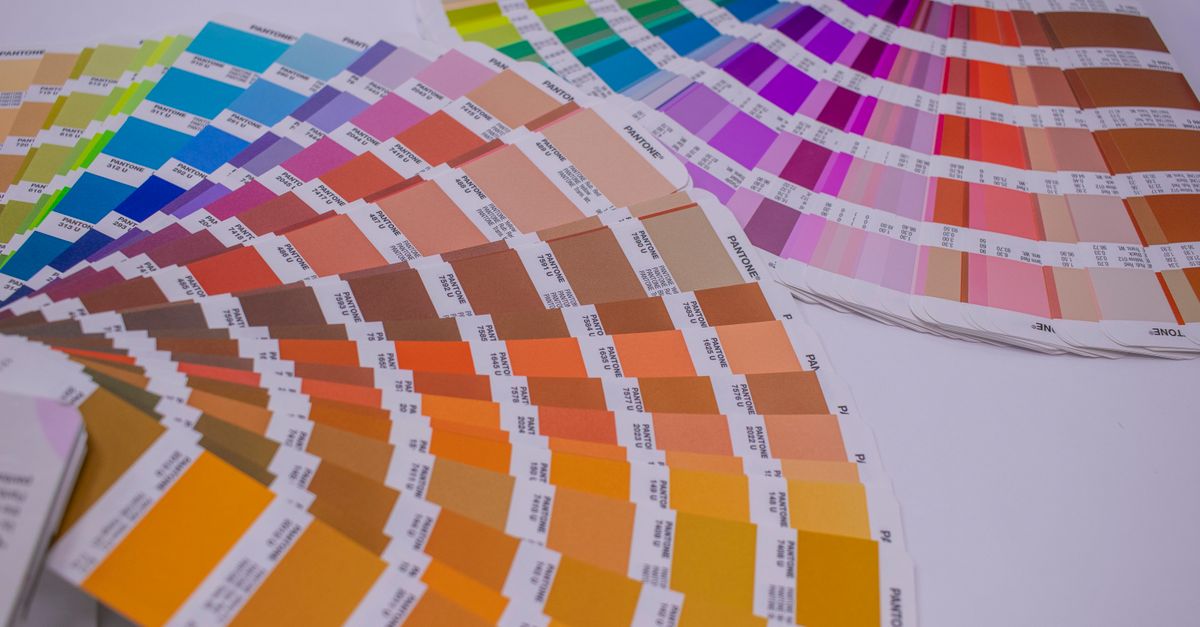
The two conversion routes
W3C naive browser approximation
The CMYK To RGB tool applies the W3C CSS Color naive device-CMYK fallback. Enter cyan, magenta, yellow, and black percentages from 0 through 100, and it calculates approximate 8-bit RGB channels, a six-digit hexadecimal value, and a screen swatch. The same recipe produces a consistent mathematical preview, making the tool useful for interface mockups, rough palette comparisons, and checking how an unprofiled recipe might look on an sRGB-style display. It does not load an ICC profile or simulate a particular printing condition.
ICC-profile-aware conversion
A profile-aware application uses a source CMYK profile, a destination RGB profile, and a rendering intent. The source profile establishes how the CMYK values should be interpreted, while the destination profile defines the target RGB behavior. Professional applications use this color-management context when converting between CMYK and RGB. For print production, keep the original CMYK values, ask the printer for the correct output profile, and use profile-aware software with a calibrated display and a physical proof.
Side-by-side comparison
| Decision point | W3C naive browser route | ICC-profile-aware route |
|---|---|---|
| Conversion basis | Fixed fallback with no ICC profile | Source profile, destination profile, and rendering intent |
| Required input | Four CMYK percentages from 0 to 100 | CMYK values plus the correct source profile |
| Immediate output | Approximate RGB channels, six-digit hex, and swatch | Profile-managed RGB conversion and preview |
| Main strength | Simple, fast, and repeatable screen estimate | Accounts for a defined color-management context |
| Best suited to | Mockups, rough palettes, and unprofiled recipes | Controlled previews and print planning |
| Main limitation | Cannot model a specific press, ink set, paper, or proof | Still requires correct profiles, sound rendering decisions, and appropriate proofing |
| Decision rule | Use when an approximate screen color is enough | Use when print accuracy or a defined destination matters |
These methods are not competing claims to the same exact color. The browser route answers a generic mathematical question, while the profile-aware route answers a contextual question. Comparing their RGB numbers can reveal the effect of different assumptions, but a difference does not automatically mean one method has failed.
Convert CMYK values in the browser
Use this workflow when you need a quick approximation from an unprofiled CMYK recipe.
- Collect the exact cyan, magenta, yellow, and black percentages from the color recipe. Keep the original recipe available for printer communication or a later profile-aware workflow.
- Open the CMYK To RGB browser tool and identify the four percentage controls.
- Set cyan, magenta, yellow, and black to values from 0 through 100. The sliders represent ink percentages, not profile-corrected color controls.
- Read the approximate 8-bit red, green, and blue channels, the six-digit hexadecimal value, and the visual swatch. The results update immediately as the percentages change.
- Use the displayed RGB or hex value in a screen mockup and describe it as an approximate, uncalibrated preview rather than proof of its printed appearance.
- Move to an ICC-profile-aware application whenever print accuracy matters. For production, retain the original CMYK values, obtain the printer's output profile, and use a calibrated display and physical proof.
The browser result is especially useful for testing layout, placeholder palettes, and general color relationships. It is not intended to become a contractual color target or replace a press check.
Compare both outputs on the same recipe
A direct side-by-side test makes the assumptions behind each result visible.
- Record the exact four CMYK percentages and, if it is known, the identity of the source CMYK profile.
- Generate the naive result in the browser tool and save its RGB channels, hex value, and swatch as the generic approximation.
- Import the same CMYK values into a profile-aware application and confirm which source profile is assigned to the document or color.
- Select the destination RGB profile and rendering intent required by your workflow. Do not treat an automatically assigned profile as proof that it matches the intended press or output condition.
- Compare the two swatches under the same viewing conditions, and record the profiles and rendering intent beside the results. Use a calibrated display when the comparison will influence a print decision.
- Choose the output according to its purpose: use the naive preview for a screen mockup, but use the profile-managed result and a physical proof for color-controlled print work.
For an application-specific sequence, see Convert CMYK to RGB in Photoshop for Accurate Screen Previews. A separate quality check is covered in How Do I Check the Result After CMYK to RGB Conversion?
Choose a method by the deliverable
| Goal | Naive browser route | Profile-aware route |
|---|---|---|
| Rapid interface mockup | Good fit | Optional |
| Rough palette comparison | Good fit | Optional when the source profile is known |
| Preview a known print recipe | Useful starting point | Preferred for a controlled decision |
| Prepare artwork for print | Insufficient by itself | Appropriate foundation |
| Approve the final printed color | Not suitable | Use with the printer, calibrated display, and physical proof |
The closer the work moves toward a specific printed outcome, the more important the source profile, destination profile, rendering intent, and proofing conditions become. A convenient browser preview can remain part of the process, but its authority should decrease as print requirements become more precise.
Why the same CMYK can yield different RGB
The browser route follows the W3C device-CMYK naive conversion. After normalizing the percentages to 0–1, it calculates each display channel as 1 − min(1, ink × (1 − black) + black): cyan for red, magenta for green, and yellow for blue. It then scales the result to 0–255 and rounds it to an integer using half-even tie rounding. That fixed rule makes the preview reproducible, but it contains no press, ink, paper, or display profile.
A profile-aware conversion starts with more information, but that information can change the answer. Different rendering intents can produce different RGB values, and an embedded or assigned profile can materially alter the interpretation of the CMYK recipe. The press, ink set, paper, and dot gain can then change the physical appearance again. Screen calibration also affects how either swatch appears. For that reason, a profile-aware RGB value is more contextual, but it is still not automatically a guarantee of the final printed color.
Make the comparison fair
- Use identical CMYK percentages for both routes so the source values are not the source of a discrepancy.
- Record the source profile, destination profile, and rendering intent used in the profile-aware application.
- Compare swatches in the same application and viewing environment, preferably on a calibrated display when print decisions depend on them.
- Treat the browser hex and RGB channels as generic screen values, not measurements taken from printed ink.
- Keep the original CMYK recipe intact and communicate it to the printer alongside the requested output profile.
- Require a physical proof before approving a color-sensitive printed result; software conversion alone cannot show every press and paper effect.
The practical choice is therefore based on the deliverable, not on which method produces a more familiar number. Use the W3C naive browser conversion for quick, repeatable screen exploration. Use ICC-profile-aware conversion when the source and destination must be defined, and add the printer's profile, a calibrated display, and a physical proof when the result is moving into print production.