Enter an RGB value with channels from 0–255 to get CMYK percentages, or enter CMYK percentages from 0–100 to get RGB back. This browser converter handles numeric color values, not image files.
That distinction matters because standard PNG does not support CMYK as a native color type. An “RGB to CMYK PNG” request can mean either calculating ink values for selected colors in an image or transforming the entire image into a print-managed asset.
The RGB to CMYK Converter supports the first task. It accepts RGB or CMYK values, displays the converted values and a live color swatch, and runs locally in your browser, so the color values you enter are not uploaded.
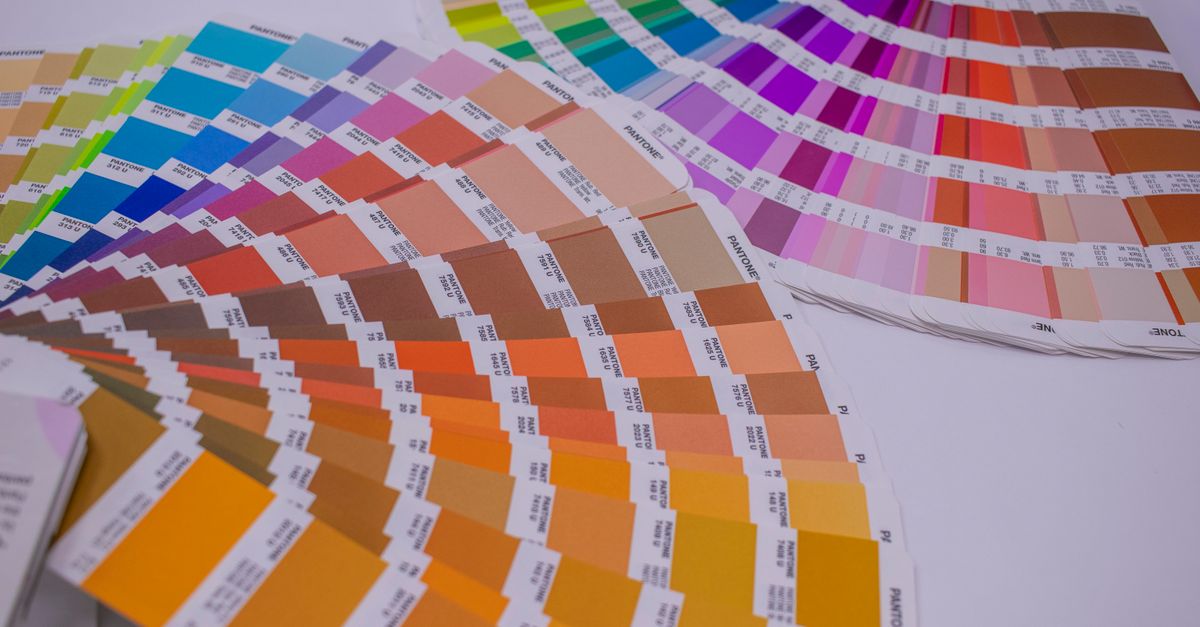
What an RGB to CMYK PNG Request Means
Decide which result you need before choosing a workflow. A single brand color can be represented by four CMYK percentages, while a complete printed image may require thousands of pixels, an output profile, and a physical proof.
| Goal | Supported route | Result |
|---|---|---|
| Convert one solid color from a PNG | Sample its RGB value, enter it in the converter, and copy the CMYK percentages | One C, M, Y, K value set |
| Convert several flat colors | Sample and convert each color separately | A labeled list of CMYK values |
| Process a gradient, photo, or antialiased artwork | Use a profile-managed production workflow rather than one color value | A print result that must be evaluated with a proof |
| Transform an entire RGB PNG | Have a printer or production team convert it with the destination CMYK profile | A print-managed file in the format required by the printer |
The value converter is not a PNG editor, image exporter, ICC color-management engine, or replacement for a print shop’s prepress process.
Convert an RGB Color Value to CMYK
- Enter the R, G, and B channel values for the color you want to convert. If you have a layered source file, reading a solid fill or swatch can provide a cleaner color value than sampling a flattened image.
- Confirm that the RGB values represent the flat, fully opaque color you intend to use. Avoid text edges, soft shadows, gradients, and transparent pixels, because those areas can mix several colors and produce an unsuitable sample.
- Record the R, G, and B channel values. Each channel should be an integer from 0 to 255. If the application displays only a HEX code, convert that code to RGB before entering the values here.
- Enter the three RGB channels in the converter. The tool accepts values in the expected 0–255 range. Out-of-range entries are clamped rather than returned as a broken result, so check the numbers you typed before continuing.
- Review the CMYK, RGB, and HEX readings with the live swatch. The swatch helps confirm that the sampled color was the one you intended, although it cannot reproduce the appearance of paper and press ink.
- Click Copy beside the CMYK format. Use the copied percentage set as a starting reference for a print specification, design file, or conversation with your printer.
- Repeat the process for each distinct flat color. Keep a label beside every result, such as “logo blue” or “background,” so the correct CMYK set is applied to the correct element.
This process produces CMYK values for selected colors, not a modified or newly exported PNG.
Check the Formula and Live Swatch
The converter uses the standard naive RGB-to-CMYK method. It scales each RGB channel to a value from 0 to 1, sets K to 1 minus the largest scaled channel, and calculates C, M, and Y from the color remaining after that black component. Pure black is handled separately as full K with no colored ink.
Formula: K = 1 − max(R′, G′, B′); C = (1 − R′ − K) / (1 − K); M = (1 − G′ − K) / (1 − K); Y = (1 − B′ − K) / (1 − K). For a non-black color, R′ = R / 255, G′ = G / 255, and B′ = B / 255.
Worked example: For RGB(255, 0, 0), the scaled channels are (1, 0, 0). K = 1 − max(1, 0, 0) = 0. With 1 − K = 1, C = (1 − 1 − 0) / 1 = 0, M = (1 − 0 − 0) / 1 = 1, and Y = (1 − 0 − 0) / 1 = 1. The output is CMYK(0%, 100%, 100%, 0%).
The live swatch is useful for catching an incorrect sample or mistyped channel, but it is still a screen preview. The mathematical CMYK result does not account for the profile, inkset, paper, and press conditions that determine the physical output.
Compare RGB, CMYK, and PNG Workflows
| Aspect | RGB | CMYK |
|---|---|---|
| Color model | Additive light | Subtractive ink |
| Typical use | Monitors, phones, cameras, and digital displays | Printed flyers, cards, posters, packaging, and other inked output |
| Channel values | R, G, and B from 0–255 | C, M, Y, and K from 0–100% |
| White behavior | Combining the three light channels produces white | Little or no ink on white paper produces white |
| Black behavior | Removing emitted light produces black | A black plate can be combined with colored inks |
| Production constraint | Can contain colors outside the CMYK gamut | Approximates screen colors and depends on the print profile |
The K channel is separated because cyan, magenta, and yellow alone make a muddy black that can waste ink, over-saturate the paper, and remain unsuitable for crisp text. A dedicated black plate is generally cheaper for solid black, sharper, and faster to dry, which is why K exists as its own print channel.
Where the Print Result Can Differ
The converter provides a sensible mathematical starting point, but it does not predict one exact physical result for every print job.
- No ICC profile is applied. The RGB values are treated as plain sRGB-style numbers without a source or destination profile. A print shop may convert through US Web Coated SWOP, FOGRA39, Japan Color, or another profile chosen for the actual inks and paper, so its percentages can differ noticeably.
- The color gamut is different. Neon greens, electric blues, and bright oranges may fall outside what CMYK inks can reproduce. They are approximated during conversion and can look flatter on paper, which is a gamut limitation rather than a converter error.
- Press behavior is unknown. Paper, dot gain, ink saturation, and press conditions affect the final appearance. The converter cannot account for any of those variables.
- Transparency and antialiasing require separate decisions. Sampling a transparent or smoothed edge can mix multiple source colors. Alpha is not carried through this RGB-to-CMYK calculation, and the tool does not create transparency information for a print file.
Use the result for quick estimates, color education, and preliminary print preparation. Trust the printer’s selected profile and an approved proof for the final production file.
Prepare the Source for a Print Shop
- Ask the printer which CMYK profile and file format they require. The destination workflow determines the correct conversion settings and final deliverable.
- Prefer the original design source when it is available. Editable artwork gives the production team more control than a flattened PNG, especially when the design contains transparency, gradients, effects, or many flat colors.
- Supply the RGB PNG as a reference when required. Ask the printer or production team to perform a profile-based conversion instead of treating the converter’s percentages as final ink settings.
- Request a proof before approving the job. A digital soft proof is useful for checking appearance on a display, while a physical proof provides the better indication of the actual paper and ink combination.
- Approve the proof and request the final export in the printer’s specified format. Standard PNG does not provide a native CMYK color type, so renaming a file or changing its extension does not turn RGB image data into CMYK data.
The CMYK values copied from the converter can accompany the source as helpful references, but the printer’s profile-controlled conversion should determine the production output.
Best Uses for the Converter
The tool fits tasks where a quick numerical estimate is more useful than a production-ready color transformation.
- Turn a flat brand or web color into starting CMYK percentages.
- Understand how additive RGB values map to subtractive ink percentages.
- Sanity-check a color before sending a design to a printer.
- Enter CMYK percentages from a print specification to obtain an approximate RGB and HEX preview.
Everything runs locally in the browser, no entered color is uploaded, and the page can work offline after it has loaded. The result remains best treated as a practical estimate rather than a substitute for profile-based conversion and proofing.
Related reading: Does RGB to HEX Work With RGB Inputs?.
Related reading: Convert RGB to HSV in C++: Complete Code Example.