Converting RGB to CMYK on Android takes about ten seconds inside a browser tab: open the free RGB to CMYK Converter, type the red, green and blue channels from your design into the RGB fields (each between 0 and 255), and the tool returns the matching cyan, magenta, yellow and black percentages you can paste straight into a print file. Your Android phone is an RGB device from end to end — the screen adds red, green and blue light to make every pixel you see, while a printing press subtracts light with cyan, magenta, yellow and black ink on paper. That inversion is why the brand blue on a design app almost never matches the ink that comes back from the printer. The conversion follows a standard naive formula: K equals 1 minus the largest of the three scaled RGB channels, and C, M and Y are what is left over once that black component is removed. Pure black is handled as K at 100 percent with no colored ink. Everything runs locally in your Chrome or Samsung Internet tab — nothing is uploaded, no app install, no account, and the page keeps working offline once it has loaded.
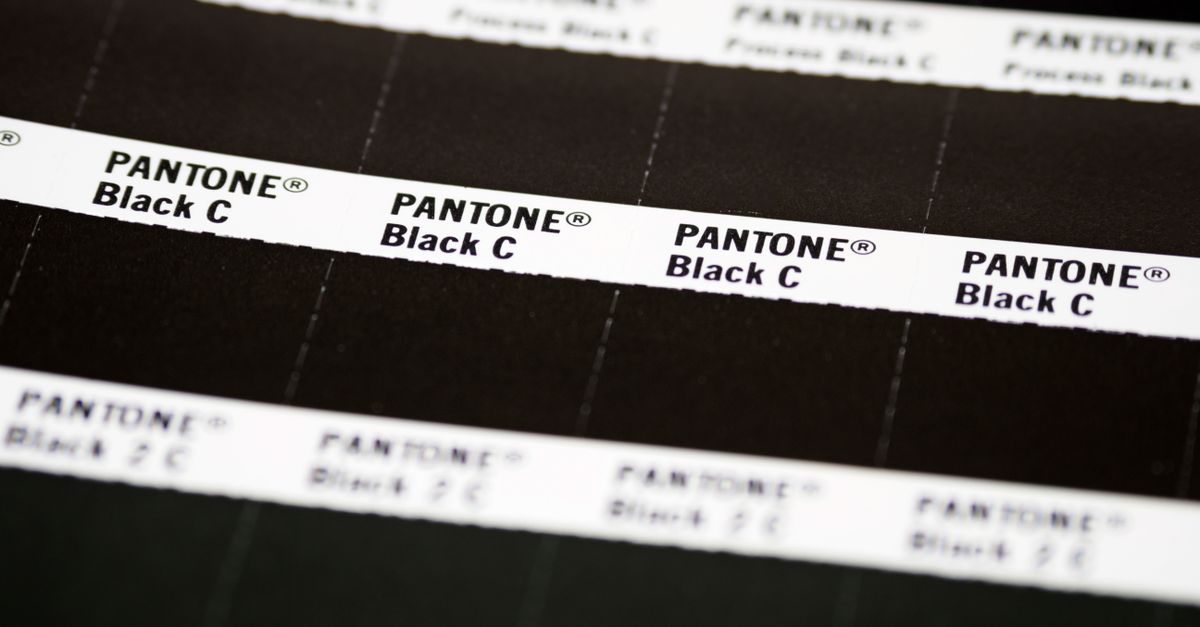
Why Your Android Phone Shows RGB but Printers Need CMYK
Every Android display — Pixel, Galaxy, budget LCD — speaks RGB end to end. Three sub-pixel values combine to make every visible color, with 255/255/255 producing white and 0/0/0 producing black. Photos come off your camera sensor as RGB, mobile design apps like Canva and Adobe Express store assets as RGB, and websites deliver color to your browser as RGB hex values. None of those RGB numbers mean anything to the ink-covered drum inside an offset press or to the small droplets an inkjet printer lays down on coated or uncoated stock.
CMYK works the opposite way. Cyan, magenta and yellow inks are applied to white paper and each one absorbs part of the incident spectrum. The more you layer, the closer the result moves toward black — and a separate K plate provides a true black for crisp text and lower overall ink use. Because the two systems cover different color spaces, a vivid screen blue in RGB can fall outside the printable CMYK gamut and gets approximated instead, often as a slightly darker and duller version. That gamut gap, not a conversion bug, is the real reason printed output frequently disappoints.
What is worth knowing on Android specifically is that color management at the OS level is limited. Apps can request sRGB, but no Android device ships with a true print-target CMYK profile, so any conversion you do on the device is at best a sensible estimate. Use it to set expectations and to give a printer a starting point, then trust the production profile and the press proof for the final file.
Android App, Browser Tab, or Desktop Tool: What Actually Works
Three paths exist for color conversion on Android, and they do not carry equal weight for a real print job.
| Approach | Install or account | Conversion method | Free | Best for |
|---|---|---|---|---|
| Browser-based RGB to CMYK Converter | None — runs in Chrome, Samsung Internet, Firefox, Brave | Standard naive formula, executed locally in JavaScript | Yes | Quick estimates and design-to-print handoff on the phone |
| Standalone Android app from the Play Store | Install plus an account in most cases | Often a wrapped web tool, sometimes naive math, sometimes a paid tier | Usually freemium | Sampling a color from a photo already on the device |
| Desktop pro app (Photoshop, Illustrator, InDesign) | Install plus a paid license or subscription | ICC profile-aware, separates through SWOP, FOGRA39, GRACoL, Japan Color | No | Final production files going on a real press |
For the practical question of converting RGB to CMYK on Android, the browser path is what most designers and small businesses reach for: no install, no permission prompts, the math is plain, and the value can be copied straight into the color picker of any mobile design app. Standalone apps shine when you want to sample a color off a photo in your gallery, and desktop software remains essential when the final file is going to a press that knows its own profile.
How to Convert RGB to CMYK on Android
The browser tool is built for a thumb-sized workflow, so the steps stay small and quick.
- On the phone, open Chrome (or any Android browser) and navigate to the RGB to CMYK Converter.
- Enter the red, green and blue channels of the color you want converted — each as a number between 0 and 255. The live preview swatch updates as you type.
- Read the CMYK percentages the tool produces. Each of C, M, Y and K is shown as a number between 0 and 100, representing how much of that ink a press would lay down.
- Tap Copy next to the CMYK value, or next to the HEX or RGB value, to grab the string for your clipboard. Long-press in a design app and paste directly into the color picker or swatch panel.
- If you have a print spec instead of a screen color, switch direction and paste CMYK percentages into the CMYK fields (each 0–100). The tool runs the inverse math and returns the matching RGB triple.
The same workflow runs on a Samsung foldable, a OnePlus phone or a Lenovo tablet — anywhere a modern browser can execute JavaScript. Because the page does everything client-side, you can convert a color in airplane mode once the page has been cached.
Reading the Four CMYK Channels on a Mobile Screen
On Android, a CMYK value is usually displayed as four numbers separated by commas or percentages — for example "C:75 M:0 Y:100 K:0." Each channel is independent, so unlike RGB there is no order that automatically means "this color." Printers read the four channels in any sequence, but most design apps and the converter show them C first, M second, Y third and K last because that mirrors the order in which ink units are layered on press.
K is the channel most often misunderstood. It is the key plate — a dedicated black ink — and not a mix of the other three. In theory CMY combined makes a dark color; in practice that muddy mix wastes ink, over-saturates the paper and rarely looks truly black, which is why every CMYK press breaks black out as its own channel. A value of K at 100 with C, M and Y at 0 is the printer's "pure black," and most logos and body copy use it so that letterforms stay sharp on uncoated stock.
Reading the output once is rarely enough on a phone — paste the same color into your design app's color picker to confirm the swatch matches the brand reference, and screenshot the page if you plan to email the spec to a print shop or a colleague.
The Formula Behind the Numbers (One Worked Example)
To make the relationship concrete, here is the standard naive conversion walked through once by hand. Take a teal screen color with RGB = (0, 152, 136).
- Scale each channel to 0–1: R' = 0/255 = 0.0000, G' = 152/255 ≈ 0.5961, B' = 136/255 ≈ 0.5333.
- Find the largest of the three scaled channels: max = 0.5961.
- Compute K: K = 1 − 0.5961 ≈ 0.4039, which rounds to 40 percent.
- Compute C, M and Y from what is left over: C = (1 − 0.0000 − 0.4039) / 0.5961 ≈ 1.0000 (100 percent); M = (1 − 0.5961 − 0.4039) / 0.5961 ≈ 0.0000 (0 percent); Y = (1 − 0.5333 − 0.4039) / 0.5961 ≈ 0.1053 (about 11 percent).
- Read the final value as C:100, M:0, Y:11, K:40. The browser tool returns identical numbers for the same RGB input.
This is the formula the converter runs on every input. It is quick, transparent and reproducible, which is why it is the default in browsers, design courses and most online color pickers. For ad-hoc conversions done on a phone, it is also the only formula worth memorizing — anything more sophisticated, such as ICC profile-aware separation against a specific press and paper, typically needs desktop software and a calibrated display.
Before You Send the File to a Print Shop
The naive formula is excellent for estimates and reasonable starting values. It is not a substitute for press output. A real print shop will run your file through a CMYK profile tied to the actual inks, paper stock and dot gain of their press — US Web Coated SWOP for US commercial work, FOGRA39 for European coated stock, GRACoL for commercial offset, Japan Color for many Asian standards. The percentages that come back from those profiles are not the same as the browser's, sometimes by a few points and sometimes by far more, because those formulas were built to model physical ink behavior, not just RGB math.
The honest workflow on Android is therefore: convert here for a quick sense of what the print job will look like, paste those CMYK values into your design app so the on-screen preview is roughly correct, then send the file off to the printer and let their preflight and proof process dial in the real numbers. Most reputable printers will happily provide a soft proof or a sampled swatch before running the full print run.
A few practical tips for handing off from an Android phone: send the artwork as a PDF or another press-ready format specified by the shop, type the CMYK values you used directly into the email body so the printer can spot-check them, and ask the printer to confirm whether their house profile is the same one you have been targeting. If you are sending the original RGB file because the shop prefers to convert themselves, mention that — many shops will reject a self-converted CMYK in favor of running the separation with their own profile.
Related reading: RGB to HEX Shades and Variations: A Channel Walkthrough.
Related reading: RGB to HSV for Web Design: A Practical Guide.