The most common mistakes when mixing two hex colors stem from confusing screen-based additive RGB linear interpolation with physical paint mixing, relying on rigid unweighted 50/50 averages, and assuming digital displays account for human perceptual brightness scales automatically. Digital color blending in web browsers works by calculating a weighted mathematical average for each 8-bit color channel using the formula result = round(A * (1 - ratio) + B * ratio), where the blend ratio ranges from 0.0 to 1.0 across the red, green, and blue channels. When designers and developers try to predict hex outcomes visually, they frequently expect red (#ff0000) and blue (#0000ff) to form a dark, muddy purple—as acrylic paints do on canvas—only to be surprised when digital sRGB interpolation yields a bright magenta (#800080). Other widespread errors include entering invalid string formats, using incorrect channel orders, ignoring contrast accessibility requirements for midpoints, and failing to test intermediate blend ratios when creating UI color scales or hover states.
Understanding how computer screens construct and render digital hues eliminates the mystery behind unexpected blend outputs. When working on digital interfaces, web design systems, or data visualization graphics, avoiding standard mathematical and conceptual pitfalls ensures your final colors remain crisp, accessible, and reproducible across different platforms.
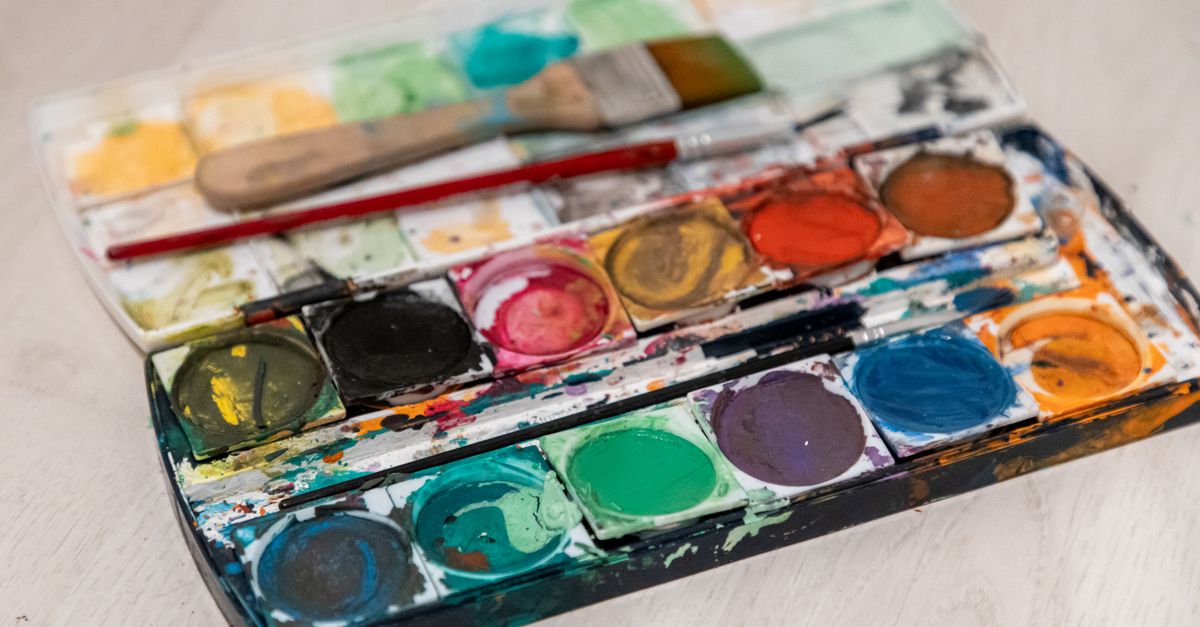
Expecting Digital Hex Mixing to Act Like Physical Paint
The single largest conceptual error people make when blending hex codes is expecting screen-based digital tools to replicate physical pigments. Paint and ink rely on subtractive color mixing: physical pigments absorb (subtract) light wavelengths, so combining multiple pigments causes the final mix to absorb more light, progressively darkening the result toward brown or black. In contrast, digital hex codes represent light emitters on an sRGB display screen. Screen-based color mixing is additive and per-channel, meaning light channels combine or balance without physical light absorption.
Because screen blending calculates weighted averages of red, green, and blue light components individually, combining two pure light primary values maintains high channel brightness values. If you need to evaluate how different digital approaches compare when blending hex codes, reviewing a guide on comparing approaches to mix two HEX colors can help clarify display interpolation behavior versus perceptually uniform color spaces.
| Mixing Medium | Primary System | Mix Process | Red + Blue Result | Light Behavior |
|---|---|---|---|---|
| Digital Screens (sRGB) | Additive (RGB) | Channel Linear Interpolation | Clean Magenta (#800080) | Emits combined screen light values |
| Artist Paints (Acrylic/Oil) | Subtractive (RYB) | Physical Pigment Combination | Muddy Dark Purple or Brown | Absorbs light wavelengths progressively |
| Commercial Printing | Subtractive (CMYK) | Halftone Ink Layering | Deep Violet or Cyan-Rich Black | Filters reflected ambient light |
Relying Exclusively on 50/50 Midpoints
Another frequent error is assuming that a perfect 50/50 split (a ratio of 0.5) is always the correct option for UI elements, hover states, or gradient transitions. In sRGB linear interpolation, a 50% blend takes the exact midpoint of each 8-bit channel (0–255). However, human eyes do not perceive light brightness linearly. A 50/50 midpoint between a very bright color and a very dark color often looks visually biased toward the darker shade, or it can appear muddy and desaturated when blending complementary colors on opposite sides of the color wheel.
To avoid jarring UI transitions or visually dull intermediate shades, high-quality design workflows rely on asymmetric ratio adjustments—such as a 70/30 or 80/20 split—to subtlely nudge a brand color toward a lighter tint or darker shade. If your calculated mix looks gray or off-key, following targeted troubleshooting steps on how to fix a HEX color mix result that looks wrong will guide you through fine-tuning ratio sliders and checking individual channels.
Math Example: Calculating an sRGB Channel Blend
To understand exactly how digital screen blending works under the hood, consider a single-channel calculation using standard sRGB linear interpolation. We can calculate the exact Red channel value when mixing pure red (Color A) and pure blue (Color B) at a ratio split of 30% Color B (ratio = 0.3) and 70% Color A (1 - ratio = 0.7).
- Color A (#FF0000): Red channel = 255
- Color B (#0000FF): Red channel = 0
- Blend Ratio: 0.3 (representing 30% of Color B)
Applying the standard channel interpolation formula:
Result Red = round(Red_A * (1 - ratio) + Red_B * ratio)
Result Red = round(255 * (1 - 0.3) + 0 * 0.3)
Result Red = round(255 * 0.7 + 0)
Result Red = round(178.5) = 179
Converting the integer 179 into hexadecimal yields B3. Performing this arithmetic across all three RGB channels produces the final six-digit hexadecimal color string. Because manually computing hex math for multiple channels invites rounding errors, relying on an automated visual tool ensures precise output every time.
Syntax and Formatting Input Errors
Even experienced web developers occasionally run into issues due to malformed hex values or missing characters during manual coding. Common input mistakes include:
- Missing or Duplicate Hash Marks: Accidental syntax like ##3b82f6 or omitting hash symbols in environments that strictly require them.
- Shorthand Expansion Confusion: Forgetting that 3-digit shorthand values like #f00 expand by duplicate digits to #ff0000, not by appending zeros (#f00000).
- Invalid Hexadecimal Characters: Including non-hexadecimal characters (letters beyond A through F) due to typing errors.
- Case Sensitivity Assumptions: While CSS standardizes hex codes as case-insensitive (e.g., #3B82F6 matches #3b82f6), custom parser scripts or legacy graphics programs may fail if casing is inconsistent.
Using a flexible browser tool like the Color Mixer eliminates these syntax headaches. The tool parses short hex (#f00), full six-digit hex (#3b82f6), and standard rgb() strings while ignoring leading spaces or accidental casing variations.
How to Mix Two Hex Colors Accurately Online
Follow these standard steps using the browser-based mixing engine to generate exact intermediate hex and RGB outputs for any design task:
- Enter your first color: Type a valid hex code (such as #f00 or #3b82f6) or an rgb() string into the Color A field, or click the native visual swatch to choose a color with your mouse.
- Enter your second color: Input your target secondary color into the Color B field using your preferred format.
- Adjust the blend ratio slider: Drag the ratio slider from 0% (100% Color A) up to 100% (100% Color B) to find your desired mix. Setting the slider to 50% gives the exact mathematical midpoint.
- Inspect the live gradient bar: Review the 11-step visual gradient transition display to see all intermediate steps between your two source colors simultaneously.
- Copy your result: Check the mixed result panel for the lowercase six-digit hex and rgb() string, then click the Copy button to store the hex value directly on your clipboard.
Practical Use Cases for Hex Color Blending
Mixing hex codes precisely is a fundamental requirement across modern web design and digital application development. Having direct control over weighted blend ratios solves several practical interface challenges without needing heavy graphic editor downloads.
| Application Context | Primary Goal | Recommended Ratio Approach |
|---|---|---|
| UI Hover & Focus States | Create interactive button feedback states | Mix 10%–15% white or black into the base brand color |
| Data Chart Palettes | Generate multi-step sequential color ramps | Sample equal-interval ratio steps (e.g., 0%, 25%, 50%, 75%, 100%) |
| Brand Color Harmonization | Find subtle neutral bridges between bold brand hues | Blend secondary brand color into background neutrals at low ratios (5%–10%) |
| Custom Dark Mode Themes | Produce softer background surface shades | Blend 8%–12% surface tint into pure dark background gray |
Because all calculation happens locally in your web browser via native client-side scripts, zero color inputs or image assets are uploaded to remote servers. This ensures complete data privacy while providing instant real-time feedback as you adjust blend sliders.