A color palette generator based on one color is a tool that takes a single user-supplied base color and expands it into a complete multi-color scheme using established color harmony rules such as complementary, analogous, triadic, tetradic, split-complementary, and monochromatic relationships. The base color acts as the anchor, and every other swatch in the resulting palette is calculated from its position on the color wheel relative to that anchor. With the Color Palette Generator at /color/color-palette-generator/, you choose the starting shade by typing a HEX value like #3b82f6 or using the visual color picker, then select a harmony type, and the tool instantly produces a matching set with HEX, RGB, and HSL values for every swatch. The result is a coherent palette built from a single decision, which removes the guesswork from picking companion colors for websites, slide decks, illustrations, brand assets, or interior mood boards.
Designers, developers, marketers, and hobbyists all run into the same problem: they have one color they love, often pulled from a logo, a product photo, or a client's brand guidelines, and they need a full working palette around it. Manually adjusting sliders in design software is slow, and random color tools ignore color theory entirely. A harmony-based generator solves both problems at once by applying mathematical relationships to the hue, saturation, and lightness channels of the base color.
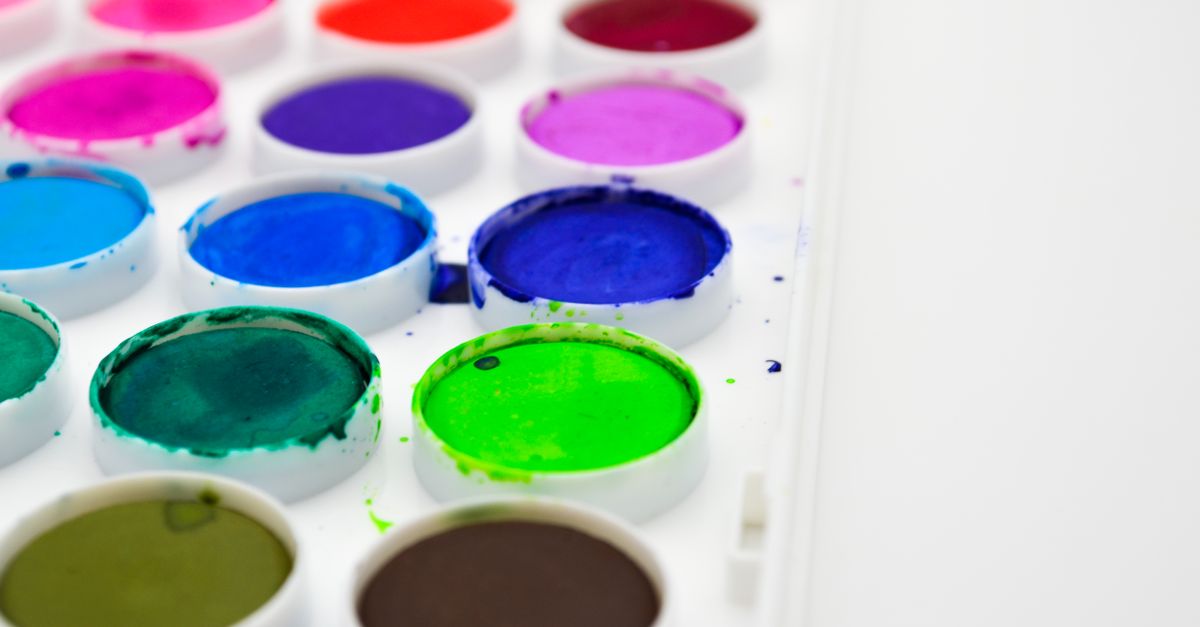
Color Harmony Rules Explained
Every scheme the generator produces comes from a defined geometric relationship on the color wheel. Knowing what each rule produces helps you pick the right one for your project.
| Harmony Type | Hue Relationship to Base | Typical Use |
|---|---|---|
| Complementary | Base + opposite hue (180°) | High-contrast call-to-action buttons, hero sections |
| Analogous | Base + two neighbors (±30°) | Calm, unified backgrounds, nature-inspired branding |
| Triadic | Base + two hues 120° apart | Playful, balanced illustrations, infographics |
| Tetradic | Base + three hues forming a rectangle | Rich dashboards, multi-section layouts |
| Split-complementary | Base + two hues adjacent to its opposite | Bold contrast with less tension than full complementary |
| Monochromatic | Same hue, varied saturation and lightness | Minimalist UI, typography hierarchies, print spreads |
The definitions above reflect the standard color theory conventions used across design software, and the generator applies them as named presets so you do not have to measure angles yourself.
How to Build a Palette From One Base Color
- Open the Color Palette Generator in your browser.
- Set the base color by typing a HEX value such as #3b82f6 into the HEX field, or by clicking the color picker and choosing a shade visually.
- Pick a harmony type from the available options: complementary, analogous, triadic, tetradic, split-complementary, or monochromatic.
- Review the generated swatches. Each one shows its HEX, RGB, and HSL values directly beneath the swatch.
- Click any swatch to copy its HEX code to your clipboard, then paste it into your CSS, design file, or style guide.
- Switch the harmony type on the same base color to preview alternative moods without changing the anchor shade.
The whole process runs locally in the browser, so there is nothing to install and no account to create. If you want to explore palettes without a starting color in mind, the Random Color Generator produces HEX, RGB, and HSL values on demand and pairs well with the palette tool as a discovery step.
Choosing the Right Base Color
The quality of every output palette depends entirely on the base color you supply. A muted, mid-saturation base tends to produce harmonious results across all six rules, while highly saturated neon bases can make complementary and tetradic schemes feel harsh. If you are pulling a color from a logo or photograph, sample it from the largest flat area rather than from a highlight or shadow, so the harmony math has a representative hue to work with. Designers often normalize the sampled value by adjusting saturation and lightness toward the middle of the HSL range before treating it as the anchor.
For digital product work, the base color usually comes from an existing brand token. Type its HEX directly into the generator and every downstream swatch inherits that brand relationship. For print or packaging projects, you may need to convert the brand color first; the CMYK To RGB tool and the RGB to CMYK Converter handle that round-trip when you need to verify how a screen-picked anchor will appear in press output.
Reading HEX, RGB, and HSL Values Together
Beneath every swatch the generator displays three representations of the same color. HEX is the six-character code used in HTML, CSS, and most design tools. RGB breaks the color into red, green, and blue channels on a 0–255 scale, which is the native format for screen displays. HSL expresses the color as hue (0–360°), saturation (0–100%), and lightness (0–100%), which is the most intuitive format for describing harmony relationships because hue alone determines position on the color wheel.
| Format | Example for #3b82f6 | Best For |
|---|---|---|
| HEX | #3b82f6 | CSS, HTML, design tool swatches |
| RGB | rgb(59, 130, 246) | JavaScript color manipulation, canvas, screen output |
| HSL | hsl(217, 91%, 60%) | Describing harmony rules, programmatic shade generation |
If you need to convert between these formats manually or programmatically, the RGB To HEX tool, the HEX to RGB Converter, and the RGB to HSV Converter cover the common routes. For CSS work that needs a smooth transition between two palette colors, the Color Gradient Generator will output ready-to-paste linear and radial gradient code.
Practical Scenarios for Single-Color Palettes
Brand refresh: a company keeps its signature blue but wants supporting tones for a redesigned website. Generate an analogous palette from the brand HEX for backgrounds, tints, and hover states, then a complementary accent for call-to-action buttons.
Dashboard design: a product needs a primary action color plus status colors for success, warning, and error. A tetradic scheme built from the primary brand color produces four balanced hues that share underlying saturation and lightness, keeping the interface unified.
Presentation slides: a monochromatic scheme built from a single corporate color gives a deck a clean, professional look with built-in hierarchy through lightness alone, which avoids the visual noise of clashing hues.
Illustration work: a triadic scheme derived from a chosen focal color gives an artist three balanced hues for character, background, and accent without manually sampling from reference photos. For image-based color picking in tools like Illustrator, the walkthrough at /color/guides/get-a-matching-color-palette-from-an-image-in-illustrator/ covers that workflow.
Combining Palette Output With Accessibility Checks
A palette that looks balanced on the color wheel can still produce unreadable text if the lightness contrast between foreground and background swatches is too low. Before publishing any web or app interface, run your chosen text-and-background pairs through the Color Contrast Checker, which evaluates each combination against the WCAG 2.2 AA and AAA thresholds defined by the W3C. The same evaluation applies to Figma designs, and the practical walkthrough at /color/guides/check-color-contrast-for-accessibility-in-figma-easily/ covers that case. The W3C's Web Content Accessibility Guidelines specify minimum contrast ratios of 4.5:1 for normal text and 3:1 for large text under AA, with stricter 7:1 and 4.5:1 thresholds for AAA.
Working With Related Tools
The Color Palette Generator focuses on harmony from a single anchor. For two-color blending where you want to find the midpoint between two specific HEX values, the Color Mixer shows the exact result with a live gradient between the inputs. For the strict digital inverse of a HEX value, the Complementary Color Finder returns the 8-bit RGB opposite without applying any lightness or saturation adjustments, which differs from the harmony-based complementary preset in the palette generator.
Common Questions Before You Start
Do harmony rules work the same in every design tool? Yes, the underlying angular relationships are standardized, though individual tools may apply slight saturation or lightness tweaks to the generated swatches for visual balance.
Can I lock the base color and try every harmony on it? The generator lets you change the harmony type without re-entering the base color, so you can compare all six schemes from the same anchor.
Will the same HEX always produce the same palette? As long as the harmony preset is the same and the tool uses standard color theory angles, the output is deterministic and reproducible across runs.
Is the tool usable for print workflows? The HEX and RGB values are screen-space colors. For press output, convert your final selection using the CMYK conversion tools and request a proof from your printer before committing to a full run.
Related guide: Get a Perfect Color Palette in Ibis Paint with One Click.
Related reading: How to Calculate Color Difference Between Two HEX Values.
Related reading: Convert Hex Code to RGB in Illustrator in One Click.