A rectangle’s area is length × width, and an accurate result requires both side measurements to use the same unit. The Rectangle Area Calculator applies that formula instantly and returns the area, perimeter, and diagonal from the same two measurements. The calculations run privately in your browser, making the tool useful for rectangular rooms, floors, garden beds, screens, canvases, tables, and sheets of material.
Calculate a rectangle area with verifiable inputs
Accuracy starts with confirming that the shape is a rectangle and measuring its two perpendicular sides. Follow these steps to enter the dimensions and check the result:
- Confirm the shape and dimensions. Make sure the object has four sides and four right angles. Identify one length and one width measured along perpendicular sides rather than estimating from a photograph or rounded drawing.
- Enter the length. Type the numerical length of the rectangle. For the worked example, enter 4 units.
- Enter the width. Type the numerical width using the same unit as the length. In the same example, enter 5 units.
- Read the area. The calculator multiplies the two entered values, giving 4 × 5 = 20 square units for this example.
- Review the perimeter and diagonal. These outputs are shown alongside the area and update instantly as you type, so there is no need to repeat the calculation in a separate formula box.
- Add an optional unit label. Labeling the measurements as centimetres, metres, feet, or another unit makes the output easier to interpret and carry into the next part of your calculation.
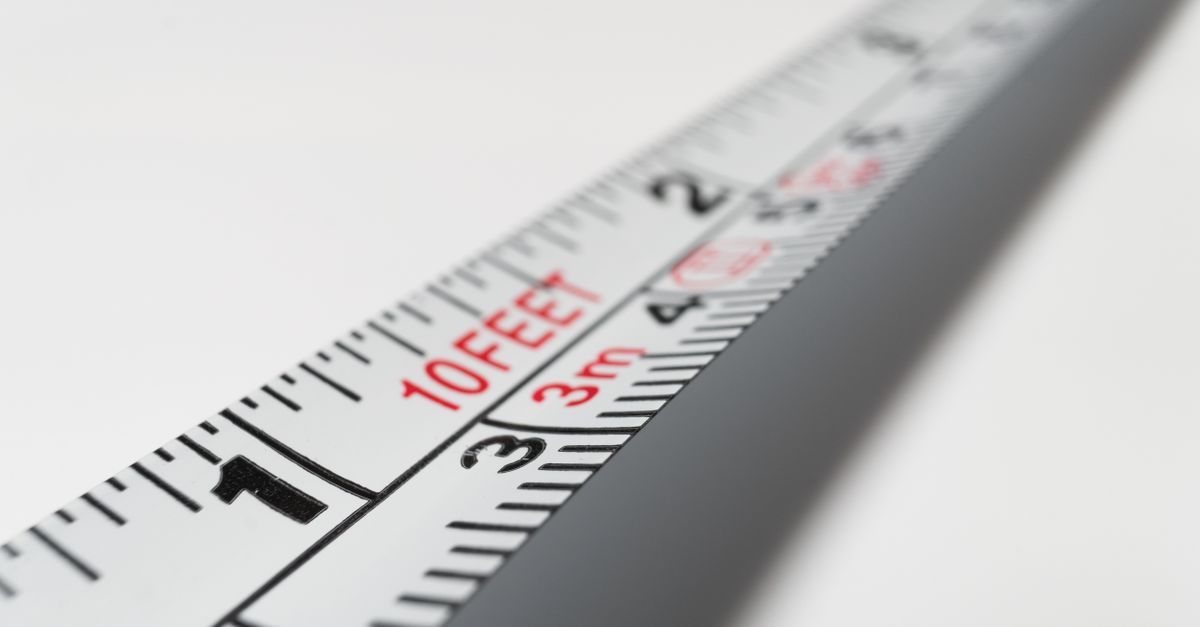
A result can be mathematically correct while still being unsuitable for a real measurement if the original dimensions were estimated poorly. Recheck the tape measure or dimension source whenever the final result affects purchasing, cutting, or installation.
Read area, perimeter, and diagonal correctly
The three outputs answer different questions. Area describes the flat surface inside the rectangle, perimeter describes the full distance around it, and diagonal describes the straight line between opposite corners.
| Output | Formula | Unit | What it tells you |
|---|---|---|---|
| Area | length × width | Square units | The amount of flat space covered by the rectangle. |
| Perimeter | 2 × (length + width) | Linear units | The total distance around the outside of the rectangle. |
| Diagonal | √(length² + width²) | Linear units | The corner-to-corner distance calculated from the Pythagorean theorem. |
Area is the main result for questions about flooring, flat material, a garden bed, or the surface of a canvas. It counts the unit squares contained inside the rectangle, which is why the result is expressed in square units.
Perimeter is useful when you need the edge length rather than the covered surface. It can help with garden fencing, skirting board, or the outside edge of a frame because each of those requires the total distance around the shape.
Diagonal is the straight distance from one corner to the opposite corner. It can help when checking a frame, comparing screen dimensions, or considering how a long item may fit across a rectangular space. The calculator derives it from the same length and width, so there is no need to measure the diagonal separately.
Control units before checking the arithmetic
Unit consistency is the most common reason a rectangle calculation produces a misleading result. Both side measurements must express the same physical unit. If one dimension is in metres and the other is in centimetres, convert one before entering the values. The supported workflow uses the entered length and width directly; it does not rely on an implicit mixed-unit conversion.
Area always uses square units. Measurements in centimetres produce an area in square centimetres, while measurements in metres produce square metres. The perimeter and diagonal retain the original linear unit. An optional unit label helps keep these distinctions clear when copying a result into a quote, material order, or study answer.
Keep the measurements at the precision needed for the task rather than rounding them prematurely. If a dimension is only known to the nearest centimetre, retaining extra invented decimal places does not make it more accurate. Conversely, do not replace a measured decimal with a much rougher figure simply because the final result will be rounded; unnecessary rounding can affect later calculations such as perimeter or diagonal.
Use a repeatable accuracy checklist
Before relying on a rectangle calculation, run through these checks:
- Check the source measurement. Measure each side directly and confirm that the length and width refer to the same rectangle. A dimension copied from an incomplete plan can be mistaken for the full side.
- Check the unit label. Verify that both values use the same unit and that the displayed area uses the corresponding square unit.
- Check the shape assumption. The calculation applies to a true rectangle with perpendicular sides. An L-shaped room, triangular plot, curved wall, or sloping boundary is not represented accurately by two side lengths.
- Check the output against its purpose. Use area for covered surface, perimeter for boundary length, and diagonal for the distance between opposite corners. Choosing the wrong output can still look precise but answer the wrong question.
- Check a square as a special case. When length and width are equal, the area is side², the perimeter is 4 × side, and the diagonal is side × √2. The calculator flags this case automatically.
- Check the final values after typing. Because results update instantly as you type, check that the displayed dimensions match the measurements you intended to enter.
These checks separate arithmetic accuracy from measurement accuracy. The formula is exact for a rectangle with valid inputs, but the final answer can still be wrong if a side was mismeasured, a unit was overlooked, or the real-world shape is not rectangular.
Choose the measurement that answers the job
For flooring or sheet material, area shows how much flat surface is involved. However, the geometric result does not automatically include an allowance for offcuts, overlap, pattern matching, or waste. A separate estimating step may still be needed before ordering.
For fencing, skirting board, or edging, perimeter is the relevant output because those jobs depend on boundary length. For a picture frame or other square-cornered construction, the diagonal provides a check that opposite corners will align correctly.
For a garden bed, canvas, table, or screen, enter the usable length and width rather than the overall size of the packaging. The calculator then gives the geometric values needed to plan the project, while leaving material quantities, prices, and allowances outside the calculation.
Recognize when a rectangle is the wrong model
The most important limitation is geometric. The tool takes one length and one width because those two values define a rectangle. It cannot reconstruct missing corners, changes in direction, sloping ground, alcoves, or other features that make a real space irregular. Such a space needs measurements broken into simpler shapes or a method designed for irregular boundaries.
Measurement uncertainty also remains outside the calculation. A perfect formula cannot correct a stretched tape, a rounded dimension, or a reading taken from the wrong edge. Re-measure uncertain sides and record the unit before entering them.
For a genuine rectangle, enter the length and width, review the square-unit area, and use the perimeter or diagonal only for the part of the project each measurement represents. That workflow keeps the arithmetic simple while making the source of any possible error easy to identify.
For a deeper look, see Excel Retirement Date Formula for Employee Lists.
For a deeper look, see Root Mean Square Error (RMSE) in Excel: Formula and Steps.