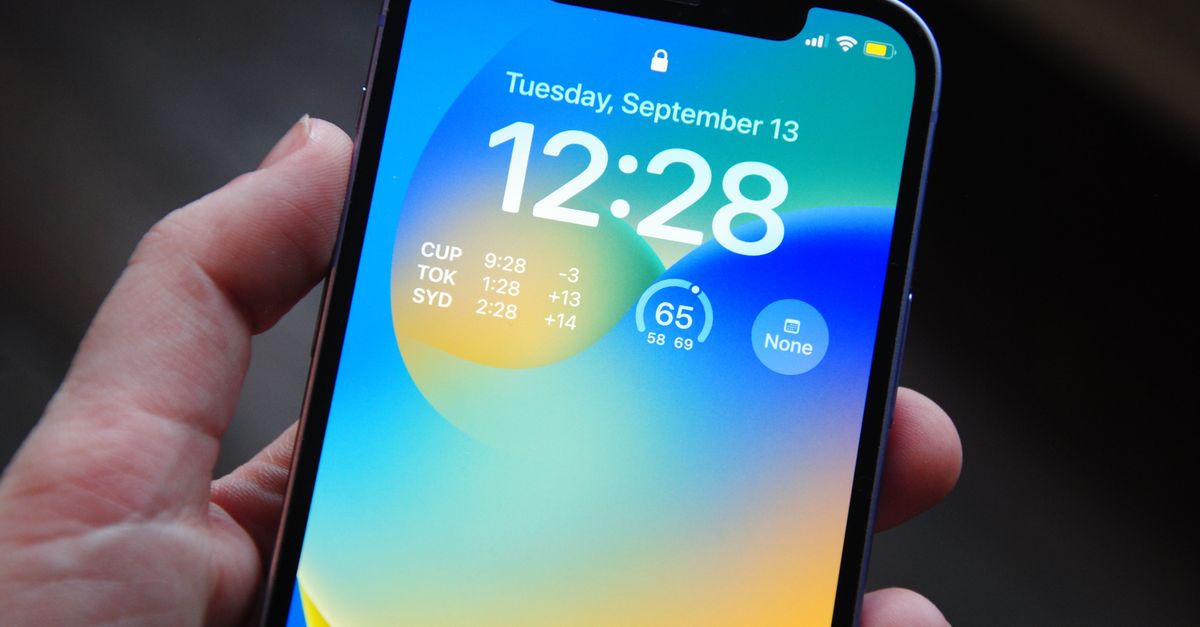
On iPhone, the time zone is changed by opening the Settings app, tapping General, tapping Date & Time, turning off Set Automatically, and then tapping Time Zone to search for or enter a city in the zone you want. That single setting controls the wall-clock time your iPhone displays everywhere, from the lock screen and Control Center to Calendar alerts, Reminders, Messages, third-party apps, and any time-stamped email. When Set Automatically is on, your iPhone silently picks the time zone from your current location using Location Services and, when available, cell network or Wi-Fi data. When it is off, the choice you make under Time Zone sticks, even if you travel across zones, until you change it again. Because the iPhone resolves to a zone, not a city, a search for "London" returns only cities inside the London UTC offset, which is normally correct, but a city near a zone edge such as "El Paso" can sit in either Mountain Time or Central Time depending on the county. If your lock-screen clock suddenly reads the wrong hour, or your meetings appear at the wrong time after a trip, this single toggle is almost always the cause.
What the iPhone Time Zone Setting Actually Controls
Your iPhone maintains two related values: a local wall-clock time and a time zone identifier. The local time is what is drawn on the screen. The zone tells iOS how to interpret a UTC instant, an absolute point on the global timeline, and render it as a local time. The two are linked, which is why changing the zone without updating the wall-clock minute can still show the wrong hour. Apple's iOS stores the zone as an IANA identifier, the same IANA database that modern browsers, server stacks, and Java engines use, so a zone such as America/Los_Angeles on your iPhone means exactly the same thing it does in any compliant calendar or converter.
Most users never need to know that identifier exists. They turn on Set Automatically, let iOS figure it out, and forget. The setting exists for three real situations: the iPhone has no cellular service (for example, a Wi-Fi-only iPad or an iPhone in airplane mode), Location Services is disabled system-wide or for system services, or the user wants to live in one time zone while physically in another. The last case is common for remote workers, traders, and flight crews who split their working days between two countries and need calendar entries to render in a fixed zone.
Change the Time Zone on iPhone Step by Step
Follow these steps in order. They work on every supported version of iOS that ships the current Settings layout, including the most recent releases.
- Open the Settings app from the Home Screen or App Library.
- Scroll down and tap General.
- Tap Date & Time.
- Turn off Set Automatically so the toggle turns grey. This unlocks manual editing of the date, the time, and the time zone. If the toggle is greyed out and will not move, your iPhone is most likely supervised by a school or employer profile, or Screen Time restrictions are enabled; see the troubleshooting section below.
- Tap Time Zone, which appears once Set Automatically is off.
- Type a city name into the search bar at the top of the Time Zone screen, for example "Tokyo", "Paris", or "New York".
- Tap the correct result from the list. The list shows the city alongside its current offset, so you can spot the right one even if several cities share the name.
- Optional: in the same Date & Time menu, toggle 24-Hour Time to flip between 24-hour and 12-hour clock formats. This is purely cosmetic and does not affect the zone itself.
- Press the Home indicator or swipe up to return to the Home Screen. The lock-screen clock updates immediately.
To switch back to automatic detection later, return to Settings > General > Date & Time and turn Set Automatically on again. iOS will resume picking the zone from Location Services and network information.
Why iPhones Get Time Zones Wrong
Even with Set Automatically on, iPhone time zones are not bullet-proof. The four most common failure modes are worth knowing about.
Location Services is off. If you disabled Location Services for system services, usually for privacy reasons, iOS falls back to a coarse estimate from the cell network and Wi-Fi. If neither is available, it may guess based on your last known location, which can be hours or time zones away from where you actually are.
You are at a zone boundary. Some regions sit on a time-zone seam where two zones touch but only one applies to a given address. If your iPhone thinks it is on the wrong side of that seam, the lock screen will show a time that is an hour off until you correct it manually.
Daylight Saving Time shifted recently. In the United States, "spring forward" moves clocks from 02:00 to 03:00 on the second Sunday in March, and "fall back" from 02:00 to 01:00 on the first Sunday in November. Europe shifts on the last Sunday of March and the last Sunday of October. Australia shifts in early October and early April. Most iOS updates ship the new DST rules in advance, but a phone that has not been updated for a long time may handle the shift incorrectly. Apple releases iOS updates to add new zone data, so keeping iOS current is the easiest fix.
You travelled across zones without cellular or Wi-Fi. In flight, your iPhone cannot reach a network to confirm a new location. The last-known zone is kept, which means you land with the wrong clock until either cellular coverage returns or you set the zone manually.
Use the Time Zone Converter to Cross-Check or Plan Across Zones
Once your iPhone is showing the correct zone, you may still need to answer the related question: what time is it in another city right now, or at the moment you are about to dial into a meeting? Apple's own World Clock on iPhone lists current times in chosen cities, but it does not let you pick an arbitrary past or future date, and it does not show the offset of the city you are looking at, which is what you actually need when coordinating with people on the other side of a DST transition.
The Time Zone Converter handles every tricky case in one place. It takes a single date and time exactly as it reads on a clock in your source zone, lets you select that source zone, and then adds one or more target zones. For each target it shows the converted local time, the calendar date, the weekday, and the UTC offset that is in effect at that exact instant. That last detail matters: a wall-clock time such as 12:00 does not correspond to a fixed UTC instant. New York is UTC−5 in January (Eastern Standard Time) and UTC−4 in July (Eastern Daylight Time). A naive converter that assumes a constant offset silently produces times that are an hour wrong for months of the year, and you only notice when a calendar invite lands an hour early or late.
A practical workflow looks like this. Tap Use current time to load the present moment from your own device. Confirm the source zone is the one your iPhone is now showing, for example America/New_York. Add three target chips: Europe/Paris, Asia/Kolkata, and Asia/Tokyo. The converter instantly returns the local time, the calendar date, the weekday, and the current UTC offset for each city. You now know the exact local time, date, weekday, and UTC offset for each city — so you can tell at a glance what hour it is, whether the day has rolled over, and whether daylight saving time is in effect — without doing the math in your head.
The same tool lets you plan a future meeting by typing a specific date and time instead of clicking Use current time. Because the converter resolves your source wall-clock time to a real UTC instant using the browser's own IANA time-zone data and then re-derives each target zone's offset at that exact instant, January and July give different offsets automatically, and the answer is correct on both sides of every DST transition. Around thirty major IANA zones are ready to pick from, including New York, Los Angeles, London, Paris, Berlin, Dubai, Kolkata, Bangkok, Singapore, Shanghai, Tokyo, Auckland, and UTC. Everything runs in your browser with no upload, no network request, and no server round-trip, so your dates and zone choices never leave your device.
Quick Reference: iPhone Time Zone Settings Compared
The table below compares the three states your iPhone can be in and the practical effect on what you see on the screen and on cross-zone conversions. Use it as a quick way to decide which state you want before you start changing settings.
| Setting state | How iPhone picks the zone | What changes when you travel | Best for |
|---|---|---|---|
| Set Automatically on | From Location Services, cell network, and Wi-Fi | Zone updates as you move | Most users, everyday phone use |
| Set Automatically off, zone chosen | From your manual city choice, fixed until you change it | Zone does not change; wall clock may be wrong until you adjust | Remote workers living in one zone while based in another |
| Set Automatically off, zone unset (rare) | Falls back to last-known zone or device default | Behaviour is unpredictable | Not recommended — set a zone explicitly |
Troubleshooting When iPhone Time Zone Will Not Update
If Set Automatically is greyed out, your iPhone is most likely supervised by a school, employer, or Mobile Device Management (MDM) profile that locks the setting. Open Settings > General > VPN & Device Management to see whether a profile is installed; if one is present, you will need the administrator's password to remove it. Screen Time restrictions can also lock the setting: open Settings > Screen Time > Content & Privacy Restrictions, enter the Screen Time passcode if prompted, and check whether Account Changes is restricted. Allowing the change returns the Set Automatically toggle to interactive.
If the toggle is on but your zone is still wrong, try these in order. Restart the iPhone, since a soft restart clears stale location caches. Toggle Airplane Mode on for ten seconds, then off, to force the radio to re-attach. Confirm that Settings > Privacy & Security > Location Services > System Services > Setting Time Zone is switched on; this is the switch that lets iOS use your coordinates to pick the zone. Update iOS to the latest version so DST tables are current. As a last resort, switch off Set Automatically, pick your zone manually, then switch it back on.
For readers who want to verify what their iPhone says against a trusted reference, particularly across DST boundaries, the Time Zone Converter is the fastest way to confirm that the local time shown on your lock screen matches the correct UTC instant for your zone on that day.