The cube root of a number x is the value y that satisfies y³ = x, and on a scientific calculator you can find it in two ways: pressing the dedicated ∛ key, or entering x and raising it to the power 1/3 using the exponent button. For example, ∛64 = 4 because 4 × 4 × 4 = 64, and ∛-27 = -3 because (-3) × (-3) × (-3) = -27. Scientific calculators handle every real input — positives, negatives, and decimals — because cubing a number preserves its sign, so the operation is defined across the entire real number line. That makes cube roots a complete function, unlike square roots which only work for non-negative inputs. When a handheld device isn't handy, an online Cube Root Calculator returns the same answer as you type and shows the verification (∛x)³ = x right beneath it. This guide covers the exact keystrokes for a scientific calculator, the trick for models that don't carry a ∛ key, and when an online tool saves time on homework, scaling problems, or data work.
What the Cube Root Function Does on a Scientific Calculator
A scientific calculator stores the cube root as a single function — usually labeled ∛x, cbrt, or ³√x — that returns the unique real number whose cube equals the input. The function is one-to-one: every real input produces exactly one real cube root, and the sign of the input always matches the sign of the output. That rule comes from how cubing works: (-2) × (-2) × (-2) = -8, so ∛-8 = -2, and the negative carries through.
The ∛ symbol is a radical sign with a small 3 tucked into the notch, marking the index. The same operation can be written as a fractional exponent: ∛x = x^(1/3). Both notations describe the same calculation. Scientific calculators accept either form, which matters because some compact or older models don't ship with a dedicated ∛ key. They do carry an exponent key, so x^(1/3) works on virtually every scientific calculator ever made.
A perfect cube is a number equal to some integer cubed, so its cube root comes out as a clean whole number. The first few are 1, 8, 27, 64, 125, 216, 343, 512, 729, and 1000 — giving cube roots of 1, 2, 3, 4, 5, 6, 7, 8, 9, and 10. Scientific calculators recognize these automatically and display the exact integer. Numbers that aren't perfect cubes, like 2 or 50, have irrational cube roots — ∛2 ≈ 1.2599 and ∛50 ≈ 3.6840 — shown to whatever precision the display mode is set to.
How to Calculate Cube Root on a Scientific Calculator
This is the core task: producing ∛x using the keys on a scientific calculator. The exact sequence depends on whether your model has a dedicated ∛ key, but both routes give the same answer.
- Turn on the calculator and clear any previous entry with the AC or C button so a stale number doesn't carry into your new input.
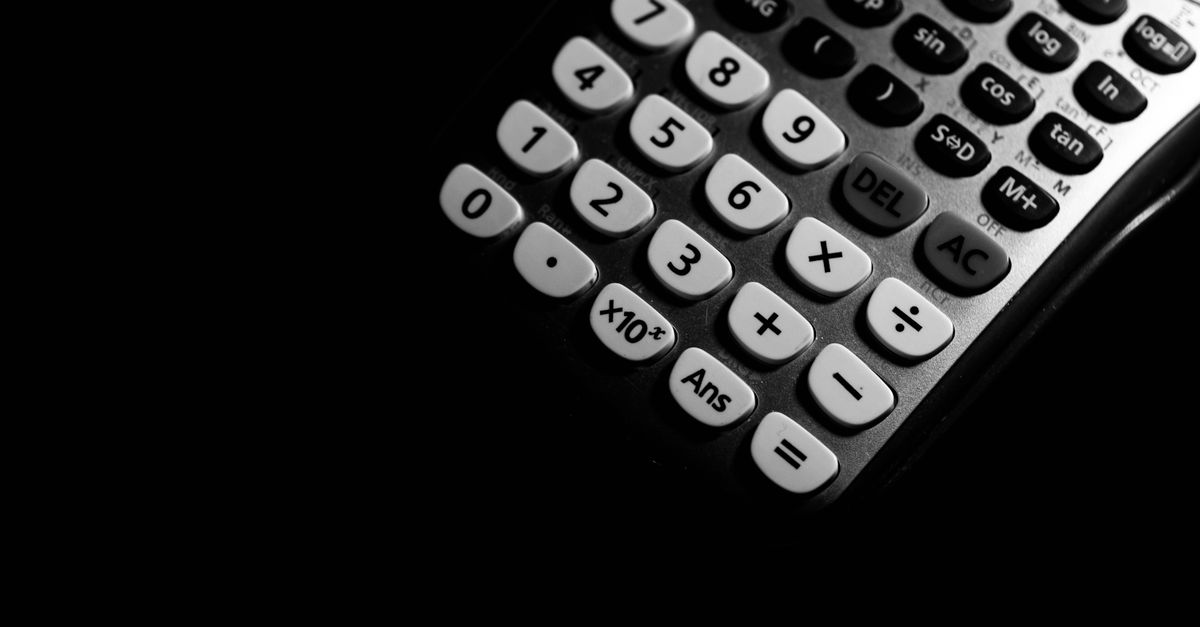
- For models with a ∛ key (most Casio fx-991, fx-85, TI-36X, Sharp EL-W516, and similar): type the number, then press ∛. On Casio and Sharp the key sits above the square root key and reads ∛. On TI models it's accessed through the MATH menu as ³√(, or directly from the keyboard on the TI-30XS.
- For models without a ∛ key (older TI-30, basic scientifics, several HP models): type the number, press the ^ (caret) or x^y key, open a parenthesis if your model requires it, type 1, press the fraction key (a/b or ÷), type 3, close the parenthesis, then press =. The full entry reads 50^(1/3) = and returns the cube root of 50. For users on a non-scientific device, the approach in How to Calculate Cube Root on a Simple Calculator Without ∛ covers the same calculation with regular keypads.
- For negative inputs like -27: type the negative sign first and then the digits so the number is -27, not 27, before applying either method. The display reads -3. If you press ∛ after typing only 27, the calculator sees a positive input and returns 3, which is correct for 27 but wrong for -27.
- For perfect cubes (8, 27, 64, 125, 216, 343, 512, 729, 1000): the answer comes back as a clean integer — 2, 3, 4, 5, 6, 7, 8, 9, 10 — because the cube root of a perfect cube is exact and the calculator recognizes the pattern.
- For numbers that aren't perfect cubes: the display shows a decimal. With the default mode you'll see roughly ten significant digits. ∛2 reads 1.2599210501, and ∛50 reads 3.6840314983. To get more digits, switch the display mode to fix 9 or higher, or use the engineering or scientific mode.
- To verify the answer on the same device: take the result, press ^ or x^y, type 3, press =, and compare the displayed value to your original input. If you started with 50, the calculator should read back 50.000000000 or very close to it. Most scientific calculators perform this check in a single key sequence.
Using the Cube Root Calculator for Faster Results
When typing cube root symbols on a phone, sharing results in a document, or running a quick check during a data review, the Cube Root Calculator does the same work without a key sequence. The tool accepts any number — positive, negative, decimal, or scientific notation like 1.2e6 — in one input box. The result updates live as you type, with no button to press.
- Click into the input box and type any number. Try 50 to see ∛50 ≈ 3.6840314983, or -27 to see ∛-27 = -3 — a result many basic calculators refuse to compute.
- Read the cube root directly from the output line as the digits change. The display shows clean integers for perfect cubes, so 64 reads exactly 4 instead of 3.9999999.
- Glance at the check line beneath the answer: if you typed 50, the verification reads 50.0000…, confirming (3.6840314983)³ ≈ 50. The same line catches input errors before they propagate into later calculations.
The tool uses a sign-aware method, which is why ∛-27 correctly returns -3. Square roots don't behave this way — √-27 has no real value, only an imaginary one — but cubing preserves sign, so every real number has exactly one real cube root. That's the most common point of confusion, and it's why some basic calculators return an error for negative cube root inputs.
Scientific Calculator vs Online Cube Root Calculator
Both methods reach the same numerical answer; the differences are in setup time, input format, and built-in verification. The table below compares the three common routes — the ∛ key, the x^(1/3) trick, and the online tool — so you can pick the right one for the task at hand.
| Method | Best for | Drawbacks |
|---|---|---|
| ∛ key on a scientific calculator | Quick homework checks on a handheld device | Not available on older or compact models |
| x^(1/3) via exponent key | Any scientific calculator, regardless of model | More keystrokes; easy to mistype the fraction |
| Online Cube Root Calculator | Phones, shared documents, negative inputs, large numbers | Requires a browser connection |
When Cube Roots Matter Outside the Classroom
Cube roots aren't just a school topic; they show up whenever a problem involves reversing a cubing operation. The most common cases:
- Finding the edge of a cube from its volume. Given a cube's volume V, its side length is ∛V. A box with a volume of 125 cubic units has an edge of ∛125 = 5 units.
- Physics and engineering scaling laws. Volume scales with the cube of length, so converting between a small prototype and a larger object often takes a cube root — for example, finding the radius of a sphere whose volume you already know.
- Statistics and data work. A cube-root transform tames skewed distributions while keeping negative values intact. A square root transform can't do this, because √-4 has no real value. The online tool makes this kind of transform easy to apply repeatedly across a column of numbers.
- Practical unit conversions. Doubling a cube's volume only increases each side by ∛2 ≈ 1.26, not 2. Doubling any cubed quantity scales the linear dimension by roughly 1.26.
Quick reference: the first ten perfect cubes and their cube roots appear below for fast lookup during homework or a quick estimate.
| n | n³ | ∛(n³) |
|---|---|---|
| 1 | 1 | 1 |
| 2 | 8 | 2 |
| 3 | 27 | 3 |
| 4 | 64 | 4 |
| 5 | 125 | 5 |
| 6 | 216 | 6 |
| 7 | 343 | 7 |
| 8 | 512 | 8 |
| 9 | 729 | 9 |
| 10 | 1000 | 10 |
These clean integer answers are the ones worth memorizing. For any number not on this list, run it through the calculator or your scientific device and use the verification step to catch typos before they cost points.
If you're weighing options, How to Measure the Volume of a Cube covers this in detail.