A cube calculator chart pairs each base x with its cube x³ = x × x × x, so every row connects an input number to the value produced by multiplying it by itself three times.
A chart is most useful when it keeps the base, the operation, and the result in separate columns. The Exponent Calculator handles one base-and-exponent pair at a time. Enter a number, tap x³ to set the exponent to 3, and read the value below; the display updates as you type, so each cube can be verified before it is added to a longer reference chart. Its interface produces the result for the current pair rather than a multirow chart, so a longer table is assembled one row at a time.
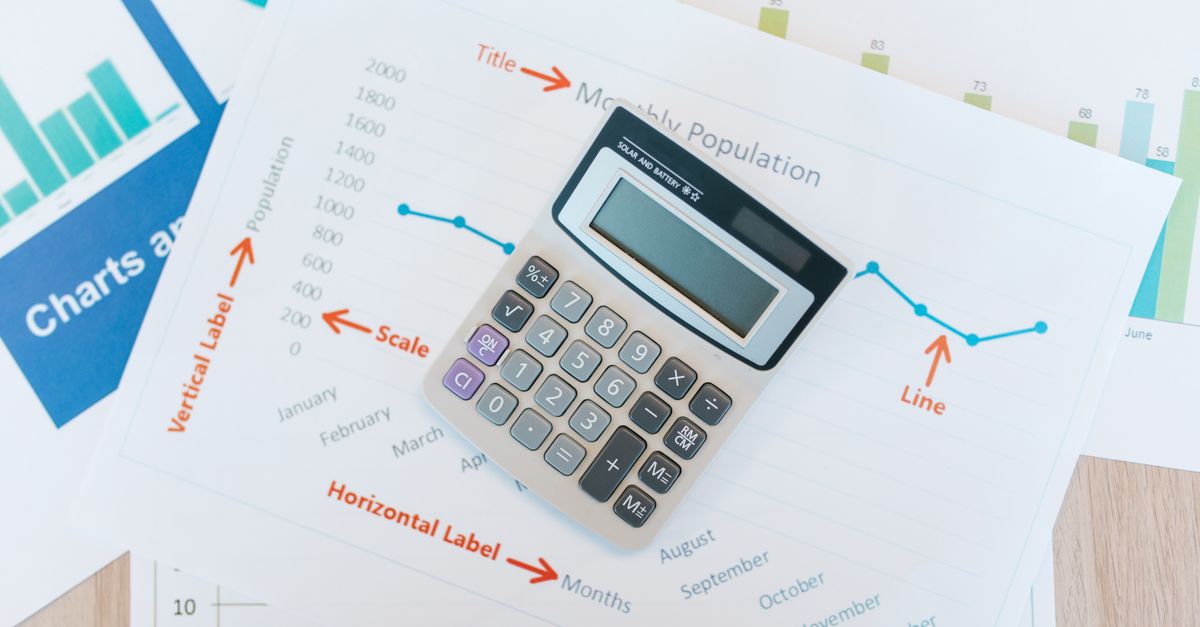
Cube values reference chart
The quick chart below covers positive whole-number bases from 1 through 10. These cube values are exact, and every row uses the same operation: raise the base to the third power. Use the table for a familiar-value reference, then calculate any base outside this range with the tool.
| Base x | Cube expression | Cube value |
|---|---|---|
| 1 | 1³ | 1 |
| 2 | 2³ | 8 |
| 3 | 3³ | 27 |
| 4 | 4³ | 64 |
| 5 | 5³ | 125 |
| 6 | 6³ | 216 |
| 7 | 7³ | 343 |
| 8 | 8³ | 512 |
| 9 | 9³ | 729 |
| 10 | 10³ | 1,000 |
Read across each row rather than memorizing the value in isolation: the first column identifies the input, the expression shows that the input is being cubed, and the last column records the output. For zero, negative numbers, decimals, or bases beyond the chart, use the calculator instead of extending the visible pattern by eye. The exponent 3 is a whole number, so negative and decimal bases remain within the calculator’s supported cube workflow.
Calculate a cube step by step
The direct cube workflow is short because the x³ control supplies the correct exponent automatically.
- Identify the base. Decide which number is being cubed. It may be positive, negative, whole, or decimal. Write that number in the chart’s base column.
- Enter the base. Type the numeric base into the first field. Do not put the full cube expression into this field.
- Set the exponent to 3. Tap x³, which places 3 in the exponent field automatically, or type 3 yourself.
- Read the result. The base^exponent answer appears below without a calculation button. For a small whole-number power, the tool also shows the repeated-multiplication expansion so the result can be checked.
- Record the entry. Save the base, the cube expression, and the displayed result in your chart. For another row, replace the base and confirm that the exponent is still set to 3; set it again if necessary.
For example, 4³ = 4 × 4 × 4 = 64. The corresponding chart row contains 4 as the base, 4³ as the expression, and 64 as the value. The factors provide a visible check on the calculator’s final output.
Keep the input and exponent separate throughout the process. Typing a complete multiplication expression into the base field would change the problem rather than calculate the requested cube.
Build a chart that stays unambiguous
A dependable cube chart uses consistent labels so a reader cannot confuse a cube with a square, a cube root, or a volume formula. The recommended layout separates the number, the operation, the answer, and any outside context.
| Chart column | What to record | Common mistake to avoid |
|---|---|---|
| Base | The exact numeric input placed in the first field | Putting the exponent or entire expression in the base field |
| Operation | x³ or the equivalent exponent 3 | Labeling a cube-root calculation as a cube |
| Value | The displayed base^exponent result | Recording only the repeated-multiplication factors and omitting the final answer |
| Context or units | The purpose of the row and any relevant unit | Assuming the calculator adds units that were never entered |
For a plain values chart, use three columns: Base, Cube expression, and Cube value. For a cube-volume worksheet, add a Units or Context column and enter the side length as the base. If that length is entered in centimeters, label the calculated cube in cubic centimeters; the calculator handles the numeric power while the unit label belongs in your chart.
- Keep one operation per column. Do not mix x², x³, and root results in an unlabeled sequence, because a reader may be unable to tell which exponent produced each value.
- Show signs explicitly. A negative base cubed has a negative result, so a signed-number chart should preserve the minus sign on both the input and output.
- Preserve the displayed format. When an extreme answer appears in scientific notation, record it in that form rather than attempting unsupported expansion.
- Add verified rows only. Check the current base, exponent, and result before copying them into the next row. This prevents an earlier value from being accidentally carried into the chart.
Separate cubes from roots and related powers
A cube chart follows the direction from base to base³. A cube-root chart follows a value back to its base. These operations should never share an unlabeled Result column. The √x control serves a different purpose: it sets the exponent to 0.5 and produces a square root, not a cube root.
The Exponent Calculator does not calculate negative bases raised to fractional exponents. Because a decimal exponent may not reveal the exact fraction intended, the tool does not guess and explains when a result would be complex. A negative cube root should therefore not be presented as an output obtained from a fractional exponent in this calculator. For that inverse operation, see how to calculate the cube root of a number by hand.
This fractional-exponent restriction does not affect a normal cube row. Cubing uses the whole-number exponent 3, so negative bases can be cubed and the result remains a real number.
Edge cases, range, and a final chart check
Most cube-chart rows use exponent 3, but a shared power calculator may also display other cases. Keep these limits in mind so that the chart reflects the tool’s actual behavior.
- Zero with a negative exponent: A negative power of zero is undefined because it would require division by zero. The calculator flags this case instead of printing a broken numeric value.
- Zero to the zero power: This calculator follows the computing convention that 0⁰ equals 1 because it treats the empty product as 1. Mathematicians often describe 0⁰ as an indeterminate form, so the convention should be stated if that row appears in a reference chart.
- Extreme results: Very large or very small answers switch to scientific notation. A value above roughly 1.8 × 10^308 exceeds the representable computer range and is labeled too large rather than displayed as infinity.
- Local processing: The calculation happens in the browser, nothing is sent to a server, and the tool works offline. That makes it suitable for checking chart entries without uploading worksheet data.
- Accepted input formats: Both fields accept whole numbers and decimals. The important distinction is that negative bases are calculated only with whole-number exponents.
Before finalizing the chart, confirm that every row has a base, an operation, and a result. Check that the cube control or exponent value is 3, verify that signs and decimal points match the displayed answer, and make sure the title says cube rather than cube root. If the calculator reports an undefined case, a complex result, or an answer that is too large, retain that label instead of replacing it with zero or another guessed number. This creates a chart that states both what was calculated and how each result was obtained.