To convert a date format in Excel or anywhere else, you need two things: the original date and a clear target format like ISO 8601 (YYYY-MM-DD), US (MM/DD/YYYY), or European (DD/MM/YYYY). Excel itself stores dates as sequential serial numbers (day 1 = January 1, 1900), so changing how the date appears—without altering the underlying value—is done through cell formatting. However, if you need to export a date into a specific string format for a report, API, or database, Excel’s built-in formatting may not cover all cases, especially long-form or word-based formats like “Monday, January 1, 2024.” That’s where a dedicated Date Format Converter comes in: it takes any date and instantly displays it in eight common formats, letting you copy the exact string you need with one click—no formulas, macros, or manual typing required.
Excel users often run into date-format frustration when sharing files across regions or systems. A date like “07/04/2024” can mean July 4 in the US but April 7 in Europe, leading to errors in reports, invoices, or schedules. While Excel’s Format Cells dialog (Ctrl+1) lets you switch between built-in formats, it doesn’t cover every scenario—like converting to Unix timestamp, ordinal format (e.g., “4th”), or spelled-out words. Additionally, Excel’s regional settings can override your chosen format if the file is opened on a computer with different locale settings. For tasks like data entry, software development, or international collaboration, having a neutral, online tool that shows all possible formats at once saves time and reduces mistakes. Whether you’re preparing a dataset for a SQL query, writing a contract, or simply ensuring consistency in a shared spreadsheet, the ability to convert a date into any format instantly—without leaving your browser—is a practical solution.
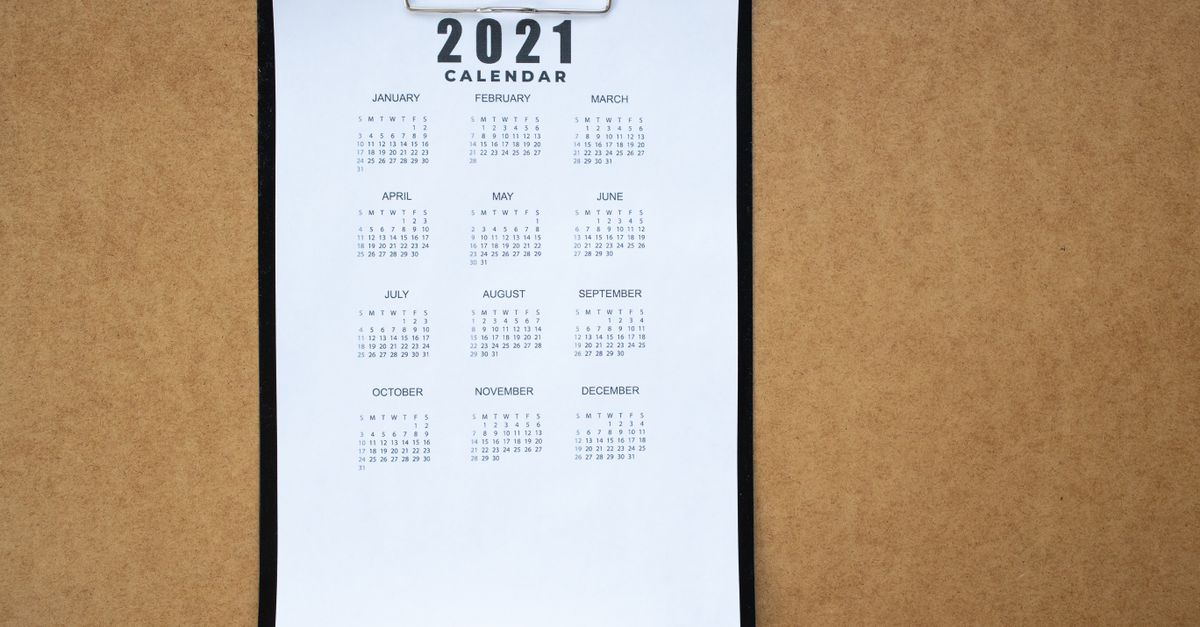
How Excel Handles Dates Internally
Excel treats dates as serial numbers where January 1, 1900 is day 1 (or 0 in some systems like 1904 date mode). This means the date “July 4, 2024” is stored as the number 45477, but displayed as “7/4/2024” (US) or “04/07/2024” (EU) depending on your system’s regional settings. When you change the format in Excel, you’re only changing how the number is displayed—not the number itself. This is why sorting, filtering, and calculations still work correctly even if the date looks different. However, if you copy a formatted date as text (e.g., Ctrl+C), you’re copying the displayed string, not the underlying number. This can cause issues when pasting into other systems that expect a specific format, like YYYY-MM-DD for databases or APIs.
To see the underlying serial number in Excel, change the cell format to “General.” For example, if cell A1 shows “7/4/2024,” switching to General might display 45477. This is useful for debugging or when you need to perform date arithmetic, like adding days or calculating differences. However, for most users, the key challenge is getting the date to display in the correct format for their audience—whether that’s colleagues in another country, a software system, or a printed report. While Excel’s Format Cells dialog offers a range of built-in date formats, it doesn’t cover every use case, such as converting to Unix time (seconds since 1970), ordinal formats (e.g., “4th”), or spelled-out words (e.g., “July fourth, two thousand twenty-four”).
Convert Date Format in Excel Step by Step
If you need to change how a date appears in Excel, follow these steps to use the Format Cells feature. This method changes the display format without altering the underlying date value, so calculations and sorting remain accurate.
- Select the cell(s) containing the date(s) you want to reformat. You can select a single cell, a range, or an entire column.
- Right-click the selected cell(s) and choose Format Cells from the context menu (or press Ctrl+1 on Windows or Cmd+1 on Mac).
- In the Format Cells dialog, go to the Number tab and select Date from the category list on the left.
- Under Locale (location), choose the region whose date format you want. For example, select English (United States) for MM/DD/YYYY or English (United Kingdom) for DD/MM/YYYY.
- In the Type list, pick the specific format you need, such as:
- MM/DD/YYYY (e.g., 07/04/2024)
- DD-MM-YYYY (e.g., 04-07-2024)
- DD-MMM-YYYY (e.g., 04-Jul-2024)
- MMMM D, YYYY (e.g., July 4, 2024)
- YYYY-MM-DD (ISO 8601, e.g., 2024-07-04)
- Click OK to apply the format. The date(s) will now display in the chosen format while keeping the same underlying value.
- Verify the change by switching the cell format to “General” temporarily—you should see the same serial number as before, confirming the date value hasn’t changed.
If the format you need isn’t listed in Excel’s built-in options (e.g., Unix timestamp, ordinal format, or spelled-out words), you’ll need to use a formula or an external tool. For example, to convert a date to a Unix timestamp in Excel, you can use the formula = (A1 - DATE(1970,1,1)) * 86400, where A1 contains your date. However, this requires manual calculation and doesn’t cover all formats. For a quicker, more comprehensive solution, an online Date Format Converter lets you input a date once and see it in eight formats at once, including ISO, US, EU, long, weekday, ordinal, words, and Unix—ready to copy and paste into Excel or any other system.
When Excel’s Formatting Isn’t Enough
Excel’s Format Cells feature is powerful for basic date formatting, but it has limitations. For example, it can’t display dates in ordinal format (e.g., “4th”), spelled-out words (e.g., “July fourth”), or Unix timestamps (seconds since January 1, 1970). It also doesn’t account for regional preferences beyond the built-in locale options, which can be a problem when working with international teams or systems that require specific formats. Additionally, Excel’s formatting is tied to the workbook’s regional settings, so opening the same file on a computer with different settings can change how dates appear—even if you’ve set a custom format. This can lead to confusion or errors in shared files, especially in collaborative environments.
Another limitation is that Excel’s formatting only changes how the date is displayed, not how it’s stored or exported. If you copy a formatted date as text (e.g., “July 4, 2024”) and paste it into another system, you’re pasting the displayed string, not the underlying date value. This can cause issues in databases, APIs, or other software that expect dates in a specific format, like YYYY-MM-DD (ISO 8601). For example, a database might reject “07/04/2024” because it expects “2024-07-04.” Similarly, if you need to generate a report with dates in long-form (e.g., “Monday, July 4, 2024”), Excel’s formatting options won’t help—you’d need to use a formula or an external tool to achieve this.
For these scenarios, an online Date Format Converter is a practical alternative. It lets you input a date once and instantly see it in eight common formats, including ISO, US, EU, long, weekday, ordinal, words, and Unix. Each format is displayed in a clear, copyable format, so you can use it in Excel, documents, code, or any other system without manual reformatting. This is especially useful for tasks like:
- Preparing data for APIs or databases that require ISO 8601 format (YYYY-MM-DD).
- Generating reports with long-form dates (e.g., “Monday, July 4, 2024”).
- Converting dates to Unix timestamps for programming or scripting.
- Ensuring consistency in shared files across different regions or systems.
- Quickly copying a date in the correct format for emails, contracts, or presentations.
How to Use the Date Format Converter Online
If you need to convert a date into multiple formats quickly—without formulas or Excel’s formatting limitations—follow these steps to use the Date Format Converter:
- Open the tool in your browser at /calculator/date-format-converter/. No installation or signup is required.
- Pick a date in the date field. The tool defaults to today’s date, but you can change it by clicking the calendar icon or typing a date in any format (e.g., 07/04/2024, 4-Jul-2024, or 20240704).
- View all formats instantly below the date field. The tool displays the date in eight common formats:
- ISO: YYYY-MM-DD (e.g., 2024-07-04)
- US: MM/DD/YYYY (e.g., 07/04/2024)
- European: DD/MM/YYYY (e.g., 04/07/2024)
- Long: Weekday, Month D, YYYY (e.g., Thursday, July 4, 2024)
- Weekday: Full weekday name (e.g., Thursday)
- Ordinal: Dth (e.g., 4th)
- Words: Month D, YYYY in words (e.g., July fourth, two thousand twenty-four)
- Unix: Seconds since January 1, 1970 (e.g., 1719993600)
- Copy any format by clicking the Copy button next to the format you need. The tool places the exact string on your clipboard, ready to paste into Excel, a document, or code.
- Use the copied date wherever you need it. For example:
- Paste the ISO format into a database or API request.
- Paste the long format into a report or email.
- Paste the Unix timestamp into a script or programming environment.
- Repeat for other dates as needed. The tool updates all formats instantly when you change the date, so you can convert multiple dates quickly.
The Date Format Converter works entirely in your browser, so your data isn’t uploaded or stored anywhere. This makes it fast, private, and secure for sensitive dates like birthdays or financial deadlines. if you're a data analyst, developer, or office worker, the tool simplifies the process of converting dates into the exact format you need—without memorizing formulas or navigating Excel’s formatting menus.
Common Date Formats Compared
Different regions, industries, and systems use different date formats, each with its own purpose. The table below compares the most common formats, their typical use cases, and where they’re most likely to be encountered. Understanding these differences can help you choose the right format for your task and avoid confusion when working with international teams or systems.
| Format | Example | Typical Use Case | Common Regions/Systems |
|---|---|---|---|
| ISO 8601 (YYYY-MM-DD) | 2024-07-04 | Databases, APIs, software development, international standards | Global (especially tech and data industries) |
| US (MM/DD/YYYY) | 07/04/2024 | Everyday use, spreadsheets, reports, financial documents | United States, Canada, Philippines |
| European (DD/MM/YYYY) | 04/07/2024 | Everyday use, spreadsheets, reports, financial documents | Europe, Australia, Latin America, Africa, Asia |
| Long (Weekday, Month D, YYYY) | Thursday, July 4, 2024 | Formal documents, reports, emails, presentations | Global (English-speaking regions) |
| Ordinal (Dth) | 4th | Formal writing, invitations, certificates | Global (English-speaking regions) |
| Words (Month D, YYYY in words) | July fourth, two thousand twenty-four | Legal documents, checks, contracts, formal announcements | Global (English-speaking regions) |
| Unix (seconds since 1970-01-01) | 1719993600 | Programming, scripting, system logs, APIs | Global (tech and software industries) |
For example, if you’re preparing a dataset for a SQL database, the ISO 8601 format (YYYY-MM-DD) is the safest choice because it’s unambiguous and widely supported. On the other hand, if you’re writing a contract or legal document, the word format (e.g., “July fourth, two thousand twenty-four”) is often required for clarity and formality. The US and European formats are common in everyday spreadsheets and reports, but they can cause confusion when shared across regions—07/04/2024 means July 4 in the US but April 7 in Europe. The Date Format Converter lets you see all these formats at once, so you can choose the right one for your task without guesswork.
Beyond Excel: Other Tools for Date Calculations
While converting date formats is a common task, you may also need to perform other date-related calculations, such as adding or subtracting days, counting the difference between two dates, or finding the day of the week for a specific date. Excel can handle many of these tasks with built-in functions, but online tools can simplify the process, especially for quick or one-off calculations. Here are a few related tools and how they can help:
- Date Add Subtract Calculator: Add or subtract days, weeks, months, or years from any date. For example, if you need to know what date it will be 90 days from today, this tool gives you the answer instantly. It’s useful for project planning, scheduling, or calculating deadlines.
- Date Difference Calculator: Count the days, weeks, and months between any two dates. This is helpful for calculating the duration of a project, the time until an event, or the age of a person or object in years, months, and days. For example, you can find out how many days are left until your next birthday or how long it’s been since a historical event.
- Day of the Week Calculator: Find out what day of the week any past or future date falls on. This is useful for planning events, scheduling meetings, or answering trivia questions like “What day of the week was I born?” The tool works for any date, including historical ones, and accounts for leap years and calendar changes.
- Day of Year Calculator: See what day number of the year any date is (e.g., January 1 is day 1, December 31 is day 365 or 366 in a leap year). This is helpful for tracking progress toward annual goals, calculating the number of days until a specific date, or working with datasets that use day-of-year notation.
These tools complement the Date Format Converter by covering other common date-related tasks. For example, you might use the Date Add Subtract Calculator to find a future deadline, then use the Date Format Converter to display that date in the correct format for a report or email. All of these tools work online, so you can access them from any device without installing software or signing up for an account. They’re designed to be fast, accurate, and easy to use, when you're a student, professional, or casual user.
See also: How to Change Cloud Storage Units Accurately.
If you're weighing options, Find the Day of the Week for Any Date Instantly covers this in detail.
If you're weighing options, Find the Day Number of Any Date in the Year covers this in detail.
If you're weighing options, How to Convert Density Between Units in Seconds covers this in detail.