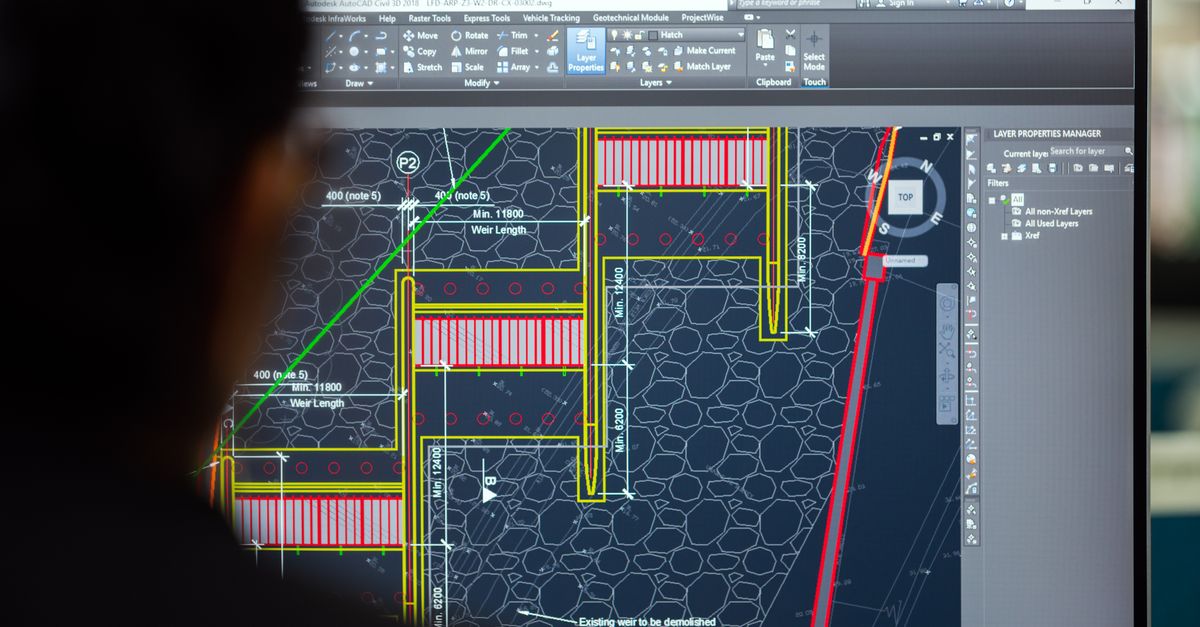
Why Use a Circle Area Calculator for AutoCAD Tasks
The formula for the area of a circle, A = πr², is fundamental in geometry and engineering. When working in AutoCAD, you might need to calculate the area of a circle for tasks like material estimation, space planning, or design validation. While AutoCAD provides built-in commands like MEASUREGEOM to measure circle area, these methods require manual input and navigation within the software. For quick, accurate results without launching AutoCAD, a free online Circle Area Calculator is a practical alternative. This tool instantly computes the area from either the radius or diameter, along with the circumference and diameter, using the full-precision value of π. It’s ideal for verifying AutoCAD measurements or preparing data before importing it into your drawings.
In AutoCAD, calculating the area of a circle involves selecting the object and using the LIST command or Properties palette to display its area. However, this method is limited to existing circles in your drawing. If you’re planning a design or need to verify calculations outside of AutoCAD, the online calculator saves time and reduces errors. For example, if you’re designing a circular garden bed and need to estimate the amount of soil required, you can quickly input the radius into the calculator to get the area in square meters or feet. The tool also handles diameter inputs, automatically converting them to radius before applying the formula, which simplifies workflows where diameter is the known measurement.
How the Circle Area Formula Works
The area of a circle is derived from the relationship between its radius and the constant π (pi). The formula A = πr² means you multiply the radius by itself and then by π. For instance, a circle with a radius of 5 units has an area of π × 5² = 25π, which is approximately 78.54 square units. The radius is the distance from the center of the circle to its edge, while the diameter is twice the radius (d = 2r). If you only know the diameter, you can halve it to find the radius (r = d ÷ 2) and then use the same formula.
Pi (π) is the ratio of a circle’s circumference to its diameter, approximately equal to 3.14159. Unlike the rounded values often used in classrooms (such as 3.14 or 22/7), the calculator uses your device’s full-precision π, accurate to about 15 digits. This ensures your results are as exact as standard floating-point math allows. The tool also provides additional measurements, such as the diameter and circumference (C = 2πr), so you can cross-verify your calculations or use them for further design work in AutoCAD.
| Measurement | Formula | Example (r = 5 units) |
|---|---|---|
| Area (A) | A = πr² | 25π ≈ 78.54 square units |
| Circumference (C) | C = 2πr | 10π ≈ 31.42 units |
| Diameter (d) | d = 2r | 10 units |
Calculate Circle Area with the Online Tool
- Open the Circle Area Calculator in your browser.
- Use the toggle to select whether you’re entering the radius or diameter.
- Type your measurement into the input field. You can use any unit (e.g., meters, inches, feet).
- The calculator will instantly display the area, along with the radius, diameter, and circumference. The worked formula (A = πr²) is shown below the result for reference.
- If you entered a diameter, the tool automatically converts it to radius before calculating the area.
- For AutoCAD use, note the area value and apply it to your design or verification process.
AutoCAD-Specific Tips for Circle Area Calculations
While the online calculator is useful for quick calculations, AutoCAD provides several methods to measure circle area within your drawings. The MEASUREGEOM command is the most direct way to calculate the area and circumference of a circle. To use it, type MEASUREGEOM in the command line, select the "Area" option, and then click on the circle. AutoCAD will display the area and circumference in the command line. Alternatively, you can use the LIST command or Properties palette to view the area of a selected circle.
For more complex shapes, such as rings or annuli, AutoCAD allows you to subtract the area of an inner circle from an outer circle. Convert the circles to regions using the REGION command, then use the SUBTRACT command to remove the inner circle from the outer one. The AREA command can then measure the resulting annular area. This method is particularly useful for tasks like calculating the material needed for a circular pipe or duct cross-section.
If you’re working with multiple circles or need to verify calculations outside of AutoCAD, the online calculator can serve as a quick reference. For example, if you’re designing a circular tabletop and need to estimate the material cost, you can input the radius into the calculator to get the area in square inches or centimeters. This value can then be used to determine the amount of wood, glass, or other materials required for the project.
Common Use Cases for Circle Area Calculations
Calculating the area of a circle is essential in many real-world applications, from construction to everyday tasks. Here are some common scenarios where the circle area formula and the online calculator can be helpful:
- Construction and Landscaping: Estimate the area of circular garden beds, patios, or pools to determine the amount of materials like soil, concrete, or tiles needed.
- Manufacturing: Calculate the cross-sectional area of pipes, ducts, or cylindrical tanks to ensure proper sizing and material usage.
- Design and Engineering: Verify the area of circular components in mechanical designs or architectural plans to ensure they meet specifications.
- Everyday Tasks: Determine the area of a circular rug, table, or pizza to plan space or estimate quantities (e.g., how many pizzas to order for a party).
- Education: Use the calculator to check geometry homework or teach students the relationship between radius, diameter, and area.
In AutoCAD, circle area calculations are often used for material takeoffs, space planning, and design validation. For instance, if you’re designing a circular window, you might need to calculate its area to ensure it meets building code requirements for natural light. The online calculator can quickly provide this value, which you can then compare to AutoCAD’s measurements for accuracy.
Edge Cases and How the Calculator Handles Them
The circle area calculator is designed to handle edge cases gracefully, ensuring accurate and meaningful results. Here’s how it manages specific scenarios:
- Zero Radius or Diameter: If you enter a radius or diameter of 0, the calculator returns an area of 0, representing a single point. This is mathematically correct, as a circle with no radius has no area.
- Negative Values: The calculator rejects negative inputs because a radius or diameter cannot be negative. It flags the input as invalid to prevent incorrect results.
- Non-Numeric Inputs: If you enter text or symbols instead of a number, the calculator displays an error message rather than producing a wrong answer.
- Very Large Values: The tool checks for unrealistically large inputs that could cause floating-point overflow. If detected, it prevents the calculation to avoid displaying a broken or meaningless result.
These safeguards ensure the calculator remains reliable for all users, from students to professionals. For example, if you accidentally enter a negative radius while working on an AutoCAD design, the calculator will alert you to the error, helping you avoid costly mistakes in your project.
Worked Example: Calculating Circle Area from Radius
Let’s walk through a concrete example to see how the circle area formula works in practice. Suppose you have a circle with a radius of 7 meters, and you want to find its area.
- Start with the formula: A = πr².
- Substitute the radius (r = 7) into the formula: A = π × 7².
- Calculate the square of the radius: 7² = 49.
- Multiply by π: A = π × 49 ≈ 153.94 square meters.
The calculator would display this result instantly, along with the diameter (14 meters) and circumference (43.98 meters). This example demonstrates how the tool simplifies the calculation process, especially for larger or more complex measurements.
If you're weighing options, Slant Height Powers a Cone's Lateral and Total Area covers this in detail.
If you're weighing options, Hemisphere by Sun: How to Determine Volume and Area covers this in detail.