Reversing audio means playing a recording from its end back to its beginning by flipping the order of every decoded sample, and the fastest way to get started with that task in your browser is a local tool that reads the file, decodes it, swaps each sample, and writes a new PCM16 WAV without uploading anything. The Reverse Audio tool handles that workflow in the current tab: you choose a supported file up to 50 MB, the browser decodes it with the Web Audio API, the tool reverses every channel independently, and the finished download is a freshly encoded 16-bit WAV that preserves the source's duration, sample rate, and channel count. Reversal does not change pitch, stretch time, normalize loudness, or skip samples; it simply reorders them, so an event that sits 4.2 seconds into the original lands at duration minus 4.2 seconds in the output. Knowing the boundaries up front — accepted containers, byte limit, decoded sample budget, and the fact that codec support depends on your browser — is what keeps a first attempt from being a confusing one.
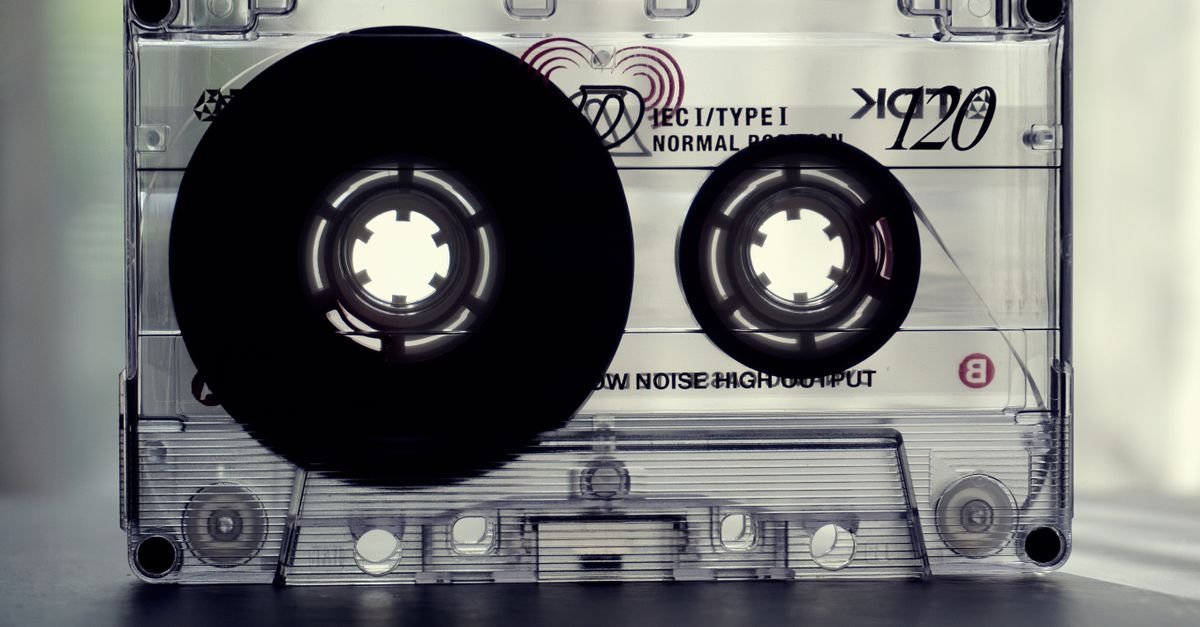
What reversing audio actually does
Reversing audio is a sample-level operation, not a container trick. A player that played a file backward inside its own decoder would still let codec framing and metadata drive the experience, but a true reverse rebuilds the audible signal from the inside out. Web Audio decodes the source into a buffer of floating-point samples — one stream per channel — and the reversal flips the order of those samples inside each channel. For a stereo file, the left channel is reversed on its own, the right channel is reversed on its own, and the two reversed streams are interleaved again in correct WAV frame order before the file is written. For a multichannel file with up to eight channels, the same per-channel rule applies. No decoded samples are deleted, repeated, or rerouted between channels; only their positions are mirrored around the midpoint of the clip.
The transformation leaves three audio properties untouched: decoded duration, source sample rate, and channel count. It does not stretch a cymbal to sound lower, compress louder sections, or shorten a tail. If the source is 3.871 seconds at 48 kHz stereo, the result is also 3.871 seconds at 48 kHz stereo. What changes is the timeline of events: a snare hit on beat one becomes the last percussive moment, a singer walking forward into the mic is heard walking away, and a long fade-out becomes a fade-in. That property — time mirroring without time distortion — is the single most useful mental model before you press the button.
Why start with a local browser tool
Setting up a desktop editor, a command-line tool, or a phone app just to reverse a short clip usually costs more time than the task itself. A browser-based reverse tool removes that overhead: there is no account, no plugin, no codec pack, and no upload step. The reversed result lands on your machine the same way a downloaded attachment would. Everything that touches your file happens in the current tab — file reading, decoding, sample reversal, WAV encoding, and preview object URLs — and the page closes the Web Audio context after the operation finishes or when work is replaced. That boundary matters for two practical reasons. First, the file's name, duration, content, and computed output never leave the device. Second, you can verify a result on the spot by previewing it before saving the WAV, which is something a pure command-line workflow cannot do without you piping the result into a separate player.
Inputs the reverse tool accepts
Before you start, line up a source file that the browser can actually decode. The reverse tool accepts common MP3, WAV, M4A, AAC, Ogg, and WebM MIME types in the file picker, but accepted-by-extension and accepted-by-codec are two different checks. A container you recognize may still wrap a codec that the browser on your machine cannot read, and the tool reports a decode error in that case instead of silently producing a placeholder. There are also hard numeric limits that gate the operation before any sample is flipped:
| Limit | Value | Why it exists |
|---|---|---|
| Compressed file size | ≤ 50 MB | Cap on bytes the browser must read and decode at once |
| Decoded duration | ≤ 5 minutes (300 seconds) | Keeps memory and the floating-point buffer bounded |
| Channel count | 1 to 8 channels | Matches Web Audio's standard layout range |
| Sample rate | 8,000 Hz to 192,000 Hz | Covers phone voice to high-resolution studio masters |
| Channel-sample budget | ≤ 30,000,000 total | Frames × channels — protects the tab from unexpectedly large decoded arrays |
Worked example — sizing a typical reverse target. A clip that decodes to 5 minutes at 48,000 Hz stereo produces frames × channels = (300 × 48,000) × 2 = 14,400,000 × 2 = 28,800,000 channel samples. That sits under the 30,000,000 budget, so the same duration at the same rate will pass. Increase the same clip to seven channels and the total rises to 14,400,000 × 7 = 100,800,000, which exceeds the budget and is rejected — a useful sanity check when you are unsure whether a long or multichannel source will fit before you press the button.
Steps to reverse audio in your browser
- Open the Reverse Audio tool in your current tab and choose a supported audio file up to 50 MB from the file picker; if you want a baseline of what you are working with, trigger the optional original preview before reversing.
- Select Reverse audio and wait while the browser decodes the buffer and reverses every channel sample locally; file reading, decoding, sample reversal, and download URL creation all happen in the tab.
- Preview the reversed result, check the duration, channel count, and sample rate displayed by the tool, then download the PCM16 WAV — changing files or retrying clears any previous download first, so an earlier success cannot be mistaken for a new one.
Reading the result: PCM16 WAV and what changes
The file you save is always a newly encoded PCM16 WAV, not a backward playback of the original compressed stream. Each decoded floating-point sample is clipped to the inclusive range −1 to 1, mapped to signed 16-bit PCM, and written little-endian; negative full scale maps to −32768 and positive full scale maps to 32767. That means the WAV can be much larger than a compressed MP3 or M4A source, and that 16-bit quantization trades some numerical precision for a file any editor or player can open without extra codecs. Three properties are deliberately preserved from the source: duration, sample rate, and channel count. Everything that lives in the container is not.
Album art, ID3 or similar tags, chapter markers, loop points, encoder settings, and the original compressed bitrate are not copied into the output. Reversal is a sample-domain transformation, not a metadata pass-through. If you need tags or artwork in the final file, the move is to reverse it locally, then hand the WAV to your editor or tagger to re-attach metadata before publishing.
Quick checks before you treat the file as final
A reversed WAV that opens in your browser can still fail on an older device, so the closing habit is verification. Listen to the first second and the last second of the preview — a common mistake is to assume the start sounds right and forget that the finish is where the original opening now lives. Confirm the duration matches the source to within a frame, confirm the channel count is what your playback chain expects, and confirm the file size is plausible for the displayed sample rate and length. Opening the download in the editor or DAW where the clip will eventually be used is the strongest check, because not every legacy player honors very high sample rates or unusual channel layouts. The original file should stay alongside the reversed copy so any future "is this different from what I expected?" question has a baseline to compare against.
When to bring in an audio editor instead
The browser reverse workflow is built for one focused operation: flip every sample in every channel and hand back a WAV. It does not install FFmpeg, route through a conversion server, normalize loudness, trim silence, change pitch on purpose, stretch time, or repair clipping. If the task at hand includes fades on the new edges, a specific sample-rate target, codec choice for delivery, metadata preservation, or mastering-level gain staging, the clean move is to download the reversed WAV from the tool and continue in an audio editor. The decoded buffer is already correct, the channels already match the source, and the editor can pick up exactly where the browser step ends, instead of asking you to redo the reversal inside a heavier tool.
For a deeper look, see Volume Changer Free No Sign Up: Edit Audio Locally.
For a deeper look, see Audio Effects Online Alternative: Run Six Effects Locally.