An audio pitch changer on Mac that runs entirely in the browser can shift one audio file up or down by any whole number of semitones from -12 to +12 and export a new PCM16 WAV without installing a DAW or uploading the file. The shift uses twelve-tone equal temperament, so each step multiplies the perceived frequency by 2^(1/12), and the same multiplication is applied to the playback rate. That linkage is what makes the result a true pitch shift rather than a tonal effect: raising pitch by 12 semitones doubles the playback rate and roughly halves the duration, while lowering pitch by 12 semitones halves the rate and roughly doubles the duration. Because the conversion happens locally through the Web Audio API in the current tab, the original file never leaves the machine. The download is a freshly encoded, uncompressed little-endian PCM16 RIFF/WAVE file, which most Mac audio apps can open without extra conversion. The trade-off is straightforward: the tool is built for fast experimentation, not for transparent mastering.
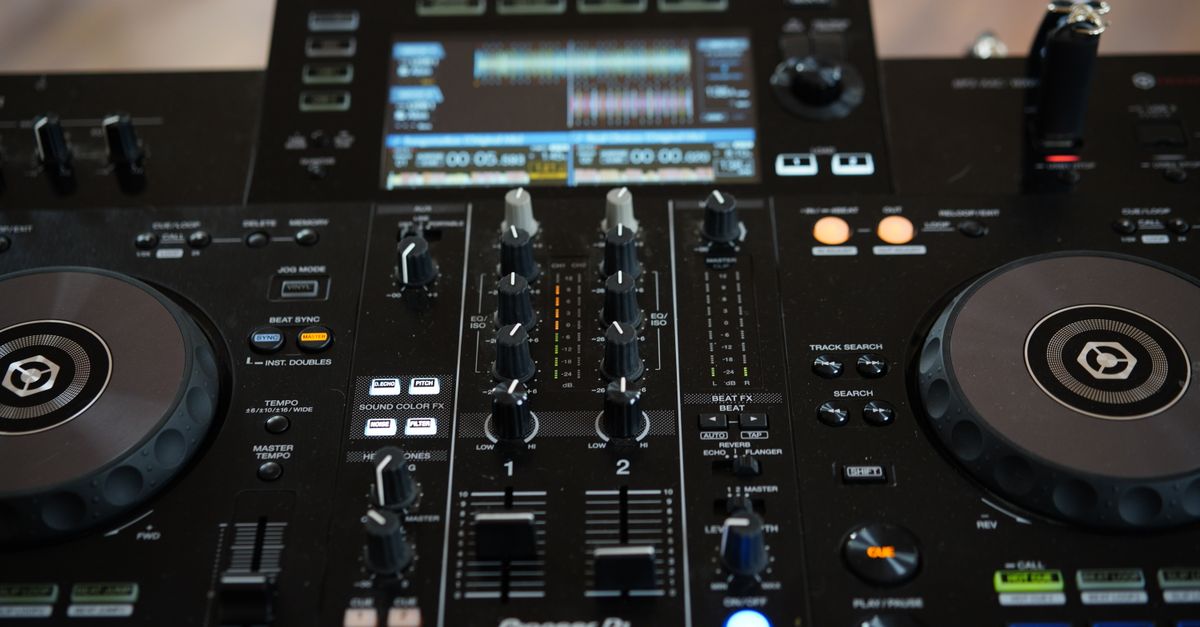
A no-install pitch changer on Mac
macOS already ships with capable audio software: GarageBand, QuickTime Player, and any number of third-party digital audio workstations. Each of those options either installs system components or pushes the file through a full project timeline. A browser-based pitch changer skips that stack entirely. You open a URL in Safari, Chrome, or Firefox, choose a file from local storage, set a semitone value, and the page does the work through the Web Audio API. Nothing is uploaded, nothing is installed, and the result is downloaded straight back to the Mac.
For quick creative experiments, practice tracks, sound design sketches, and rough edits, that lightweight workflow is often the right fit. For a polished mastering pass where tempo, speech cadence, and exact original duration all need to stay locked, a dedicated time-stretching workflow is the better tool — playback-rate resampling changes pitch and duration together by design.
Shift audio pitch on Mac in three steps
The Audio Pitch Changer runs in any current Mac browser and follows the same three-step path every time. Each step corresponds to one row of the page so you always know what state the tool is in.
- Open the Audio Pitch Changer page in Safari, Chrome, Firefox, Edge, or another up-to-date Mac browser, then click the file picker and select one browser-decodable audio file no larger than 50 MiB from your local storage. Common types like MP3, WAV, M4A, AAC, Ogg, WebM, and FLAC all work, although actual decoding still depends on the codecs the browser supports.
- Set a whole-number pitch shift anywhere from -12 through +12 semitones. The page shows the new playback rate and the expected duration change so you can confirm the trade-off before rendering. A value of 0 keeps the original pitch; +12 raises the material by one octave; -12 lowers it by one octave.
- Create the complete local render, review the stated duration change, and download the new PCM16 WAV. The file is freshly encoded as uncompressed little-endian PCM16 in a RIFF/WAVE container, so QuickTime, Logic Pro, GarageBand, Audacity, and most other Mac audio apps can open it without further conversion.
Semitone math: from pitch shift to playback rate
The pitch ratio follows twelve-tone equal temperament. For a shift of n semitones, the playback rate is 2^(n/12). McGill University's music course material describes an octave as twelve equal semitones, each with a frequency ratio of 2^(1/12), and notes that a single semitone contains 100 cents. MDN's documentation for AudioBufferSourceNode.playbackRate explains that values below 1 slow the audio, values above 1 speed it up, and any non-unit rate triggers resampling.
Worked example for a perfect fifth (7 semitones up): rate = 2^(7/12) ≈ 1.4983. At that rate, a 10-second clip becomes roughly 6.67 seconds and sounds about a fifth higher. The same formula in the other direction gives 2^(-7/12) ≈ 0.6672, which slows the file to roughly 15 seconds and drops the pitch by a fifth. If you want a deeper walkthrough of the equal-tempered ratios shown in the table below, the semitone and octave explainer covers the same ground with more diagrams.
| Semitone shift | Playback rate (2^(n/12)) | Approximate duration ratio |
|---|---|---|
| -12 (one octave down) | 0.5000 | roughly 2.00× original |
| -7 (perfect fifth down) | 0.6672 | roughly 1.50× original |
| -1 (one semitone down) | 0.9439 | roughly 1.06× original |
| 0 (no shift) | 1.0000 | 1.00× (unchanged) |
| +1 (one semitone up) | 1.0595 | roughly 0.94× original |
| +7 (perfect fifth up) | 1.4983 | roughly 0.67× original |
| +12 (one octave up) | 2.0000 | roughly 0.50× original |
Pitching up versus pitching down: what changes in the WAV
Because the tool applies the equal-tempered ratio directly to the playback rate, pitch and duration move together. Pitching up by +12 semitones uses a 2× playback rate and produces roughly half the original duration. Pitching down by -12 semitones uses a 0.5× rate and produces roughly twice the original duration. The intermediate values follow the same rule: every positive shift makes the audio shorter and faster, every negative shift makes it longer and slower. The page always shows the stated duration change before you commit to the render.
This has a practical consequence on Mac. Pitching down creates more output frames than the input had, so a clip that fits inside the decoded budget can still fail the output budget after a heavy downward shift. The tool refuses the render with an explicit error in that case and creates no partial download. If you need pitch shifting without any duration change, a phase-vocoder or other dedicated time-stretching workflow is the right tool — the browser pitch changer is not designed for that.
Input, output, and budget limits on Mac
The page checks every limit before it starts an expensive render, so errors surface early instead of producing an incomplete file. The relevant thresholds for Mac users are:
- Encoded input file size: at most 50 MiB. Files above that are rejected before decoding.
- Decoded duration: at most 5 minutes.
- Decoded channels: at most 8.
- Decoded sample rate: between 8,000 Hz and 192,000 Hz inclusive.
- Decoded channel samples: at most 30 million (input budget).
- Resampled output channel samples: at most 30 million (output budget).
Mac users often work with M4A or AAC files exported from Voice Memos, Logic, or Final Cut. Those formats decode fine in Safari and Chrome as long as the codec profile is one the browser recognizes. A file with an unusual codec profile can fail even when the extension is recognized — the page reports a decode error rather than producing a silent file. The output WAV preserves channel count and sample rate from the decoded source but does not preserve original tags, artwork, chapters, cue points, or compression metadata. PCM16 quantization can also differ from the source's floating-point samples.
Mac pitch shifting approaches compared
Several options exist on macOS for shifting audio pitch. They differ on install footprint, on whether they preserve duration, and on where the audio actually goes during processing.
| Approach | Install required | Pitch change | Duration change | Processing location |
|---|---|---|---|---|
| Browser-based pitch changer (Audio Pitch Changer) | No | -12 to +12 semitones, whole-number only | Yes, by design (playback-rate resampling) | Local browser tab |
| macOS DAW (GarageBand, Logic Pro) | Yes (built-in or App Store) | Full range, including time-stretch options | Optional, with time-stretch or Flex Time modes | Local Mac |
| Dedicated audio editor (Audacity) | Yes | Full range, including Effect > Change Pitch | Optional with time-stretch algorithms | Local Mac |
| Real-time voice changer (Clownfish and similar) | Yes (system-level audio hook) | Continuous, often microtonal | Negligible | Local Mac, intercepts system audio |
For a quick semitone shift without opening a project, the browser pitch changer is the shortest path. For a finished track where tempo and pitch both need adjustment independently, a DAW or audio editor with a time-stretching algorithm is the better fit.
Related reading: Avoid Mistakes When You Use an Audio Speed Changer.