A correctly generated audio waveform is a deterministic, locally produced SVG whose columns cover every decoded sample frame exactly once, whose vertical center sits at half the requested height, and whose coordinate values come from validated numbers that match the audio you loaded. The Audio Waveform Generator decodes the file inside the current browser tab through the Web Audio API, divides the decoded frames into the smaller of the requested width, 1,000, and the decoded frame count, draws one vertical SVG line per bucket from the clamped minimum to the clamped maximum across every channel, and emits a text-based SVG that is reproducible from the same inputs. To generate audio waveform correctly you validate the file against codec and size limits, set width, height, and colors inside accepted ranges, run the local generation, read the reported frame and column counts, then open the SVG text inspector and confirm the markup matches your inputs before downloading. Skipping any of those layers turns a deterministic result into a guess that cannot be verified after the fact.
Defining Correct Output for a Peak Waveform
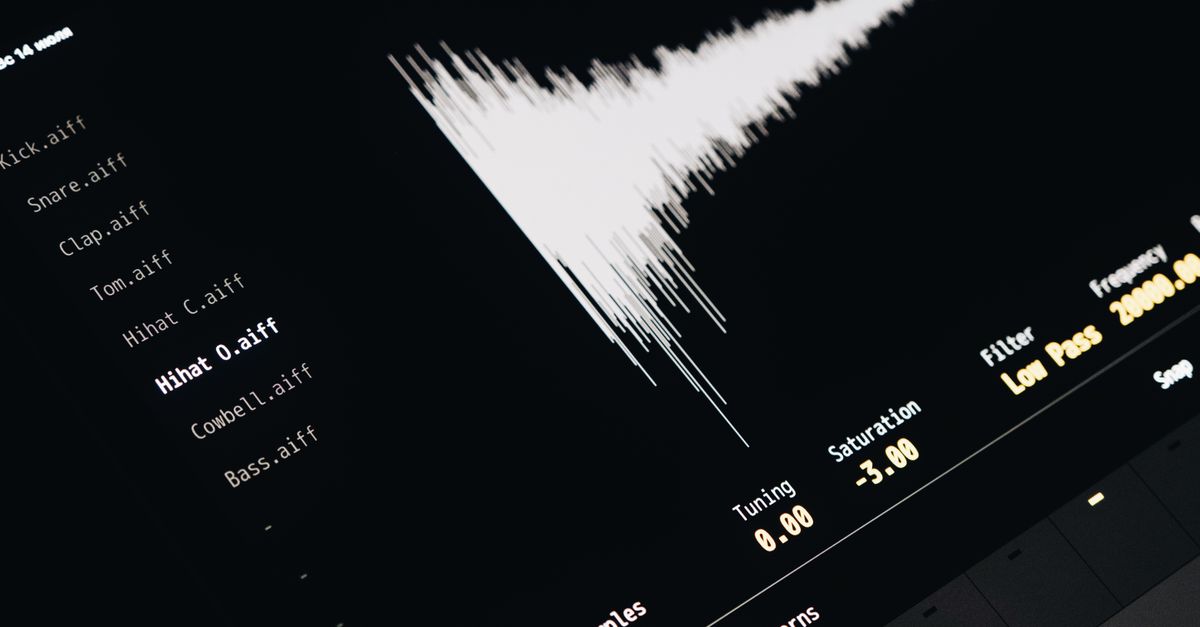
For this tool, "correct" has a narrow meaning that matters before the first click. The picture is a time-domain peak envelope, not a frequency spectrogram and not a calibrated loudness meter. Each bucket holds a contiguous integer-index range of decoded frames: the first bucket begins at frame zero, the last bucket reaches the final decoded frame, and no accepted frames are skipped between adjacent ranges. A defensive clamp limits any out-of-range or non-finite sample to the range −1 through 1. For multichannel audio the minimum and the maximum inside one bucket may come from different channels, so the picture is a combined peak overview rather than separate left and right lanes — a design choice documented in the implementation and reinforced below.
Below is what the picture actually encodes and what it explicitly does not encode, so "correct" can be checked against the same contract on every run.
| What the picture encodes | What the picture does not encode |
|---|---|
| Per-bucket minimum and maximum sample amplitude | Frequency content, spectrogram rows, or pitch |
| Clamped (−1 to +1) extrema across all channels | Separate stereo or multichannel lanes with channel identity preserved visually |
| Fixed five-percent margin above and below full-scale peaks | Calibrated loudness, perceived volume, or replay timing |
| Deterministic SVG coordinates derived from validated numbers | Beats, notes, transients, or musical structure |
| One combined peak overview for multichannel audio | An averaged or rewritten audio signal |
Treating the picture as a loudness meter, a frequency analyzer, or a clipping diagnostic is the most common way users misread an otherwise correct SVG. The implementation explicitly does not calculate frequency, beats, notes, transients, speech, or musical structure, and that boundary is what protects the output from being silently wrong in a different category.
Pre-Generation Checks That Block Silent Failure
The fastest path to a correct result is to refuse inputs the tool cannot fully decode. The Audio Waveform Generator applies the same decoded-data limits as the site's other audio tools, and a small compressed file can still expand into an oversized floating-point channel array, so the compressed byte limit alone does not guarantee success. Inputs outside the envelope are rejected as a whole rather than partially processed, which means a partial waveform from only the beginning of the file can never appear to represent the full input.
| Input dimension | Accepted range |
|---|---|
| Compressed file size | Up to 50 MiB |
| Decoded duration | Up to 5 minutes |
| Channel count | 1 through 8 channels |
| Sample rate | 8,000 Hz through 192,000 Hz |
| Decoded channel-samples total | Up to 30,000,000 |
| SVG width | 320 through 1,600 pixels |
| SVG height | 120 through 600 pixels |
| Background and waveform colors | Six-digit hexadecimal values from browser color controls |
Web Audio reads the selected MP3, WAV, M4A, AAC, Ogg, WebM, or FLAC only when the current browser and operating system support its real codec, per the AudioBuffer interface specification. A file extension or MIME label cannot guarantee decoding — unsupported, corrupt, empty, or disguised files return an error rather than a degraded result. Selecting a replacement file, changing an option, generating again, or leaving the page revokes the obsolete object URL, so a stale preview cannot stand in for a new input.
Generate the Waveform with the Audio Waveform Generator
Working through the tool in order produces a deterministic SVG every time.
- Open the Audio Waveform Generator in a browser tab that can decode your file format. Codec support depends on the current browser and operating system, not on a file extension or MIME label.
- Choose one audio file from the picker — MP3, WAV, M4A, AAC, Ogg, WebM, or FLAC — and confirm it stays within the 50 MiB compressed limit and the 30-million-channel-sample decoded budget before moving on.
- Set the SVG width from 320 to 1,600 pixels and the height from 120 to 600 pixels using the page controls, then choose background and waveform colors from the six-digit hexadecimal color pickers.
- Click the generate action. The tool decodes the file locally, divides the decoded frames into min(width, 1,000, frames) integer-index buckets, and draws one vertical SVG line per bucket from its clamped minimum to its clamped maximum across every channel.
- Read the reported decoded frame count and the reported peak-column count. The column count equals the bucket count and never exceeds 1,000, so a short clip cannot invent more independent measurements than it contains.
- Open the SVG text inspector and confirm it contains one background rectangle, a group of peak lines equal in count to the reported columns, the viewBox dimensions you set, and the exact colors you chose before clicking download.
Confirm the Output After You Click Generate
Verification after generation is what separates a guessed SVG from a known-good one. The page reports the decoded frame count and the peak-column count side by side. The column count is the smaller of the requested image width, 1,000, and the decoded frame count — three independent cap sources that catch silent corruption before a download happens. If the number you see in the report does not match what the file should logically contain, regenerate before downloading.
A worked example makes the math concrete. For a 12-second mono file at 48,000 Hz the decoded frame count is 12 × 48,000 = 576,000 frames. With a requested width of 1,200 pixels the column count becomes min(1,200, 1,000, 576,000) = 1,000. Each bucket therefore contains roughly 576,000 ÷ 1,000 = 576 frames, drawn at evenly spaced horizontal centers. The peak line inside each bucket runs from the clamped minimum to the clamped maximum of those 576 frames.
The SVG text inspector exposes the exact string that will be saved. It contains one background rectangle and one group of peak lines. SVG coordinates are deterministic: the vertical center is half the requested height, full-scale positive or negative samples extend 45 percent of the height above or below that center, and a five-percent margin remains above the tallest peak and below the lowest trough. Columns are evenly centered across the requested width, so the spacing between lines is a function of width divided by column count. Any mismatch between the inspector text and the inputs you chose is a sign that a stale object URL has not been revoked — generate again with a fresh file or option change and re-inspect.
Because the download is text-based SVG rather than PNG, JPEG, video, or audio, the file stays sharp at any display size and can be opened in any SVG-aware editor. The downloaded SVG carries fixed pixel dimensions and a matching viewBox, so re-display at another size keeps proportions intact. Workflows that need different stroke widths or richer source data may still require a separate export path.
Why Reproducibility Matters for Correct Generation
A peak waveform is correct only if it can be reproduced. SVG coordinates in this implementation come from validated numbers and the color pickers, never from filenames or embedded source metadata, which is what gives the output a deterministic truth path. The same decoded audio at the same width, height, and colors produces byte-identical SVG text — useful for diffing across runs, comparing two versions of a recording, or pinning a result in a test suite.
Reproducibility also exposes silent mistakes. If the same file yields two different SVGs back to back without input changes, something in the local environment has shifted between runs and the new file should be treated as unverified. The tool's processing stays local: Web Audio reads the file, extraction runs, SVG generation runs, preview and download share the identical string, and no audio file or generated graphic is uploaded to Lizely. The privacy walkthrough in Are the Audio File and Waveform Uploaded to a Server? addresses this question in detail if your team needs documentation on that point.
A peak waveform is also not a spectrogram: time runs left to right, but the vertical axis represents sample amplitude range, not frequency. Two recordings can show similar peaks while sounding very different because perceived loudness depends on duration, frequency balance, dynamics, and playback conditions. Treat the picture as a faithful per-bucket sample envelope and verify it against the input rather than against an assumption about how loud the audio sounded.
Running the three layers above — input validation, dimension and color setup, and post-generation SVG inspection — is what makes correct generation a repeatable process rather than a hopeful one. The Audio Waveform Generator keeps every intermediate value validated, every coordinate deterministic, and every output inspectable, which is the contract that lets you say the result is correct before it leaves the tab.
For a deeper look, see Plan the Steps Needed to Generate an Audio Waveform.