A 16-step browser drum sequencer lets you make beats online by toggling kick, snare, and hi-hat cells across four quarter-note beats, where each quarter note is split into four equal sixteenth-note steps. With BPM defined as quarter notes per minute, step duration follows the formula 60 ÷ BPM ÷ 4 seconds, so a default 120 BPM pattern repeats one full bar every 2 seconds with steps landing 0.125 seconds apart. The grid is fixed at sixteen steps, the tempo accepts only whole numbers from 40 to 240, and every sound is synthesized at playback time using Web Audio nodes, so no audio files are uploaded, downloaded, or fetched from an external sample library. If you want to make beats online without installing a digital audio workstation, signing up for an account, or hunting through preset packs, the Online Drum Machine handles the entire loop in your browser using a compact 16-step rhythm sequencer that runs locally on your device. That narrow focus is the reason the page can start instantly, stay responsive on modest hardware, and avoid the licensing noise that comes with third-party sample sets, while a moving step outline traces the current position across the bar as it loops.
What "Make Beats Online" Looks Like in a Browser
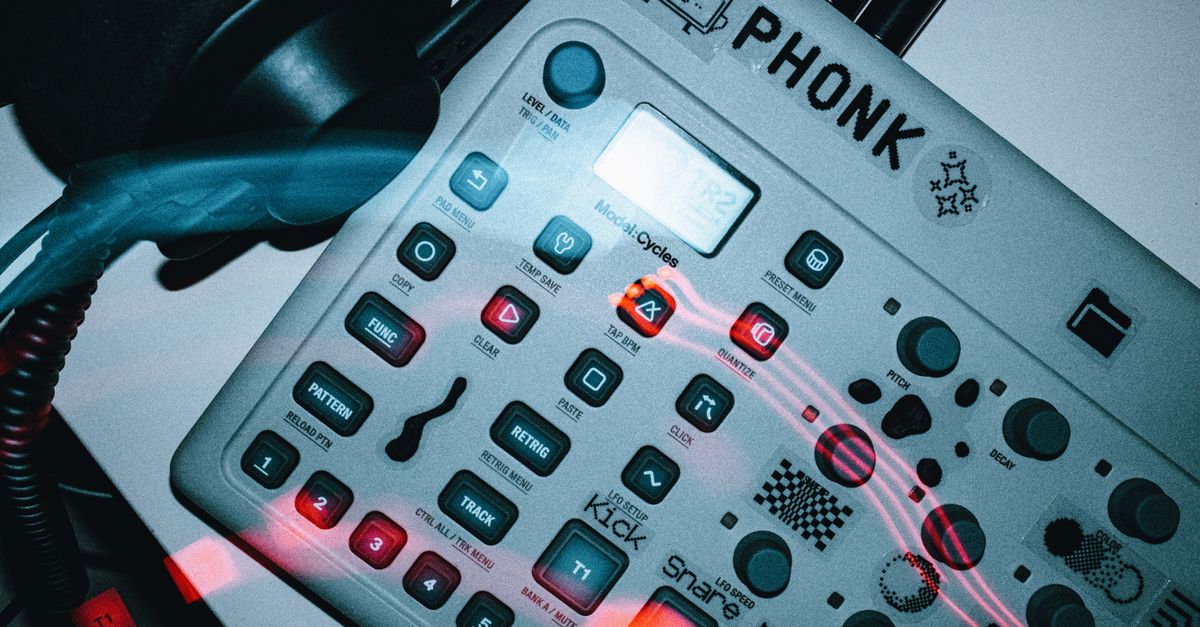
Most people who search for "make beats online" want one specific outcome: a working drum loop they can hear immediately, without learning a full DAW. The Online Drum Machine focuses that promise down to the smallest useful surface, with three tracks (kick, snare, and hi-hat), sixteen steps, one tempo field, and three transport buttons. You click cells to turn each instrument on or off for a sixteenth-note position, set the speed, and press Play. A moving step outline traces the current position as the generated rhythm loops, so you can see the bar move and hear the result at the same time.
The grid is always four quarter-note beats divided into sixteen equal sixteenth-note steps. The default pattern is a textbook four-on-the-floor starter: kick on every quarter-note position, snare on beats two and four, and closed hi-hat on the eighth-note positions. That starter is only a suggestion, and every one of the 48 cells (3 tracks × 16 steps) is independently toggleable, so you can replace the example one step at a time until the pattern reflects what you actually want to hear. Beginners usually start by deleting cells they do not want; experienced users start from Clear pattern and build upward.
Because everything is synthesized in the browser at playback time, the tool starts without contacting a sample host, without an account, and without any audio file upload. There is no network round-trip to fetch a drum kit, no login modal in the way, and no telemetry about what you are sketching. The trade-off is intentional simplicity: this is a sketchpad, not a studio. If you finish a loop and decide you need arrangement, swing, or rendered stems, the right move is to transfer the idea to a dedicated music application rather than to push this tool past its scope.
Set the Tempo (40–240 BPM)
Tempo in this tool means quarter notes per minute, matching the tempo meaning used in the W3C MusicXML 4.0 sound element documentation. A quarter note therefore lasts 60 ÷ BPM seconds, and each sixteenth-note step lasts one quarter of that duration: 60 ÷ BPM ÷ 4 seconds. The input is strict by design, and only whole decimal numbers from 40 through 240 are accepted. Empty input, decimal fractions, signs, exponent notation, unit text, and values outside the range all surface a recoverable error, and the previous valid tempo stays in effect until you enter something the tool can parse.
If you change the tempo while the pattern is playing, playback stops and the audio context is released before the new value is applied. That prevents an old scheduler from continuing with a mixture of two tempos on the same bar, which would otherwise produce an audible glitch. After entering a valid whole number, pressing Play starts the loop cleanly from step one. Pattern edits, on the other hand, stay live during playback: the scheduling window reads the current cell states every tick, so toggling a cell while the loop runs is heard on the next scheduled event without restarting.
The 40–240 range is a usability and scheduling guard, not a statement about the limits of musical tempo. Pick a tempo that matches the song you are sketching: 80–100 for slow hip-hop and R&B feels, 90–110 for downtempo, 110–130 for pop and four-on-the-floor, 140–170 for drum-and-bass and jungle, and 170–200 for hardcore, gabber, and speedcore. If you are not sure where to start, leave BPM at the default of 120, which sits in the middle of the typical pop pocket and renders every step at exactly 0.125 seconds.
Build a 16-Step Pattern
- Open the Online Drum Machine in your browser.
- Enter a whole-number tempo from 40 to 240 in the BPM field. The default is 120, which places each sixteenth-note step 0.125 seconds apart.
- Toggle the kick row, snare row, and hi-hat row by clicking any cell. A pressed cell turns that instrument on for that sixteenth-note step; clicking it again turns it off.
- Press Play. The AudioContext is created on this gesture, the synthesized beat begins looping from step one, and the step outline traces the current position across the bar.
- Press Stop to release playback resources and close the current AudioContext.
- Press Clear pattern to turn every one of the 48 cells off at once so you can build a new rhythm from silence.
If a tempo change shows a recoverable error, fix the value first, since empty input, decimal fractions, signs, and values outside 40–240 are all rejected. Keep your device volume moderate before you press Play, especially with headphones, because synthesized transients can sound louder on some output systems than you expect from a small browser tool.
Step Duration Math at a Glance
Because the grid is fixed at sixteen steps and the formula is shared between the schedule logic and the test suite, you can predict exactly how long any tempo will take to complete one bar. The product documentation verifies three anchors; the rest follow the same formula. The table below shows those verified values so you can hear the difference between the slowest and fastest settings before you commit to a tempo.
| Tempo (BPM) | Step duration (seconds) | Full 16-step bar (seconds) |
|---|---|---|
| 40 (lower bound) | 0.375 | 6 |
| 120 (default) | 0.125 | 2 |
| 240 (upper bound) | 0.0625 | 1 |
Worked example at 120 BPM: substitute into the formula, 60 ÷ 120 ÷ 4 = 0.5 ÷ 4 = 0.125 seconds per step. Multiply by 16 steps in the bar: 0.125 × 16 = 2 seconds for one full loop. At the lower 40 BPM boundary the bar lasts 6 seconds, and at the upper 240 BPM boundary the bar compresses to 1 second. For any other tempo inside the range, follow the same formula. If you want a deeper walkthrough of how those numbers are produced and how the scheduler uses them on the AudioContext timeline, the BPM math and scheduling guide covers the same formula in more detail.
Why Sounds Are Synthesized Instead of Uploaded
Each drum voice is generated when you press Play, not loaded from a file. The kick is a short sine oscillator whose frequency drops rapidly while its gain decays, which gives the boom of an acoustic kick without needing a sample. The snare uses a freshly generated noise buffer shaped by a high-pass filter and a gain envelope, and the hi-hat uses a shorter, quieter noise burst with a higher high-pass cutoff. All three are routed through the same Web Audio graph defined by the Web Audio API specification.
Because nothing is downloaded, opening the tool does not contact a sample host and the loop cannot inherit a third-party sample license. That is a meaningful difference for users who want to sketch without committing to a particular sound library, and it is why the tool starts instantly even on a metered connection. The trade-off is that the tones are intentionally simple synthetic voices rather than recordings of physical drums, so the exact timbre can vary slightly with browser audio implementation, output hardware, sample rate, and the random noise generated for each snare or hi-hat hit.
When This Browser Sequencer Is the Right Tool
The tool is best for sketching straight sixteenth-note ideas, learning how a step sequencer maps to musical time, or testing a basic pulse for a song you are writing elsewhere. It is intentionally not a full music production environment. The table below summarizes what falls inside its scope and what does not, so you can decide quickly whether to keep building here or move on to a DAW.
| In scope | Out of scope |
|---|---|
| 16-step kick, snare, and hi-hat pattern | Swing, triplets, or other groove offsets |
| Whole-number tempos from 40 to 240 BPM | Velocity, accents, or per-track volume |
| Synthesized Web Audio playback | Audio recording, export, or rendered stems |
| Play, Stop, toggle, and Clear pattern | MIDI synchronization or time-signature changes |
| Live pattern edits during playback | Sample-accurate timing across every device |
If you need production arrangement, exact inter-device synchronization, rendered stems, or latency calibration, copy the pattern concept into a dedicated music application rather than asking this tool to do work it was never designed for. Heavy browser throttling, suspended background tabs, device changes, and high system load can still affect what you hear even within the supported scope, so close other heavy tabs and keep the page in the foreground while you sketch. The audible sources use their exact scheduled Web Audio start times rather than treating JavaScript timer callbacks as the beat clock, which reduces ordinary main-thread timing jitter, but it is still a sequencer, not a guarantee of sample-identical rendering across machines.
Related reading: Online Drum Machine Alternative: Skip the Sample Pack.