On iPhone, there is no built-in way to export a speed-changed copy of a recording. The Voice Memos app, the Music app, and the Podcasts app all support variable-speed playback — Voice Memos plays back what you recorded, Music applies a small speed tweak to background tracks, and the Podcasts app includes a 0.5× to 3× speed slider — but none of them save a new file at the new speed. They only change how the audio plays in that moment, and the modified audio disappears the moment you stop playback. To change audio speed on iPhone and keep a modified file you can send, edit, or archive, you need a separate tool that decodes the original audio, applies a new playback rate, and writes out a fresh audio file. Audio Speed Changer does exactly that in Safari, Chrome, or any modern browser on your iPhone, working entirely in the device's browser without uploading the audio anywhere. The output is a PCM16 WAV you download directly from the browser back to your phone.
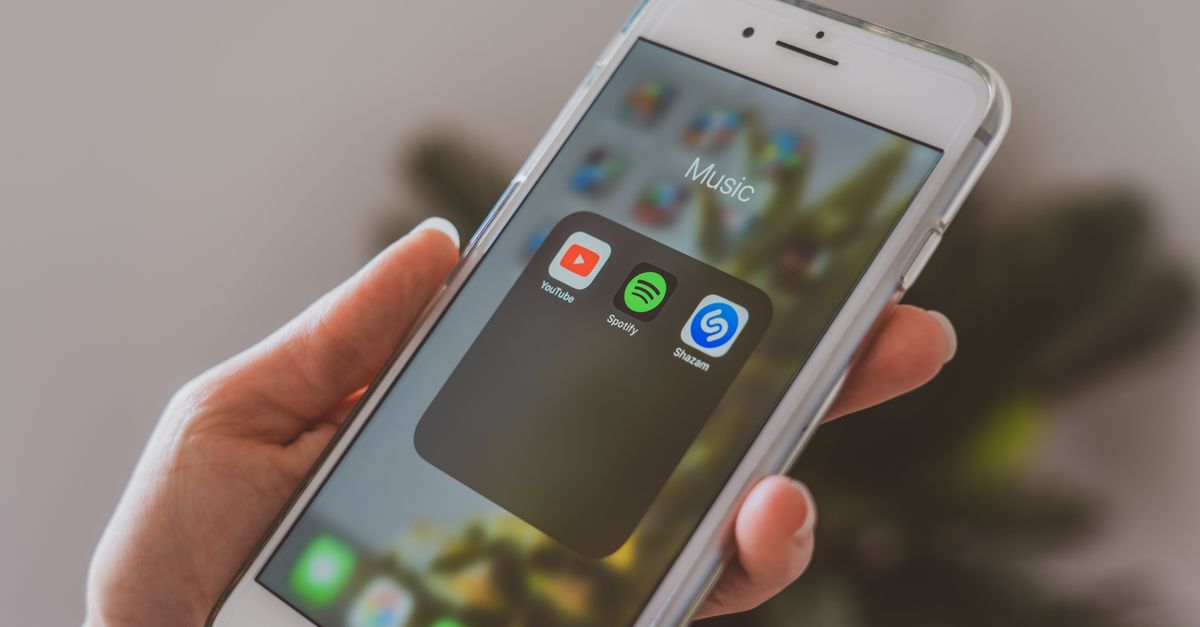
What iPhone can and cannot do with audio speed
iOS gives you several ways to control playback speed while audio is playing, but the platform does not include an export workflow for a speed-changed file. Voice Memos plays back your own recordings at the original rate without a visible speed control on the playback screen. The Music app adjusts background playback speed slightly when you ask it to keep songs sounding the same after tempo changes, but it does not save a new file. The Podcasts app, which has the most visible speed slider, lets you pick 0.5× to 3× for an episode, and the Books app does the same for audiobooks, but both are playback-only controls. There is no system-wide "Save copy at current speed" action anywhere in iOS.
If you want a file you can send in Messages, drop into a project, or open in another editor, you have to render the speed change yourself. The fastest way to do that on an iPhone is to send the file through a browser tool that decodes audio locally, applies a playback rate, and writes a new WAV you can download back to the device. Audio Speed Changer is built for that exact workflow and is reachable from any modern iPhone browser without installing an app.
| Built-in iPhone option | What it changes | What it does not change |
|---|---|---|
| Voice Memos playback | Plays your own recording back at the original rate | Does not export a modified file |
| Music app | Applies a small background-playback speed tweak to songs | Does not save a new audio file |
| Podcasts app speed slider | Plays episodes at 0.5× to 3× while listening | Does not export the sped-up audio as a file |
| Books app narration | Plays audiobooks at variable speed | Does not export a new audio file at the new speed |
| Audio Speed Changer in browser | Decodes the file and renders it at 0.5× to 2× | Does not preserve the source codec, bitrate, ID3 tags, or pitch |
Get an audio file from your iPhone into the browser
Before you can change audio speed on iPhone, you need a file the browser can open. Audio Speed Changer accepts a single file up to 25 MB that your iPhone browser can decode, so the practical step is to make the audio reachable from Safari, Chrome, or whichever browser you prefer. The Files app, Voice Memos, and iCloud Drive are the three most common starting points.
From Voice Memos, open the recording, tap the share button, then choose "Save to Files" and pick a folder under "On My iPhone" or iCloud Drive. The recording lands on your device as an .m4a file. From iCloud Drive, open icloud.com in the iPhone browser, sign in, and download the file to the browser's downloads. If your source is a video in the Photos app, the simplest path is to AirDrop it to a Mac first and pull out the audio there, because iOS does not let you open a video file directly in the browser as audio.
Files saved into the "On My iPhone" Downloads folder are the simplest to reach from a browser: tap the file, choose "Share," and open it with Safari or Chrome. The browser handles common formats including MP3, M4A, and WAV directly, so most lecture recordings, voice memos, and downloaded music work without any conversion. If your browser shows an error when you try to open the file, the file is using a codec the browser does not decode, and Audio Speed Changer will not be able to process it either.
Change the audio speed in your browser
Once the file is reachable from your iPhone browser, the actual speed change is a short three-step process. The browser handles decoding, the speed-adjusted render, the preview, and the WAV download without sending the file anywhere.
- Open Audio Speed Changer in Safari or Chrome on your iPhone, then choose the audio file from your Files app, iCloud Drive, or browser downloads. The file stays in the browser; nothing is uploaded.
- Wait for the audio to decode, then pick a playback speed from 0.5× to 2×. Faster or slower playback changes pitch together with the duration, so a 0.5× render will sound noticeably deeper and a 2× render will sound noticeably higher.
- Select "Change speed and export WAV," preview the result in the page, and download the PCM16 WAV file. The result duration and file size are reported on the page so you can confirm the output before you save it.
The render runs in an offline audio context inside the browser, so the speed change happens on the iPhone itself rather than on a remote server. If you want a deeper walkthrough of the browser-based workflow, the guide on changing audio speed in your browser covers the same tool in more detail, including what to do when your browser will not decode a particular file.
What the speed change does to pitch and duration
Audio Speed Changer is a playback-rate renderer, not a pitch-preserving time stretcher. When you change the rate, the duration shortens or lengthens and the pitch shifts in the same direction at the same proportion. A 1× render is identical to the source. A 0.5× render is twice as long and sounds about an octave lower. A 2× render is half as long and sounds about an octave higher. This is the same effect you hear when you change the speed slider in the Podcasts app and the speaker's voice changes character.
Concretely, a one-minute source at 2× becomes a result of about 30 seconds: 60 seconds ÷ 2 = 30 seconds. The same one-minute source at 0.5× becomes about 120 seconds: 60 seconds ÷ 0.5 = 120 seconds. The page reports the actual result duration and file size after rendering, so you can compare what you got against the source before downloading. For most spoken-word use cases — lectures, interviews, voice memos, language practice — the pitch shift is mild at small changes like 1.25× or 0.75×, and listeners tend to adapt within a few seconds.
If you specifically need a slower or faster clip that keeps the original pitch, the guide on changing audio pitch without losing quality locally covers the pitch-preserving alternatives that are available in the same browser workflow. Those tools use a different rendering path and cost more memory, which is why Audio Speed Changer is the right default for the common case where you do not care about pitch.
What is in the downloaded WAV file
The download is always an uncompressed PCM16 WAV file in the RIFF/WAVE container described by the standard Microsoft WAVEFORMATEX structure. Because PCM16 WAV is uncompressed, the file is usually larger than the source even when the audio is shorter — a 5-minute MP3 might be only a few megabytes, while the same 5-minute WAV can run into the tens of megabytes. That is normal for an uncompressed result, not a sign that the tool duplicated the audio.
The WAV does not preserve the source codec, source bitrate, ID3 tags, artwork, chapters, or any other embedded metadata. The render captures the decoded audio samples and writes them into a fresh WAV, so anything that lived in the source container outside the audio data is dropped. The tool also does not produce an MP3, AAC, M4A, or any other compressed format. If you need the result in a compressed format, convert the downloaded WAV afterwards with a separate tool.
Browser codec support varies, so a file your current iPhone browser cannot decode will show an error and no output file is created. To keep memory use predictable, the tool enforces a hard set of limits: files up to 25 MB, up to 15 minutes long, up to eight channels, up to 192 kHz sample rate, and up to 30 million rendered samples in the output. Files that exceed any of those limits are rejected before rendering starts, so the browser does not stall on a file that is technically decodable but too large for the device.
Common reasons to change audio speed on iPhone
Most readers who land on this page have one of a few practical goals. The first is a lecture or talk you want to skim through faster: a 1.5× render turns a 60-minute recording into a 40-minute one, which is enough to keep your attention on familiar material without losing the speaker's intent. The second is language and pronunciation practice: a 0.5× or 0.75× render slows a phrase down enough to copy the rhythm and consonant shapes, and you can re-render at 1× once you have the cadence. The third is reviewing meeting or interview recordings in the gaps of a busy day, where shaving 20% off the duration adds up across several files.
Two less obvious reasons come up often. A 2× render of a long reference recording is a fast way to find the right spot before going back to the source at normal speed — you scrub the sped-up copy to roughly the timestamp you want, then reopen the original at 1×. A 0.5× render of a fast-spoken podcast or audio message is also a kinder playback speed for anyone who finds the default pace difficult to follow, including second-language listeners, people using the file in a noisy environment, and anyone working through a transcript alongside the audio.
In every case, the workflow is the same: pick a file your iPhone browser can decode, open Audio Speed Changer, choose a rate from 0.5× to 2×, preview the result, and download the WAV back to your device. The page tells you the result duration and file size before you commit to the download, and the WAV you save plays in any standard audio player, including the iPhone's own Files and Music apps.