BandLab lets you change audio speed directly inside its editor using its built-in speed control on audio tracks and clips, and the change applies to both duration and pitch together. The editor's speed slider moves from half-speed up to double-speed without leaving the project, which covers most routine playback-rate edits for music and spoken recordings. For users who want a separate, browser-based method that works on any audio file outside a BandLab project, the Audio Speed Changer handles the same 0.5× to 2× range locally without uploading anything. Both methods rely on playback-rate rendering rather than pitch-preserving time stretching, so a faster file sounds higher in pitch and a slower file sounds lower. Choosing between them comes down to whether you want to edit inside an active BandLab session or produce a fresh WAV copy from any browser, and both produce a result whose pitch follows the rate rather than staying constant.
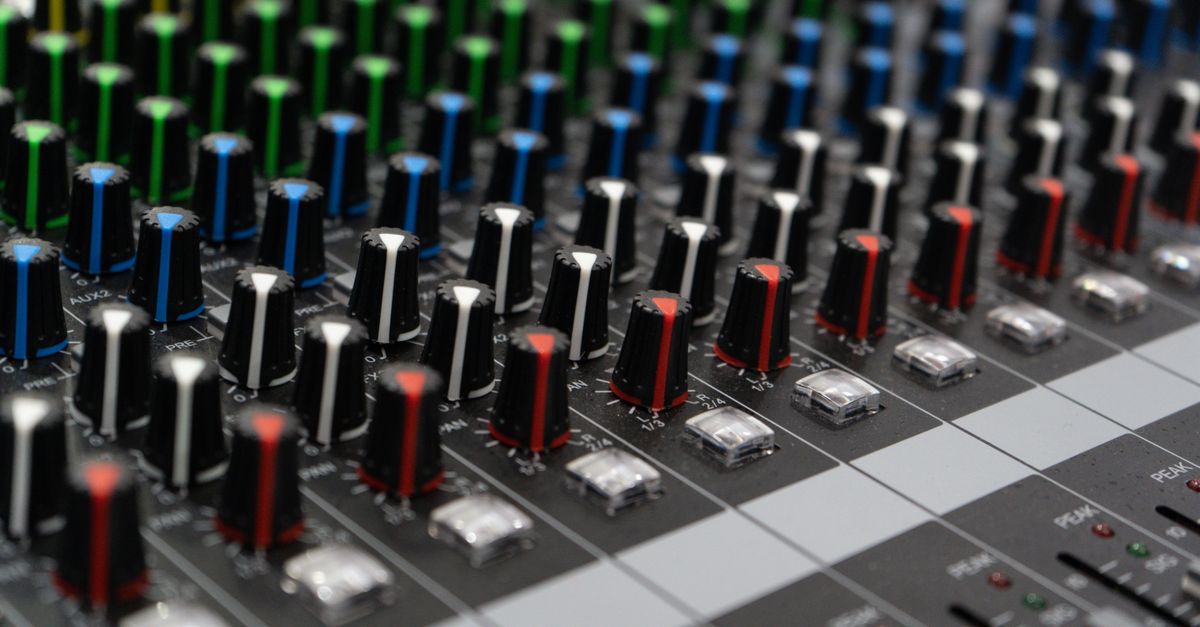
Speed Changes in BandLab
BandLab's web and mobile editors expose a speed control on individual audio clips. The general workflow inside BandLab is:
- Open or create a BandLab project and add the audio file you want to speed up or slow down.
- Tap or click the clip to select it, then open the clip's property or inspector panel.
- Locate the speed or playback-rate control within the clip properties.
- Set the new rate between 0.5× and 2×. The clip's length and pitch change together with the rate.
- Commit the change, export the project, or continue editing other tracks in context.
Because BandLab uses playback-rate rendering rather than pitch-preserving time stretching, the pitch rises with higher rates and falls with lower rates. Exact menu labels can differ across the web and mobile apps, so check BandLab's in-app help for the precise control names on your device. When you only need a finished file at a different speed and do not want to spin up a project just for that one change, a focused browser tool can do the same job without the DAW overhead.
When a Browser-Based Tool Is the Better Fit
A dedicated browser tool makes sense in several common situations:
- You have a finished MP3, M4A, or WAV that lives outside BandLab and only needs a faster or slower copy.
- You want a quick reference version of a lecture, podcast, or interview without opening a full DAW.
- You need a WAV handoff for another local editor and do not want to launch BandLab just to render one file.
- You are working on a device where installing BandLab is not practical and prefer a single-file, in-browser step.
In these cases, opening BandLab, creating a project, importing the file, applying the speed change, and exporting the result adds several steps that a focused tool avoids. The trade-off is that you do not get the multi-track context of a BandLab session, but you also do not need it for a single-file speed edit. The Audio Speed Changer is built exactly for that workflow.
How to Change Audio Speed with the Audio Speed Changer
Follow these steps to produce a speed-adjusted WAV copy from any browser.
- Open the Audio Speed Changer and choose an audio file up to 25 MB. The file stays in your browser and is decoded locally.
- Wait for the audio to decode, then pick a playback speed from 0.5× to 2× using the speed selector. The chosen rate will change both duration and pitch together.
- Select the action to change speed and export WAV, then use the preview to confirm the new duration and result before downloading.
- Download the rendered PCM16 WAV file to your device. You can rename or move it like any other local file.
If your browser cannot decode the file, the tool reports an error and does not produce an output file, so you may need to convert the source to a more widely supported format before retrying.
What the Tool Does to Pitch and Duration
Because playback-rate rendering changes pitch together with duration, the relationship between the chosen speed and the result is predictable. Doubling the rate roughly halves the length and raises the pitch, while halving the rate roughly doubles the length and lowers the pitch. The tool reports the exact result duration and file size after rendering so you can verify the outcome before saving.
| Selected speed | Approximate result length from a 1-minute source | Pitch change |
|---|---|---|
| 0.5× | About 2 minutes | Lower |
| 1.0× | 1 minute (unchanged) | None |
| 2.0× | About 30 seconds | Higher |
This tool is not a pitch-preserving time stretcher, so if you need to keep the original pitch while changing length, a different editor is required. For spoken material like podcasts and interviews, the pitch shift is usually acceptable, especially at moderate rates such as 1.25× or 1.5×. For music, the pitch change is more noticeable and may not be what you want.
File Limits and Output Details
The tool accepts audio that your browser can decode, subject to a set of input limits designed to keep memory use predictable: up to 25 MB, up to 15 minutes, up to eight channels, up to 192 kHz, and up to 30 million rendered samples. Files outside these limits or in codecs your browser cannot decode will not produce an output, which is the safest behavior because partial or corrupted output would be worse than no file.
The output is always a freshly rendered PCM16 WAV file. The source codec, bitrate, ID3 tags, artwork, chapters, and any other embedded metadata are not preserved, and the tool does not create an MP3. WAV is uncompressed, so the downloaded file is often larger than the original even when the new duration is shorter, which is normal for an uncompressed local copy. If you need a compressed result, you can convert the WAV locally with another tool after downloading.
Local Processing and Privacy
Every step of the workflow runs in your browser: decoding the source file, routing the audio through an offline audio renderer at the chosen playback rate, previewing the result, and serializing the rendered samples as a PCM16 WAV. The selected file is not uploaded to a server by the tool, so the audio stays on your device throughout the process. This makes the approach practical for lecture recordings, spoken-word practice versions, or any audio where you want a quick local copy without sending the file elsewhere.
The offline audio renderer used for the export follows the Web Audio API specification, which describes how browsers can decode and render audio without a live playback chain. The output WAV uses the standard PCM16 RIFF/WAVE layout that most local editors and players can read without extra conversion. If you want a deeper walkthrough of changing speed in a different DAW, see the Audacity speed change walkthrough for comparison.
If you're weighing options, How to Change Audio Pitch in GarageBand on Mac covers this in detail.