To shift the pitch of an audio clip before dropping it into a CapCut PC project, the most reliable workflow is to apply a -12 to +12 semitone pitch shift in a local browser tool, export the result as an uncompressed PCM16 WAV file, and then import that WAV into your CapCut PC timeline. The pitch change follows twelve-tone equal temperament, where each semitone is a frequency ratio of 2^(1/12), so a +12 semitone shift raises the audio by one full octave and a -12 shift lowers it by one full octave. Because the shift uses playback-rate resampling rather than a time-stretching algorithm, the audio also changes duration: raising pitch shortens the clip, lowering pitch lengthens it. A +12 shift runs at 2× speed (about half the original duration) and a -12 shift runs at 0.5× speed (about double). The rendered WAV can then be used as a standalone voice clip, sound effect, or musical idea inside any CapCut PC project, and the entire decode-shift-encode-export process happens locally in the browser with no upload step.
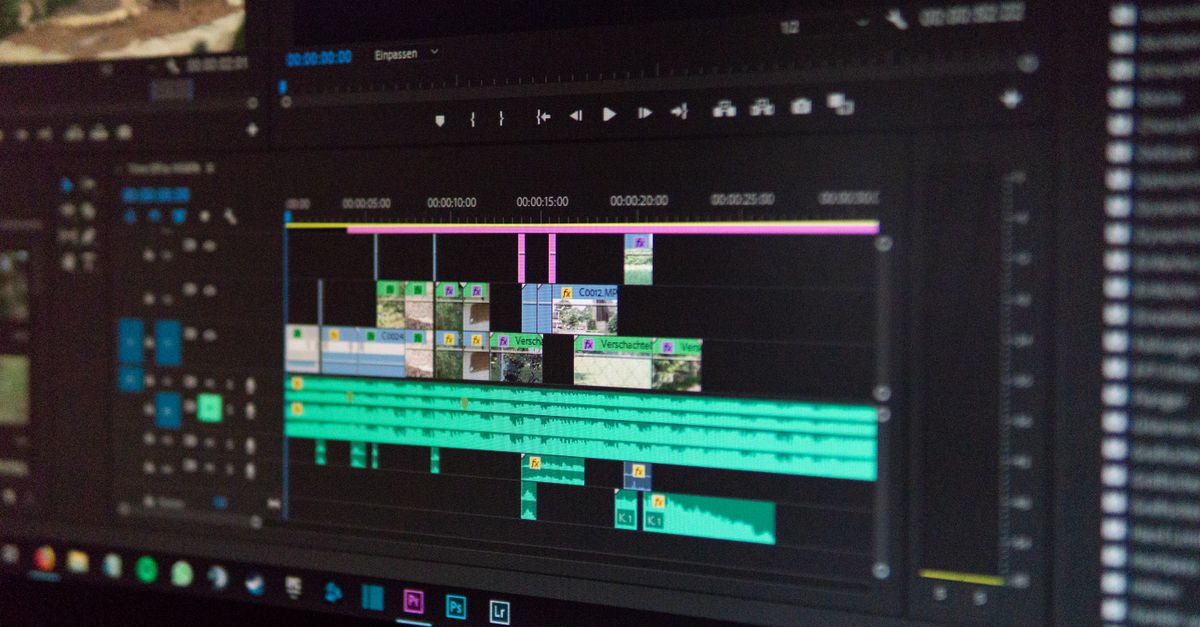
CapCut PC and Audio Pitch: What to Expect
CapCut PC is primarily a video editor, and its audio tools focus on trimming, splitting, fading, volume curves, and a library of preset effects. Pitch control is exposed in some CapCut workflows but is not always available on every audio track in the desktop build, and the underlying behavior depends on which effect or preset is active. When a pitch-style effect is applied, it typically relies on playback-rate resampling: the file is played back faster or slower, which raises or lowers pitch while moving duration in the opposite direction at the same time.
That behavior is fine for short sound effects, comedic voice clips, or quick musical sketches, but it becomes a problem when you want a creative octave-up harmony without losing the spoken cadence, or when you want a slow, deep voice that keeps the original timing of the video. A separate preparation step in a dedicated tool gives you more control over the exact semitone value, lets you preview the duration change before importing, and produces a clean uncompressed file that CapCut PC can decode without re-encoding losses. Once the shifted WAV exists, importing it back into a CapCut PC timeline is straightforward because WAV is a standard interchange format for both the audio tracks and the media pool. The result is a clean source file you can layer, duck, or pan with CapCut's own mixer.
A Local Browser Approach to Pitch Shifting
The Audio Pitch Changer is a browser-based tool that applies an integer semitone shift between -12 and +12 to one audio file, renders the result through the browser's offline audio engine, and downloads a fresh PCM16 WAV. The decode, pitch shift, and WAV encoding all happen locally in the current tab; the source audio and the rendered output are never uploaded. Because the tool uses playback-rate resampling, the behavior matches CapCut PC's own underlying model: pitch and duration move together.
That makes the tool a predictable preview for what a CapCut-style pitch effect will sound like, and it lets you decide in advance whether the duration change is acceptable for your edit. The trade-off is explicit: the tool never claims to preserve tempo, speech cadence, beat positions, or the exact original duration, so if you specifically need pitch change without duration change (for voice-over or music where tempo must be locked to the picture) the right workflow is a dedicated phase-vocoder or other time-stretching tool instead. For most CapCut PC projects, however, accepting the duration change is the simplest path, and the browser shift step removes any guesswork about which preset is in use inside the editor.
How to Shift Pitch Locally for CapCut PC
- Open the Audio Pitch Changer in your browser. The page runs entirely in the current tab, so no install or account is needed.
- Choose one browser-decodable audio file no larger than 50 MiB. Common formats such as MP3, WAV, M4A, AAC, Ogg, WebM, and FLAC are accepted, although actual decoding still depends on what the browser supports for unusual codec profiles.
- Set a whole-number pitch shift between -12 and +12 semitones. A value of 0 keeps the original pitch; positive values raise pitch and shorten duration, negative values lower pitch and lengthen duration.
- Create the complete local render. The tool decodes the file, applies the equal-tempered playback rate of 2^(semitones/12), and renders the full result through an OfflineAudioContext at the decoded sample rate.
- Review the stated duration change before downloading. The tool surfaces how much longer or shorter the new file will be compared with the source so you can confirm it fits your CapCut PC timeline.
- Download the new PCM16 WAV. The output is uncompressed, interleaved, little-endian PCM16 inside a RIFF/WAVE container, ready to import into CapCut PC.
- Import the downloaded WAV into CapCut PC through the media panel or by dragging it onto the timeline, align it with the video track, and adjust volume, fade, or other effects inside CapCut the way you would with any other audio source.
If you would rather see the full CapCut-side walkthrough first, the existing guide on changing audio pitch in CapCut covers the built-in effects in more detail. Combining that overview with the local browser shift step gives you a clean separation between "choose the value" and "apply it to the file," and the resulting WAV can be auditioned in any external player before it ever touches the CapCut timeline.
Semitone Values, Rates, and Duration
The pitch ratio follows twelve-tone equal temperament. For a shift of n semitones, the playback rate is 2^(n/12), and that same rate determines the new duration relative to the original. The table below summarizes the practical range supported by the tool. Durations are expressed as a multiple of the source length; the exact final duration comes from your source file and the chosen semitone value.
| Semitones (n) | Playback rate (2^(n/12)) | Perceived pitch change | Duration vs. original |
|---|---|---|---|
| -12 | 0.5× | One octave down | Roughly 2× longer |
| -7 | ≈0.667× | Perfect fifth down | ≈1.5× longer |
| -1 | ≈0.944× | One semitone down | ≈1.06× longer |
| 0 | 1× | Unchanged | Same as original |
| +1 | ≈1.059× | One semitone up | ≈0.94× shorter |
| +7 | ≈1.498× | Perfect fifth up | ≈0.67× shorter |
| +12 | 2× | One octave up | Roughly 0.5× shorter |
The mathematical relationship is documented in the W3C Web Audio specification, which defines the matching cents ratio in the AudioBufferSourceNode playback algorithm: detuning in cents contributes a factor of 2^(detune/1200). The MDN reference for playbackRate further explains that the property is a proportion of the original sampling rate, that values below one slow the audio, values above one speed it up, and that a non-unit rate triggers resampling. Together those references explain why a +12 semitone value is exactly one octave up, and why the same shift also cuts duration in half.
File Limits, Format, and What the Tool Does Not Do
The tool checks several limits before it begins the expensive render step, and any failure short-circuits the job so no incomplete file is ever downloaded. The relevant limits are worth understanding up front because they interact with your choice of semitone value.
- Encoded input is capped at 50 MiB per file. Files that decode successfully but exceed this raw size are rejected before any render work begins.
- Decoded audio may be at most five minutes long, with up to eight channels and a sample rate between 8,000 Hz and 192,000 Hz. Inputs outside that range are rejected.
- Decoded input is limited to 30 million channel samples, and the pitch-shifted output is separately limited to 30 million channel samples. Lowering pitch increases the required output frames, so an input that passes the decoded limit can still fail the output limit; in that case the tool reports an over-budget message and produces nothing.
- The downloaded file is always a freshly encoded, uncompressed, interleaved, little-endian PCM16 RIFF/WAVE file. Original codec, compression quality, bitrate, tags, artwork, chapters, cue points, and loop metadata are not preserved.
- Floating-point samples are clipped to the legal -1 through +1 range before quantization, which can subtly change very hot peaks. Strong upward shifts can also reveal aliasing or codec artifacts that were less obvious in the source.
- The tool never claims to preserve tempo, speech cadence, beat positions, or the original duration. If your edit needs pitch change at fixed duration, use a dedicated phase-vocoder or other time-stretching workflow.
Browser resampling quality is implementation-defined, so treat the WAV as a useful creative artifact and rough editing tool, not a transparent mastering step. For most CapCut PC projects that is more than enough: drop the WAV onto the timeline, sync it to the picture, and adjust volume, fades, or other effects inside CapCut the way you would with any other audio file. If a render ever fails on the output sample budget, the fix is usually a smaller semitone shift or a shorter source clip rather than a different tool.
If you're weighing options, Change Audio Pitch in Clipchamp Without a DAW covers this in detail.