The LRC File Generator turns a text file of plain lyric lines into a synced .lrc file by attaching a start timestamp in MM:SS.xx form and a fixed interval, between 0.01 and 600.00 seconds, to each line, then downloading the result locally. The generator accepts up to 500 non-empty lyric lines and produces one bracketed timestamp per row using a de-facto simple LRC subset, not a formal universal standard. Optional title, artist, and album values become [ti:], [ar:], and [al:] metadata tags at the top of the file. The exact text shown in the preview is the same string saved with an .lrc extension and a UTF-8 encoding without a byte-order mark. Because the interval is converted to integer centiseconds before any rows are produced, repeated addition does not accumulate binary floating-point drift across long lyric sheets. The generator does not listen to audio, transcribe vocals, detect beats, or estimate performance timing — it simply formats text the user already owns into the simple LRC shape that most players recognize.
That last point matters for anyone coming from a background in audio production or automatic speech recognition. Tools that transcribe vocals from a recording analyze the audio waveform; tools that generate an LRC from a text file just place timestamps at regular spacing. The two workflows solve different problems, and this article is about the second one — taking a text file you already have, attaching a rhythm, and exporting a clean .lrc file you can pair with any local audio.
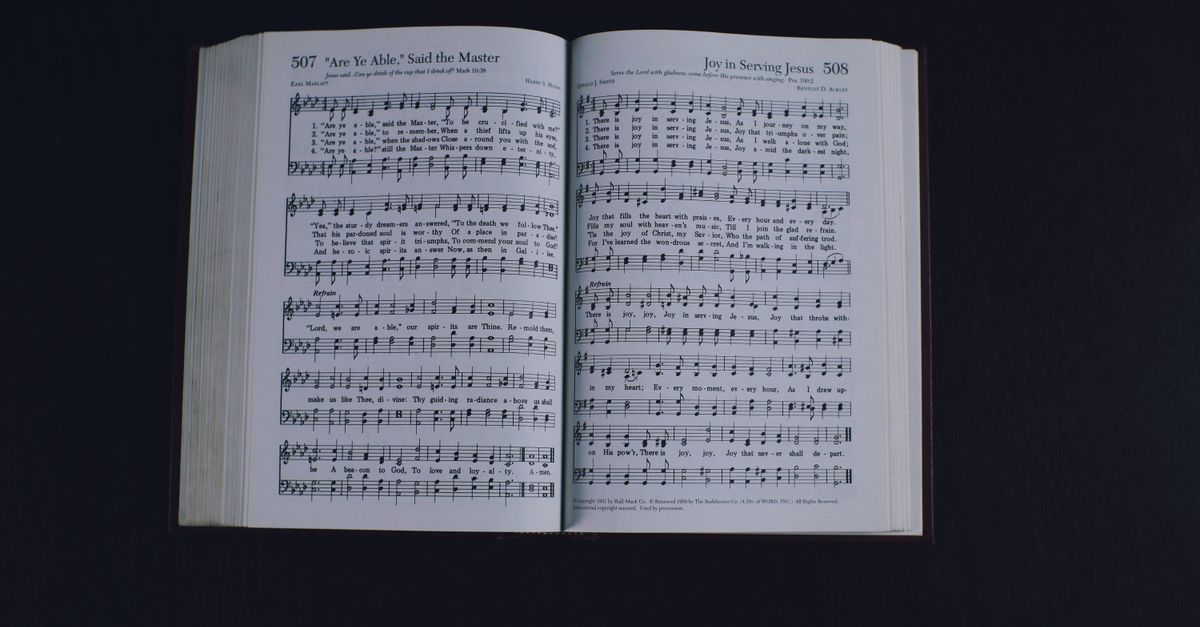
From a Text File of Lyrics to a Synced LRC File
The full pipeline has three stages. First you collect or type out plain lyric text, one line per row. Next you decide where the first line should appear in the song and how much time sits between consecutive lines. Finally you feed both into the LRC File Generator and download the output. Nothing in that pipeline touches an audio file — the tool reads only the text you type and writes only the LRC string shown in the preview.
If you want a deeper walkthrough of how the start-time and interval pair becomes a sequence of exact centisecond stamps, the start time and interval guide covers the arithmetic in more detail. The rest of this article focuses on what each input field does, what the saved file looks like, and how to refine the draft against a real recording.
Inputs the Generator Accepts
The form has three required pieces — the lyric lines, the start timestamp, and the interval — plus three optional metadata fields. Every input is validated before generation, so an invalid start time or an empty lyric block produces an error instead of a silently broken file. Knowing the exact limits up front prevents surprises after you click Download.
| Field | Format and limit |
|---|---|
| Lyric lines | 1 to 500 non-empty rows, up to 500 characters per line, 50,000 characters total; blank rows removed; Windows, Mac, and Unix line endings normalized |
| Start timestamp | MM:SS.xx with 2 or 3 minute digits, seconds 00–59, and exactly two centisecond digits; examples: 00:00.00, 09:59.99, 10:00.00, 123:45.67 |
| Interval | 0.01 to 600.00, at most two decimal places; converted to integer centiseconds before any rows are produced |
| Title (ti) | Optional; trimmed, max 120 characters, no square brackets or control characters; omitted entirely if left blank |
| Artist (ar) | Optional; same constraints as title |
| Album (al) | Optional; same constraints as title; omitted entirely if left blank |
For a concrete picture of how the arithmetic works, take a start of 00:12.34 paired with a 2.50-second interval. The generator stores the interval as 250 centiseconds and adds that integer to the running total, so the first line receives 00:12.34, the second receives 00:14.84 (12.34 + 2.50 = 14.84), and the third receives 00:17.34 (14.84 + 2.50 = 17.34). Because the running total is always an integer number of centiseconds, no rounding error sneaks in even across a 500-line song.
If the final calculated timestamp would exceed 999:59.99 — the maximum the format supports — generation fails and nothing is silently truncated. The rejection is intentional: a cut-off timestamp would be worse than no file at all, because players handle invalid rows in unpredictable ways.
How to Generate an LRC File from Your Lyrics
- Open the LRC File Generator in a desktop or mobile browser.
- Paste up to 500 lyric lines into the lyrics box, one display event per row, and remove any blank rows you do not want timed.
- Enter the start timestamp as MM:SS.xx — for example, 00:12.34 if the first line should appear 12.34 seconds into the song.
- Enter the interval value, between 0.01 and 600.00 seconds, using at most two decimal places; a common starting point is 2.50 for a moderate tempo.
- Optionally fill the title, artist, and album fields; each becomes a ti, ar, or al tag at the top of the file.
- Read the complete file text in the preview area; the first and last timestamps are visible there so you can sanity-check the range before saving.
- Click Download to save the same preview text with an .lrc extension; the filename uses the title when one was provided, otherwise it falls back to synced-lyrics.lrc.
- Open the downloaded file next to the actual recording in your player or editor and adjust individual lines whose timing does not match the vocals.
Step 8 is the one that turns a draft into a useful file. The generator only lays down a regular grid; the work of matching real singing happens later, against the audio you actually plan to play.
What the Output File Contains
The downloaded file is a plain UTF-8 text document with a structure that most music players recognize. Metadata lines come first if any were provided, then a single blank separator, then the timed lyric rows. Each timed row is a bracketed MM:SS.xx timestamp immediately followed by the lyric text on the same line — no extra spaces, no padding, no hour field, no colon-separated frame format, no word-level angle-bracket timestamps, and no karaoke duet markers.
| Section | Example |
|---|---|
| Title tag | [ti:Example Song] |
| Artist tag | [ar:Example Artist] |
| Album tag | [al:Example Album] |
| Separator | (single blank line, present only when metadata exists) |
| Timed lyric row | [00:12.34]First line of the song |
The QuickLRC format reference documents this de-facto form, and the independent Subforge time implementation confirms the underlying math: minutes contribute sixty thousand milliseconds, seconds contribute one thousand, and the two fractional digits represent centiseconds. The generator uses the same rules, so a line marked [00:12.34] in your file means twelve seconds and thirty-four hundredths of a second from the start of playback. The preview area always shows the exact bytes that will be saved, so there is no hidden reformatting between what you see and what you download.
Why a Fixed Interval Is Only a Starting Draft
Real songs are not perfectly even. Verses breathe, choruses compress, bridges hold back, and singers rush or drag on certain phrases. A 2.50-second grid will look right for the average line and visibly wrong for the exceptional ones. The page itself does not listen to audio, transcribe what is sung, identify a beat grid, or estimate where each phrase actually begins, so the regular-spacing output is meant to be opened next to the recording and refined.
Once the file is on your device, open it in any plain-text editor or a dedicated LRC editor to nudge individual timestamps. Most editors let you click a line, press a shortcut while the song plays, and bind the timestamp to the current playback position. Save back to the same .lrc file and your player will pick up the corrections without re-encoding the audio. The download is the draft; the retimed version is what you actually publish.
Player Compatibility and Encoding Choices
Different players support different pieces of the broader LRC family. The simple subset produced here — centisecond line timestamps plus optional ti, ar, and al tags — is the most widely accepted, but some players ignore metadata entirely, some truncate long minute values above a certain threshold, and some legacy programs still rely on encodings other than UTF-8. The generator writes UTF-8 without a byte-order mark because that is what the modern players expect, and the filename omits unsafe punctuation so the file saves cleanly on Windows, macOS, and Linux. Always test the output in the player you actually use; a file that loads cleanly in one program can appear as raw text in another, and the only way to know is to open it next to the song and watch the lines scroll.
Privacy, Copyright, and Browser-Based Processing
All the arithmetic and text formatting happens inside the browser tab. No lyric text is uploaded to Lizely, stored in an account, or sent to an AI service, and the temporary download link is revoked as soon as you use it or close the page. That keeps private writings, unreleased demos, and licensed lyric sheets on your device. The tool does not supply copyrighted lyrics, search a catalog, identify a song, confirm ownership, or grant a synchronization license. It simply formats text you already have permission to reproduce and distribute, so if you are timing someone else's song, make sure you hold or have cleared the rights before publishing the result.
If you're weighing options, Create Synced Lyrics from Text with a Fixed Interval covers this in detail.