People compare audio speed changer approaches across four buckets — desktop DAW, mobile app, browser-based tool, and command-line program — and the comparison usually turns on three trade-offs: where the file is processed, what format comes out, and whether pitch is preserved. The fastest reliable path for most one-off tasks is a browser-based tool that decodes the file locally, renders a new speed-adjusted copy, and hands back an uncompressed WAV without ever sending the source to a server. The Audio Speed Changer follows exactly that model, accepting a browser-decodable file up to 25 MB, letting you pick a playback rate from 0.5× to 2×, and exporting the result as a PCM16 WAV. Because it relies on the Web Audio API's OfflineAudioContext and an AudioBufferSourceNode playbackRate as defined in the Web Audio API specification, both duration and pitch change together — there is no pitch-preserving time stretching in the pipeline. That trade-off is the single most important fact when comparing approaches, because most DAW-based and mobile-app workflows offer pitch preservation as an option while this browser path does not.
The Main Approaches People Use to Change Audio Speed
Most audio-speed tasks can be solved with one of four workflows. Each takes a different amount of setup time, demands different hardware, and produces different output formats.
1. Desktop DAW workflows
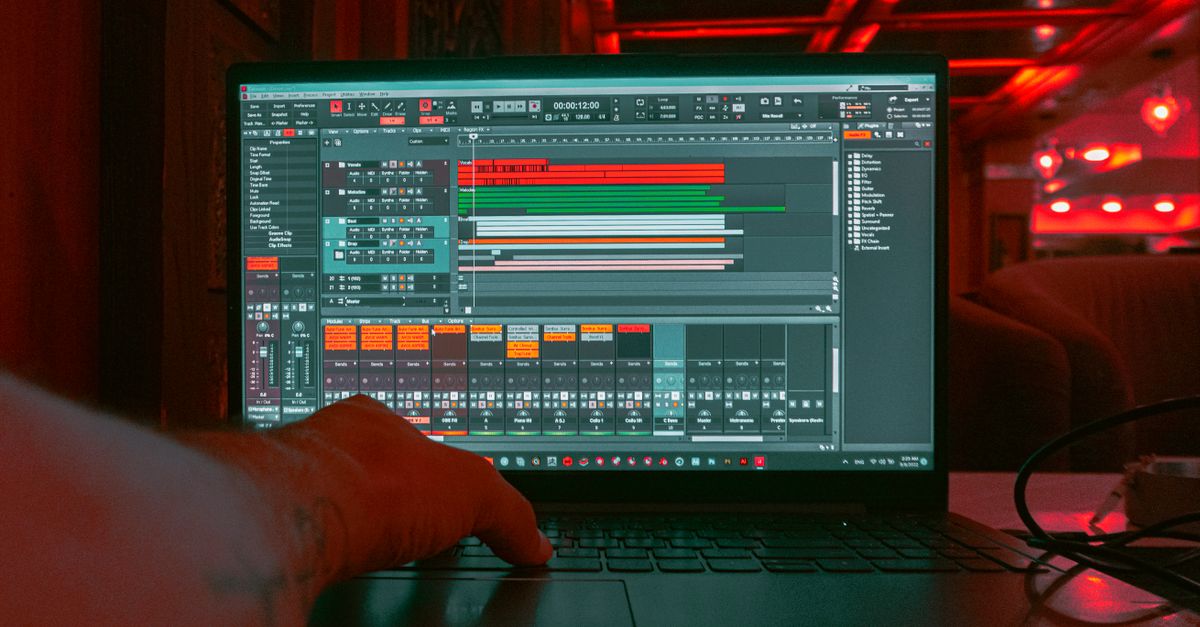
Programs like Audacity, Adobe Audition, Reaper, and Logic Pro include a time-stretch or speed-change effect that runs on the local machine. They handle long files, support pitch-preservation algorithms, and let you edit the clip before exporting. For users already inside a DAW, this is usually the default path. If you need a hands-on DAW walkthrough, the three working methods for Adobe Audition show the same task with that editor's interface.
2. Mobile app workflows
Both iOS and Android host single-purpose speed-changer apps. They shine when the source file lives on the phone and the goal is to send a faster or slower copy back to the same device. Storage caps, format support, and ad-driven upsells are the common trade-offs.
3. Browser-based workflows
Browser tools decode the selected file with the Web Audio API, render the new speed with an OfflineAudioContext, and let you download the result. Nothing leaves the device. The Audio Speed Changer sits in this group and produces an uncompressed PCM16 WAV as its output.
4. Command-line and scripted workflows
FFmpeg's atempo filter and SoX's tempo effect change speed on the local machine and are ideal for batch jobs. They require a terminal, a working build, and a willingness to read filter graphs.
A Side-by-Side Comparison of Audio Speed Changer Approaches
The table below compares the four approaches on the criteria that usually decide which one to pick. Use it to scan the landscape before you commit to an install or a workflow.
| Approach | Where it runs | Typical output | Pitch behavior | Install needed |
|---|---|---|---|---|
| Desktop DAW (Audacity, Audition, Reaper, Logic) | Local desktop app | Multiple formats including WAV and MP3 | Optional in most | Yes |
| Mobile app (iOS / Android) | Local phone | Varies by app | Varies by app | Yes, via app store |
| Browser tool (Audio Speed Changer) | Local browser tab, no upload | Uncompressed PCM16 WAV | Pitch changes with speed | No |
| Command-line (FFmpeg, SoX) | Local terminal | Any format the encoder supports | Optional with extra filters | Yes, binary install |
The big split is between pitch-preserving engines and direct playback-rate rendering. If you need the voice to stay at the same pitch at 1.5× speed — the classic no-chipmunk ask — a pitch-preserving path is the only correct choice. If you are fine with both pitch and duration moving together, the browser path is the shortest route to a fresh WAV.
Match the Approach to Your Task
Before picking a tool, name the task in one sentence. The task decides which column of the table matters most.
- Quick listen-through at 2×: the goal is a faster copy of a lecture or podcast you do not need to edit. The Audio Speed Changer renders a WAV in the time it takes your browser to decode and re-render the clip, with zero setup.
- Slow practice version: a 0.5× or 0.75× copy of a spoken phrase for transcription or language drills. Pitch will drop with the speed, which is usually acceptable for speech drills.
- Pitch-preserving podcast edit: 1.25× or 1.5× with the voice at normal pitch. A DAW with a time-stretch algorithm, or FFmpeg with a rubberband filter, is the right pick. The browser tool will not produce that result.
- Mobile-only source: the file lives on a phone. A mobile app is the smallest-friction path. The browser tool still works if you can transfer the file to a desktop browser.
- Batch processing: dozens of clips at fixed rates. A command-line script with FFmpeg is faster than any GUI.
Run the Audio Speed Changer in Five Steps
This is the concrete workflow once you have decided the browser path fits the task.
- Open the Audio Speed Changer in your browser.
- Choose an audio file up to 25 MB. The selected file is decoded in the browser tab and is not sent to a server.
- Wait for decoding to finish, then pick a speed between 0.5× and 2×. Faster or slower playback changes pitch together with duration — the slider drives an AudioBufferSourceNode playbackRate, not a pitch-preserving algorithm.
- Select Change speed and export WAV. The page reports the resulting duration and file size so you can check the new clip before you commit.
- Preview the rendered clip, then download the PCM16 WAV file to your device.
That is the entire round trip: select, pick a rate, render, preview, download. Nothing is uploaded, and the output is a fresh WAV that another local editor can open without a codec dance.
When the Browser Approach Is the Right Pick
The browser path is the right pick when the task fits inside the local, single-file envelope. Three concrete scenarios where it is the cleanest choice:
- Reference copies: a faster copy of a lecture or interview you want to skim in the background. Render at 1.5× or 2× and drop the WAV into the same folder as your notes.
- Practice clips: a slower version of a spoken phrase for transcription. Render at 0.75× or 0.5× and listen at your own pace.
- Local handoff: you need to hand a sped-up clip to a teammate who works in a different editor. An uncompressed PCM16 WAV opens everywhere and avoids the format lottery.
For anything that needs pitch preservation, multi-track editing, or files over the local cap, move to a DAW or a script instead.
Limits and What to Watch For
The Audio Speed Changer has a defined envelope. Sticking inside it keeps the render predictable.
- File size: inputs over 25 MB are rejected to keep browser memory use bounded.
- Length cap: 15 minutes of audio is the upper bound for the same reason.
- Channel count: eight channels at 192 kHz is the ceiling; above that the renderer refuses the job.
- Rendered sample cap: 30 million samples in the output keeps the OfflineAudioContext from overcommitting.
- Browser codec: the input must be a file your current browser can decode. If the browser cannot decode the source, no output is produced — there is no silent fallback.
- Pitch: because the renderer uses playback rate, pitch shifts with duration. Faster clips sound higher, slower clips sound lower.
- Output encoding: the download is uncompressed PCM16 WAV. A WAV copy is normally larger than a compressed MP3 or AAC copy of the same content, even when the sped-up clip is shorter.
- Metadata: ID3 tags, artwork, chapters, and the original codec are not carried into the WAV. The output is plain sample data.
Verifying the Output Before You Hand It Off
Before you treat the downloaded WAV as final, three quick checks catch the usual surprises.
- Duration: the page reports the new duration before you download. A one-minute source at 2× should land at about 30 seconds; at 0.5×, about two minutes. The relationship is inverse — faster means shorter.
- File size: a longer WAV is a larger file at the same sample rate. If the size does not roughly track the duration, re-check the rate.
- Playback: preview the clip in the browser, or open the downloaded WAV in any audio editor. Pitch will move with duration; that is expected.
If any of those three checks fail, the most common cause is a source the browser could not decode cleanly. Switch to a file format your current browser supports natively — uncompressed WAV, MP3, and AAC almost always work — and re-run the steps. For a deeper check on what the WAV actually contains, the result-check walkthrough covers duration, sample rate, and channel count.
Where This Fits in the Bigger Picture
Comparing audio-speed approaches is mostly a question of which trade-off you can tolerate: install overhead, pitch preservation, output format, or upload behavior. The Audio Speed Changer trades pitch preservation and embedded metadata for zero installs, no uploads, and an output format that opens anywhere. When those trade-offs match the task, it is the shortest path between a source file and a new WAV on disk. When they do not — long files, multi-track edits, pitch-preserving stretches — fall back to a DAW or a command-line pipeline.