The most common mistakes when generating an audio waveform fall into three groups: feeding the tool unsupported audio or oversized files, misreading the resulting picture as frequency or loudness data, and skipping the inspection step before downloading. The Audio Waveform Generator avoids many of these mistakes by enforcing strict local limits, drawing a deterministic peak envelope, and showing the exact generated SVG text in an inspector. Understanding exactly what the tool does and does not do is the fastest way to prevent the errors that ruin most attempts.
An audio waveform is a visual reduction. Several million decoded samples become a few hundred vertical lines. Every choice the tool makes — bucket boundaries, color, width, height, channel handling — affects what the picture actually shows. When the result looks wrong, the mistake usually sits in the input, the interpretation, or the post-generation check, and each category has a recognizable signature you can learn to spot.
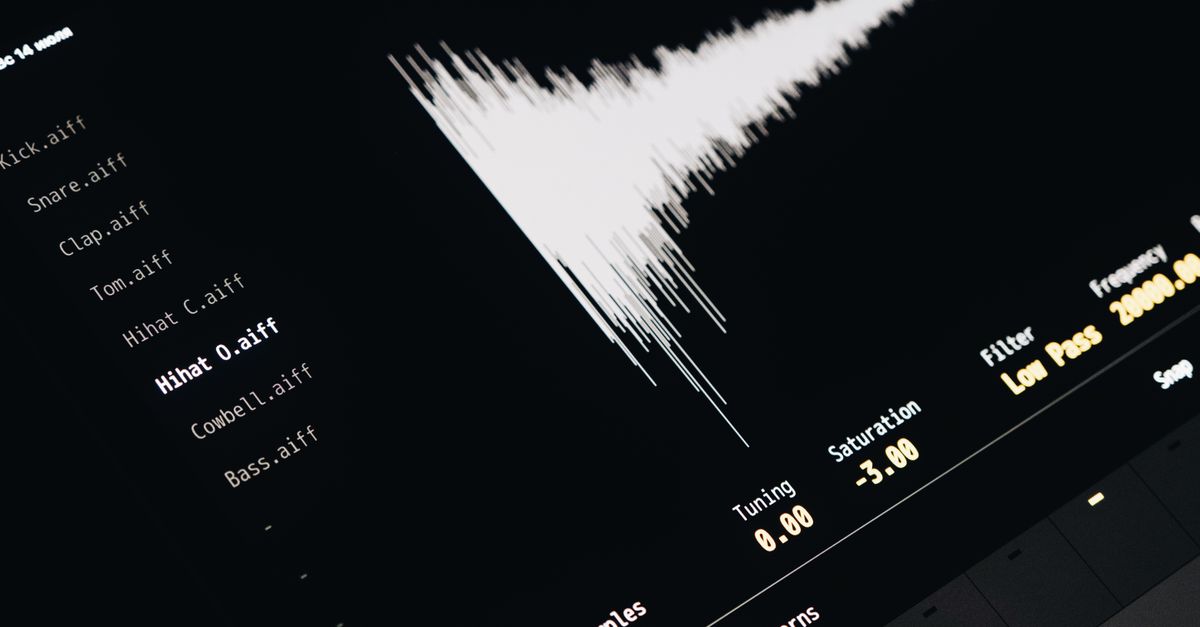
The Five Mistakes Most People Make With Audio Waveform Generation
These errors repeat across beginners and experienced users alike. Each one is fixable once you know where to look.
- Uploading the wrong file format. A file extension does not guarantee decoding. The Audio Waveform Generator reads MP3, WAV, M4A, AAC, Ogg, WebM, or FLAC only when the current browser and operating system actually support the real codec inside the container.
- Trusting the compressed size instead of the decoded size. A 3 MB compressed file can decode into hundreds of millions of channel samples. The tool enforces a 50 MiB compressed cap, a 5 minute duration, 8,000 to 192,000 Hz sample rate, 1 to 8 channels, and a 30 million channel sample ceiling.
- Reading the waveform as a spectrogram. Time runs left to right, but the vertical line in this picture represents sample amplitude range, not frequency. The tool does not calculate frequency content, beats, notes, or musical structure.
- Reading the waveform as a loudness meter. Two recordings can show similar peaks while sounding very different because perceived loudness depends on duration, frequency balance, dynamics, and playback conditions.
- Skipping the inspection step. The tool reports the decoded frame count and the number of peak columns. Ignoring those numbers lets silent truncation or rejection pass unnoticed until the picture goes into a deliverable.
Why Wrong Inputs Break Audio Waveform Generation
The single largest category of mistakes is on the input side. The Audio Waveform Generator rejects invalid files as a whole — it never silently truncates audio to the first few seconds. That means a 4 minute podcast that decodes into 200 million channel samples is rejected even though the compressed file looks small. Over-limit audio is rejected as a whole; the waveform is not silently made from only the beginning.
| Limit | Accepted range or ceiling |
|---|---|
| Compressed file size | 50 MiB maximum |
| Decoded duration | 5 minutes maximum |
| Sample rate | 8,000 to 192,000 Hz |
| Channel count | 1 to 8 |
| Channel samples | 30,000,000 maximum |
| SVG width | 320 to 1,600 pixels |
| SVG height | 120 to 600 pixels |
| Color inputs | Six-digit hexadecimal only |
If the selected file fails to decode, the tool returns an error rather than producing a misleading partial waveform. Unsupported, corrupt, empty, or disguised files all trigger that path. Selecting a replacement file, changing an option, regenerating, or leaving the page also revokes the obsolete object URL, so an older image cannot appear to represent new inputs.
Mistaking a Peak Waveform for a Spectrogram or Loudness Meter
The second major category of mistakes is interpretation. A peak waveform from this tool is a deliberate simplification, not a diagnostic instrument. It divides all decoded frames into a number of buckets equal to the smaller of the requested image width, 1,000, and the decoded frame count. For each bucket, it finds the minimum and maximum finite sample across every decoded channel, clamps defensive out-of-range values to -1 through 1, and draws one vertical SVG line from the bucket maximum to its minimum. This preserves short positive and negative peaks more honestly than taking one arbitrary sample per bucket.
That method still does not tell you anything about pitch, timbre, or perceived loudness. If you need a spectrogram, frequency analysis, calibrated LUFS, or transient detection, you need a different instrument. The same is true for diagnosing hearing, equipment health, clipping history, phase relationships, or mastering compliance — none of which this picture can answer. Treating the waveform as evidence for any of those questions is a category error that no setting change can fix.
How to Generate an Audio Waveform Without the Common Mistakes
Follow these steps in order. They mirror the verified operating path of the tool and remove every input-side and interpretation-side mistake above.
- Choose one browser-decodable audio file (MP3, WAV, M4A, AAC, Ogg, WebM, or FLAC) that is under 50 MiB compressed, no longer than 5 minutes, has 1 to 8 channels at 8,000 to 192,000 Hz, and stays within the 30 million channel sample budget.
- Set the SVG width between 320 and 1,600 pixels, the height between 120 and 600 pixels, the six-digit hexadecimal background color, and the six-digit hexadecimal waveform color, then generate the local peak envelope.
- Check the reported frames and peak-column count. The column count is the smaller of the requested image width, 1,000, and the decoded frame count, so a short clip will not invent more measurements than it contains while a long clip stays within a bounded SVG and processing budget.
- Inspect the preview or open the expandable SVG text inspector to confirm the background rectangle, the line group, and the matching viewBox match your requested dimensions and colors.
- Download the exact scalable SVG. The download is text-based SVG, not PNG, JPEG, video, or audio, and it shares the identical string as the inspector so what you saw is what you save.
What to Verify After You Generate the SVG
Even with clean inputs and correct interpretation, two post-generation mistakes catch users: forgetting that stereo files become one combined peak overview, and assuming SVG stays sharp at any print size without checking it.
For multichannel audio, the image is a combined peak overview. A single bucket can take its minimum from one channel and its maximum from another. The result does not display separate left and right lanes, preserve channel identity visually, or average channels into a new audio signal. If separate channel waveforms are required, use an audio editor that exposes each channel as its own track.
SVG coordinates are deterministic. The vertical center is half the requested height, and full-scale positive or negative samples extend to 45 percent of the height above or below that center, leaving a five-percent margin at the top and bottom. As a worked example, a 400 pixel tall image places the centerline at 200 pixels, and full-scale peaks reach 200 − (400 × 0.45) = 20 pixels at the top and 200 + 180 = 380 pixels at the bottom. Columns are evenly centered across the requested width. SVG stays sharp when placed at another display size, but extremely large print or editing workflows may still require different stroke widths or more detailed source data than a peak envelope provides.
When the Audio Waveform Generator Is Not the Right Tool
The final mistake is using a peak waveform tool for a job it was not designed to do. If you need frequency content, beats, notes, calibrated loudness, speech recognition, transient detection, phase measurement, or channel separation, reach for a different analyzer. A peak waveform is also not an audio editor — the original audio is never rewritten, so cutting, joining, reversing, or pitch shifting requires separate utilities such as Audio Cutter.
The peak picture also cannot tell you whether your file is mastered correctly, whether a microphone clipped during recording, or whether two microphones were out of phase. Diagnose those questions with proper measurement tools, then return to the waveform generator only when you need a clean, deterministic, scalable SVG overview of amplitude over time. Sticking to that single role, verifying the reported frame and column counts, and inspecting the SVG string before downloading are the three habits that remove almost every common audio waveform generation mistake.
Related reading: Fix a Result That Looks Wrong After Audio Effects Online.
Related reading: Avoid Mistakes When You Generate an LRC File.