To change the volume of an MP3 file, you decode the file, multiply every sample by a gain factor, and write the modified samples to a new audio file. Volume Changer follows that exact recipe inside a single browser tab, so the MP3 never leaves your computer and the downloaded result is a 16-bit PCM WAV rather than a freshly re-encoded MP3. The percentage you pick is a direct linear amplitude multiplier applied to every finite decoded sample, and the tool reports how many samples exceeded digital full scale and had to be clipped at the end. Because MP3 decoding, gain, preview, and WAV encoding all happen locally, you can audition the full result before you save it and you do not need to install encoder packs, plugins, or a desktop audio editor to make the change.
Most readers searching for "change volume to mp3" actually want one of two things: they want to make a quiet recording louder so it is easier to hear on phone speakers, or they want to lower the level of an MP3 before sharing it because the peaks are too hot. Both tasks are linear gain operations, and Volume Changer exposes the full 0% to 400% range so you can silence a file, halve it, double it, or push it close to the limit of digital full scale without leaving the browser. The key thing to understand up front is that "change volume to MP3" really has two parts, adjusting the loudness and re-encoding the audio, and Volume Changer does the first part while handing you a clean WAV that a separate encoder can re-wrap.
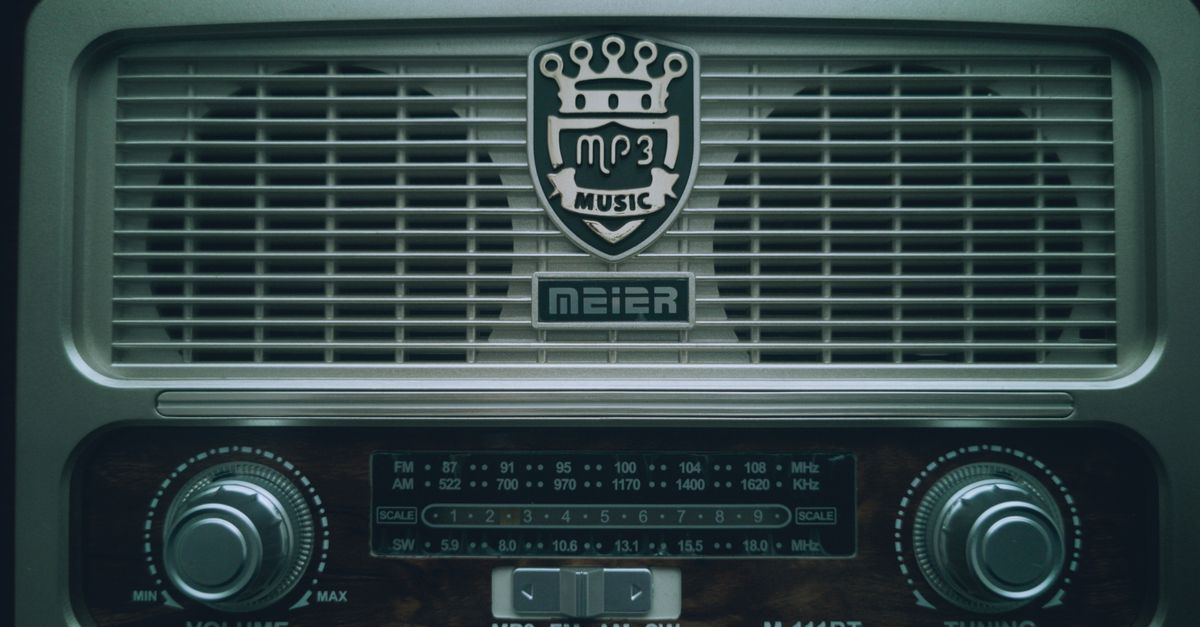
What Volume Changer Does to an MP3 File
Volume Changer treats an uploaded MP3 the same way it treats any other browser-decodable file. The browser's Web Audio decoder first converts the complete encoded file into floating-point channel samples, then every finite sample is multiplied by the percentage you choose, then the result is written to a 16-bit PCM WAV file that your browser offers to download. The source MP3 is not uploaded, queued, analyzed by an external service, or retained by Lizely, and no new MP3 encoder is added to your system. The download therefore arrives as a WAV whose duration, sample rate, and channel count match the decoded MP3, even though the file extension of the saved file is different.
Format support for the input depends on the browser, operating system, and codec build, so a filename extension is not proof that the media can actually be decoded. If decoding fails, the tool stops and shows an error rather than creating an empty or partial output. You can read about how decodeAudioData is defined in the W3C Web Audio API 1.1 specification to see why a single browser tab is able to decode compressed audio entirely on the device without a server.
How to Adjust MP3 Volume in Three Steps
- Pick an MP3 no larger than 50 MiB and wait for its file name to appear in the tool before continuing. Decoded duration is also limited to five minutes, channel count to eight, and total decoded channel samples to thirty million, so a long or multichannel MP3 can be rejected even when the file on disk is small.
- Set the linear volume between 0% and 400%, then select Change volume. The percentage is a direct multiplier on sample amplitude, not a decibel slider, so 200% is roughly a 6.02 dB amplitude increase before any clipping occurs.
- Preview the entire WAV result through headphones or speakers, inspect the reported peak and clipped-sample count, then download the file. The downloaded filename ends in -volume-adjusted.wav and the temporary object URL is revoked when you change settings or close the tab.
The tool itself lives on this page: Volume Changer. A job identifier prevents an older asynchronous decode from overwriting newer settings, so the file you preview is always the file you are about to save. If you need a deeper look at how loudness and quality interact when you adjust an audio file, see Change Audio Volume Without Losing Quality.
What the Output Volume Actually Means
The slider is a linear amplitude multiplier, which behaves very differently from a decibel control or a loudness normalizer. Doubling linear amplitude is approximately a 6.02 dB change, not a 100 dB change, so a 400% setting adds roughly 12 dB of headroom before any clipping is introduced.
| Slider value | Effect on each sample | Approximate amplitude change |
|---|---|---|
| 0% | Writes silence for the full decoded duration | −∞ dB |
| 50% | Multiplies every finite sample by 0.5 | ≈ −6.02 dB |
| 100% | Samples keep their decoded amplitude | 0 dB |
| 200% | Multiplies every finite sample by 2 | ≈ +6.02 dB |
| 400% | Multiplies every finite sample by 4 | ≈ +12.04 dB |
Once a multiplied sample exceeds the supported full-scale range, the value is clipped to −1 or +1 and the clipped-sample counter ticks up. A nonzero count is evidence that the gain may have introduced audible distortion; zero clipping does not guarantee ideal perceived loudness, because perceived loudness also depends on frequency balance, duration, dynamics, speakers, and listening conditions. The exported WAV reports the peak after clipping so you can see whether the output sits close to digital full scale.
Why the Download Is a WAV and Not an MP3
The exported file is always a 16-bit PCM WAV, even when the source is MP3, M4A, AAC, Ogg, WebM, or FLAC. The WAVE container uses RIFF with little-endian integer fields, format code 1 for uncompressed PCM, the original decoded sample rate, the original number of channels, and 16 bits per sample, which matches the asymmetric signed range described in the WAVEFORMATEX structure on Microsoft Learn. Negative full scale maps to −32768 and positive full scale maps to 32767.
WAV was chosen because PCM16 can be encoded locally without adding a new lossy codec dependency, exposes a deterministic complete result, and is broadly inspectable in any audio editor. The trade-off is file size: WAV is usually much larger than MP3, AAC, or Ogg because the samples are stored uncompressed. Volume Changer also does not preserve source tags, album art, chapters, loop points, cue markers, encoder metadata, or the original compression settings, so the WAV is a clean audio mirror of the adjusted samples rather than a metadata clone of the source MP3.
If you specifically need a freshly re-encoded MP3 for sharing, you have to run the WAV through a separate MP3 encoder at the bitrate of your choice. Volume Changer is the volume step, not the encoding step, and the two tasks should not be confused when planning a workflow.
Limits and What to Watch For
Volume Changer is built around a few interacting limits, and any one of them can stop a job. The input file is capped at 50 MiB, decoded duration at five minutes, channel count at eight, and total decoded channel samples at thirty million. Compressed files expand substantially after decoding, so a small MP3 can still exceed a decoded limit if it is very long or very high-resolution. If decoding fails, the tool stops and shows an error rather than producing an empty file.
| Limit | Value | Why it matters for an MP3 |
|---|---|---|
| Input file size | 50 MiB | Counts the encoded MP3 on disk, not the decoded audio. |
| Decoded duration | 5 minutes | Long podcasts or DJ mixes will be rejected after decode. |
| Channel count | 8 | Stereo MP3s decode fine; mixes with up to eight channels are supported. |
| Decoded channel samples | 30,000,000 | Bounds memory allocation and main-thread work on laptops and phones. |
| Gain range | 0% to 400% | Linear amplitude multiplier, not a decibel control. |
For a safe edit, begin near 100%, preview the full output through suitable headphones or speakers, and check the clipped-sample report. Reduce the percentage if distortion appears, and keep the original MP3 because the operation cannot restore information that was already clipped in the source and repeated PCM conversions can complicate version control. Linear gain is not loudness normalization, mastering, limiting, compression, or noise reduction; for professional delivery, use a measured audio workflow and monitor the exported file before replacing any production audio. Verify the downloaded duration and channels before you swap the WAV into a project that originally expected an MP3.
Related reading: Is an Online Volume Changer Safe to Use?.