The best three-band audio equalizer pass produces a PCM16 WAV with an output peak at or below 0.99 and an honest flat reference at 0 dB on every control. On the Lizely Audio Equalizer page, three peaking biquad filters — defined in the W3C Audio EQ Cookbook — run locally on the decoded file, with Bass at 100 Hz, Mid at 1,000 Hz, and Treble at 10,000 Hz (or 45 percent of the decoded sample rate when that rate would push the treble center above Nyquist). Each control is a whole number from -12 to +12 dB, with a fixed Q of 1 across all three bands. Stacked boosts can push samples past digital full scale, so the tool measures the raw peak across every processed channel and, when that peak is over 0.99, applies one uniform safety scale so the output peak settles at 0.99. The download is a fresh PCM16 WAV — the original codec, bitrate, tags, chapters, and artwork are not preserved. Processing stays in your browser tab; Lizely never receives the audio bytes, EQ settings, or filename.
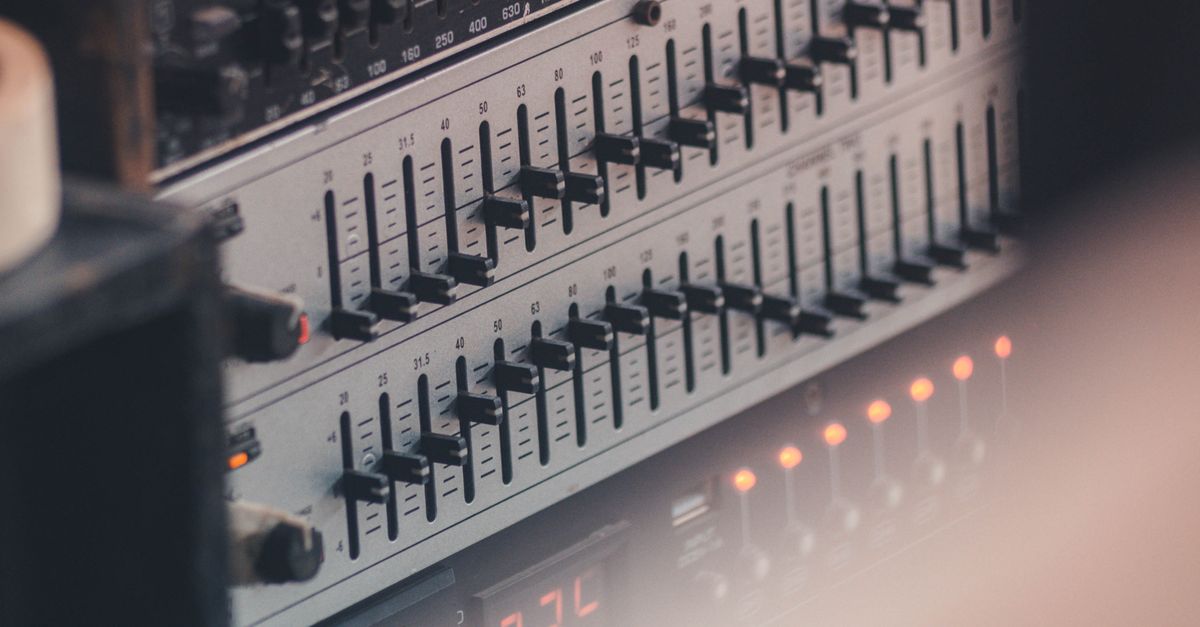
What "Best" Actually Means for an EQ Pass
The shortest answer is that "best" is rarely one curve. It is a working method that survives contact with different files, headphones, rooms, and listening goals. Three habits separate a useful EQ pass from a destructive one.
First, treat zero on every control as a flat reference. The Audio Equalizer is explicit about this: when Bass, Mid, and Treble are all 0, the page copies the decoded channel samples directly and skips the nonzero filter sections entirely. That gives you a genuine bypass to compare against. Setting 0 dB is therefore not a polite way of saying "EQ off" — it is the literal path the audio takes through the page.
Second, accept narrow changes. A peaking filter with Q=1 reaches a broad region around its center, so a 6 dB move on one band will alter more than the band itself. A 2–3 dB adjustment is often the difference between clearer and unnaturally loud.
Third, verify with numbers, not just your ears. The tool reports a raw peak (largest absolute sample value across all processed channels before any scaling), an output peak (the same measurement after the safety scale has been applied), the safety scale itself, the decoded sample rate, and the frame count. Those values let you confirm that no clipping happened during processing and that the resulting WAV is the size you expected.
The Three Controls and the Frequencies They Reach
An EQ pass depends on knowing what each slider actually moves. The three bands are peaking biquads (filters that boost or cut around a center frequency and fall off gradually on either side) following the equations published in the W3C Audio EQ Cookbook. The tool converts the chosen decibel gain into the biquad coefficient A defined in that note, normalizes every coefficient by a0, and runs the resulting second-order recursive filter over each decoded channel. The three sections are cascaded in Bass, Mid, then Treble order, and every accepted channel is filtered independently with identical settings.
| Control | Center frequency | What it reaches |
|---|---|---|
| Bass | 100 Hz | Sub rumble, kick fundamentals, low-end weight; broad Q=1 skirt into the lower mids. |
| Mid | 1,000 Hz | Lead vocal body, most instrument fundamentals, the "presence" zone; overlaps slightly with bass and treble. |
| Treble | 10,000 Hz (or 45% of decoded sample rate) | Air, sibilance, cymbal shimmer, tape hiss; reduced center on low-rate files to keep the filter below Nyquist. |
The range on each control is -12 through +12 dB in whole-number steps. Positive values boost the region around the center, negative values cut it, and 0 is a flat pass-through. Because Q is fixed at 1, the response curves from adjacent bands always overlap a little. A +6 dB Bass move nudges the lower mids; a +6 dB Treble move nudges the upper mids. That overlap is a feature of a broad-band three-band EQ, not a defect, and adjusting by listening is how you compensate for it.
Apply an EQ Pass to a Single File
The tool has a fixed sequence, and following it in order keeps every reported number honest. The page is the Audio Equalizer workspace, and all of these moves happen locally in the same browser tab.
- Pick one browser-decodable file. The input is capped at 50 MiB on disk, and the decoded audio must be five minutes or shorter, contain one through eight channels, use a sample rate between 8,000 and 192,000 Hz, and stay within 30 million channel samples. Files outside those limits are rejected before filtering and never silently truncated.
- Confirm decoding. Web Audio decodes MP3, WAV, M4A, AAC, Ogg, WebM, or FLAC when the current browser and operating system support the actual codec. A familiar extension does not guarantee a decodable file, since containers can hold codecs the browser cannot read. A decode failure produces an error and presents no stale download.
- Set Bass, Mid, and Treble. Each is a whole number from -12 to +12 dB. Start from 0 on all three so the first preview is your flat reference.
- Apply the equalizer locally. The three peaking biquads run in Bass → Mid → Treble order over each channel. Audio bytes and settings never leave the tab.
- Read the reported numbers. Raw peak, output peak, safety scale, sample rate, and frame count are all visible. If the raw peak is under 0.99, the safety scale stays at 1 and the output peak equals the raw peak.
- Preview, then download the PCM16 WAV. The download is a new uncompressed 16-bit WAV. It does not preserve the original compression, bitrate, tags, artwork, chapters, loop markers, or container metadata, so plan to re-add any metadata you need.
Read the Peak Numbers Before You Download
The peak numbers are the difference between a clean result and a clipped surprise. Before the WAV is encoded, the tool measures the absolute peak across every processed sample and every channel. That value is the raw peak. Three situations can follow.
If the raw peak is below 0.99, no scaling is applied. The output peak equals the raw peak and the safety scale reads 1. The encoder writes the processed samples as-is, modulo the 16-bit quantization that maps the float range into signed little-endian PCM.
If the raw peak is above 0.99, one uniform scale factor multiplies every processed sample in every channel. The output peak settles at 0.99 and the safety scale shows the factor applied — a smaller number means the tool had to reduce the level further to fit the ceiling. That single scale prevents the PCM encoder from chopping individual peaks, but it also reduces the overall level. This safeguard is a peak ceiling, not loudness normalization — it is not tied to LUFS, RMS, replay gain, or any streaming-platform target.
The reported sample rate is the decoded rate, which can differ from the original container rate because Web Audio may resample while decoding. The frame count is the number of sample frames per channel. Both land in the WAV header, so a downstream editor that reads the file sees the same numbers the page shows.
For more on what to confirm after a pass, the check-the-result-after-EQ guide walks through the same numbers in more detail.
Habits That Make an EQ Pass Hold Up
Small numbers move the needle; big numbers ruin the recording. A few habits generalize across every file you process.
- Start flat. Set all three controls to 0 once and preview. If the source itself is the problem, no EQ choice will fix it.
- Use cuts more often than boosts. Stacking three +6 dB boosts can lift the raw peak above 0.99 and force a safety scale that drops the whole mix. Cutting the offending band is usually quieter, cleaner, and avoids engaging the safety scale at all.
- Move one band at a time. Set two bands to 0 and A/B the third. That isolates the contribution and prevents the overlapping Q=1 skirts from hiding each other.
- A/B against the original. The flat-reference preview makes this straightforward. Match perceived level by ear before declaring a winner — louder always sounds better at first listen.
- Watch for noise emphasis. Strong bass boosts pull up rumble and handling noise; strong treble boosts pull up hiss and sibilance. If you hear a problem grow with the boost, the source did not have headroom there.
Boosts that hide behind each other are a frequent trap, and the dedicated mistakes guide goes deeper on the patterns that cost time during a pass.
When to Reach for a Full Editor Instead
A compact three-band peaking EQ with a fixed Q of 1 covers the bulk of quick tonal moves. It is not, and is not pretending to be, a graphic 10-band system, a linear-phase mastering processor, an automatic room-correction system, or a tool that knows what "better" means for your recording. Reach for a full audio editor when you need any of the following:
- Precise center frequencies (a sweepable parametric band that lets you choose the exact Hz).
- Adjustable Q (narrow to remove a ringing resonance, wide to shape a shelf).
- Spectrum analysis, automation curves, or per-section bypass.
- Linear-phase processing, loudness metering to LUFS, or dithering controls for bit-depth changes.
- Codec selection, target bitrate, or preservation of tags, chapters, artwork, and loop markers.
The Lizely Audio Equalizer is the right tool when you want a short, local, no-upload pass that produces a verifiable PCM16 WAV; it is the wrong tool when the task description starts needing precision parameters or metadata round-trips. The clearer you are about which side of that line your job is on, the more reliable the result will be.