A sixteenth-note step in a 16-step online beat maker at 120 BPM lasts exactly 60 ÷ 120 ÷ 4 = 0.125 seconds, so the full pattern loops in 2 seconds, and every other BPM inside the tool's 40–240 range scales from that formula (per the W3C MusicXML 4.0 definition of tempo as quarter notes per minute, where each quarter contains four sixteenth-note steps). Most online beat makers expose the same kind of step grid, but the design choices underneath — how tempo is parsed, how sounds are produced, whether playback keeps a separate scheduler from the test logic — change which mistakes are easy to make and which ones simply cannot happen. The cleanest path is to pick a browser-based tool that runs entirely on your own machine, lets you set a strict tempo, and explains what its scheduler actually does. That is exactly the design of the Online Drum Machine, which keeps the whole 16-step grid, the playback loop, and the synthesized voices inside your browser with no upload and no sample library to inherit licenses from. The tips below focus on that tool because the questions it answers — what a step really lasts, why changing tempo stops playback, why no file is downloaded — are the ones that come up most when people first sketch a beat online.
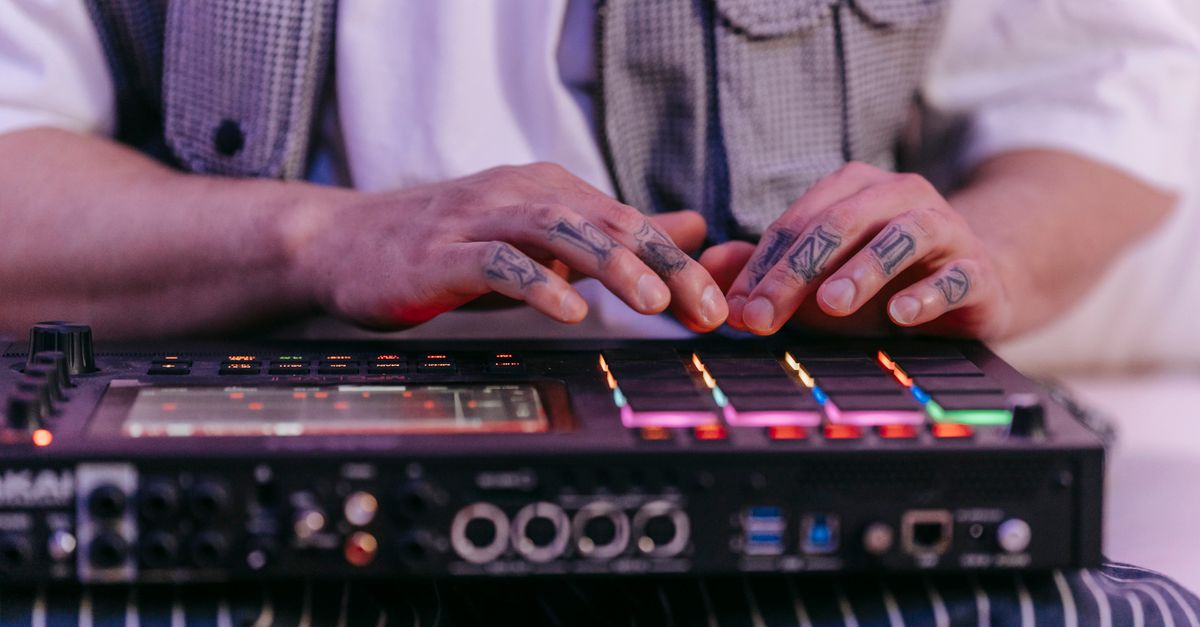
What "Beat Maker Online" Actually Means in Your Browser
Online beat makers range from heavyweight DAW-style web apps to lightweight step sequencers that live in a single tab. The most useful distinction is where the audio is actually produced. Tools that pull samples from a CDN or render on a remote machine upload something; tools that build the kick from an oscillator and the snare and hi-hat from a noise buffer created inside your own Web Audio context do not. The Online Drum Machine sits firmly in the second camp: the kick is a short sine oscillator whose frequency drops while its gain decays, the snare is freshly generated noise shaped by a high-pass filter and gain envelope, and the hi-hat is a shorter, quieter noise burst with a higher cutoff (per the W3C Web Audio API specification). That matters for two practical reasons. First, opening the page does not contact a sample host, so nothing about your pattern leaves the device. Second, the tone can shift slightly between browsers, output hardware, and sample rates, because the noise is regenerated for every hit rather than streamed from a fixed file. If you build a beat and it sounds subtly different on a friend's laptop, that is the noise generator talking, not a bug.
For step sequencing, the more important decision is how the grid is wired. A 16-step grid can represent one bar of 4/4 with sixteenth notes, but a tool could just as easily use it for eight eighth notes across two bars or any other division. The Online Drum Machine fixes it as four quarter notes divided into sixteen equal sixteenth-note steps, so the grid always means the same thing. That fixed relationship is what lets you reason about tempo: a quarter note is one beat at the chosen BPM, and each sixteenth note is exactly one quarter of that duration.
Common Mistakes That Break Online Beat Patterns
Most beginners run into the same handful of problems. Here is a quick reference table before we walk through the reasoning:
| Mistake | Why it breaks the beat | Fix |
|---|---|---|
| Entering a decimal, blank, or signed tempo | The input accepts only whole numbers from 40 to 240 | Type an integer inside the displayed range |
| Editing tempo while the loop is playing | The scheduler stops on purpose to release the AudioContext | Press Stop, change tempo, then press Play |
| Assuming swing or triplets are available | The grid is straight sixteenth notes only | Sketch the swing in a DAW after the loop feels right |
| Clicking Play on a backgrounded tab | Browser throttling stretches the look-ahead window | Keep the tab active during playback |
| Cranking device volume before the first hit | Synthesized transients can spike on some outputs | Start moderate, especially with headphones |
| Expecting identical sound across devices | Snare and hi-hat noise is regenerated per hit | Treat tonal variation as part of the design |
The pattern that wastes the most time is changing the tempo mid-loop. The tool stops playback on purpose when you edit tempo: already-queued events at the old BPM are released, the AudioContext is closed, and a fresh Play starts at step one with the new value. Trying to slide tempo smoothly is not a feature, and that is intentional. The second most common slip is treating the 16 cells like 16 separate beats. There are only four beats in the bar; the other twelve steps are subdivisions, which is why a four-on-the-floor pattern puts the kick on cells 1, 5, 9, and 13 rather than on cells 1, 2, 3, and 4.
A subtler mistake is assuming the scheduler is sample-accurate across every device. The look-ahead polls every 25 milliseconds and places events up to 100 milliseconds ahead on the AudioContext timeline, which removes most JavaScript timer jitter, but a suspended tab, a sudden device change, or heavy system load can still nudge what you hear. Treat the timing as "studio-tight on an active tab" rather than as a guarantee.
Sketch a 16-Step Beat From Scratch
Working with the Online Drum Machine takes three moves: pick a tempo, click cells, then play or stop. The steps in detail:
- Enter a whole-number tempo from 40 to 240 BPM. The tool reads BPM as quarter notes per minute, so 120 BPM means each quarter note lasts 0.5 seconds and each sixteenth-note step lasts 60 ÷ 120 ÷ 4 = 0.125 seconds.
- Toggle kick, snare, and hi-hat cells across the sixteen-step grid. Click a cell once to turn the instrument on for that step; click again to turn it off. Each row is one of the three voices; each column is one sixteenth-note step in the bar.
- Press Play to loop the synthesized beat. The moving outline shows the current step, and the scheduler places events up to 100 milliseconds ahead on the AudioContext timeline so timing stays tight even when the page is busy.
- Press Stop to release the audio. Stop clears the scheduler timer, stops and disconnects the tracked source nodes, and closes the AudioContext so a later Play starts from a clean state with no lingering events.
- Press Clear pattern to turn all 48 cells off. This is the fastest way to start from silence without clicking every cell by hand, and it is independent of whether the loop is currently playing.
The grid is preset with a four-on-the-floor starter: kick on quarter-note positions, snare on beats two and four, closed hi-hat on eighth-note positions. Treat it as a launchpad; leave it as is, mutate one cell at a time, or Clear it and rebuild from scratch.
Tempo Numbers That Change How a Beat Feels
Because each step lasts 60 ÷ BPM ÷ 4 seconds, the same pattern feels radically different at the bottom and top of the range. The table below shows step duration and total bar length at five anchors, computed from the tool's documented formula:
| BPM | Step duration | Bar length (16 steps) | Typical feel |
|---|---|---|---|
| 40 | 0.375 s | 6.000 s | Slow practice pulse |
| 90 | ≈0.167 s | ≈2.667 s | Laid-back hip-hop groove |
| 120 | 0.125 s | 2.000 s | Default house / pop pocket |
| 180 | ≈0.083 s | ≈1.333 s | Driving rock or DnB feel |
| 240 | 0.0625 s | 1.000 s | Blast-beat / DnB upper edge |
The 40, 120, and 240 rows match the explicit anchors published in the tool's verified behavior. The 90 and 180 rows are derived from the same 60 / BPM / 4 formula the tool documents, so every value falls inside the strict integer input range and can be typed directly without triggering the recoverable error message.
A practical tip: leave the tempo field alone while you sketch cells, then audition at a few different BPMs once the pattern feels right. Because tempo changes stop playback, you will lose the loop briefly each time, which is the intended safety behavior rather than a glitch.
Practical Tips for Tighter Online Beats
A few habits will save you from redoing the same loop:
- Sketch the kick first. Decide where the downbeat sits (cells 1, 5, 9, 13 for a four-on-the-floor; cells 1 and 9 for a half-time pulse) before adding snare or hi-hat, so the rest of the pattern has a clear reference.
- Use hi-hat to define subdivisions, not to fill space. Closed hi-hat on every other cell (steps 1, 3, 5, 7, 9, 11, 13, 15) gives a steady eighth-note pulse; hits on the off-beats (steps 3, 7, 11, 15) shift the feel toward a more open groove.
- Snare belongs on beats two and four in most pop, rock, and hip-hop patterns. Cells 5 and 13 are the defaults the starter pattern uses, and they rarely need to move for a first sketch.
- Listen at a moderate system volume first. Synthesized kick and snare transients can sound louder than expected on some headphones, and the Web Audio source nodes have no built-in limiter.
- Keep the tab in the foreground during playback. Background tabs get throttled, which can stretch the look-ahead window and make the beat feel uneven even when the underlying timing math is correct.
- Save your favorite patterns as screenshots or notes. The tool does not record, export, or store loops between sessions, so any pattern you want to keep has to be reproduced manually or noted cell by cell.
Limits to Know Before You Start
The Online Drum Machine is intentionally narrow. It does not support swing, triplets, velocity, accents, per-track volume, effects, recording, export, MIDI synchronization, arbitrary time signatures, or background-tab guarantees. AudioContext is created only after you press Play, which respects browsers that require a user gesture before audio starts; if the browser blocks the audio context or scheduling fails, the tool reports a recoverable message and lets you try again rather than leaving a false "playing" state. The accessibility behavior is also worth knowing: the moving step indicator uses color and an outline only, and color transitions are disabled when reduced-motion is requested, so users who turn motion off still see the playhead change position without a flashing cue.
Pattern edits remain available during playback and are read by the upcoming scheduling window, so you can tweak cells while the loop runs and hear the change on the next bar. If you need production arrangement, sample-accurate synchronization across devices, rendered stems, or latency calibration, transfer the concept to a dedicated music application. The tool is best used for sketching straight sixteenth-note ideas, learning how a 16-step grid maps to a real bar, and testing whether a basic pulse works before committing to a heavier workflow.
Beat making online is at its best when the tool removes the busywork — sample licensing, file uploads, account creation — and leaves you with the grid, the tempo, and the click. Once the math is in your head (60 / BPM / 4 seconds per sixteenth-note step) and the scheduler's limits are clear (active tab, integer BPM, intentional stop on tempo change), the only real decision is where to put each cell. A quick rhythm sketch in the Online Drum Machine can move from "what if I put snare on cell 9" to a two-second loop in the time it takes to click a few buttons, and that fast feedback is what makes an online beat maker worth reaching for in the first place. For a beginner-friendly walkthrough of the same grid, see the Beat Maker Online for Beginners guide.
If you're weighing options, Beat Maker Online Without App: Build Beats in Browser covers this in detail.