A beat maker online on iPhone runs inside Safari or any browser with the Web Audio API, so the entire sequencer ships through a web page rather than the App Store. The Online Drum Machine loads a 16-step grid, a tempo field that accepts whole numbers from 40 to 240, and three synthesized voices: a kick drum from an enveloped sine oscillator, a snare drum built from a freshly generated noise buffer, and a hi-hat that uses a shorter, quieter noise burst. Nothing is downloaded or uploaded, the page does not request an account, and there is no in-app purchase gate between you and the first beat. Audio is created only after you tap Play, which respects the iPhone requirement that an AudioContext start after a user gesture. At the default 120 BPM, each sixteenth-note step lasts 0.125 seconds and the full 16-step bar loops in exactly 2 seconds, giving an immediate sense of time on the screen as cells light up.
For someone who just wants to sketch a beat during a commute or a short break, the difference between "download an app" and "open a tab" matters. A browser sequencer also keeps iPhone storage clean and skips the iCloud sign-ins that often sit in front of full-featured drum apps on the App Store.
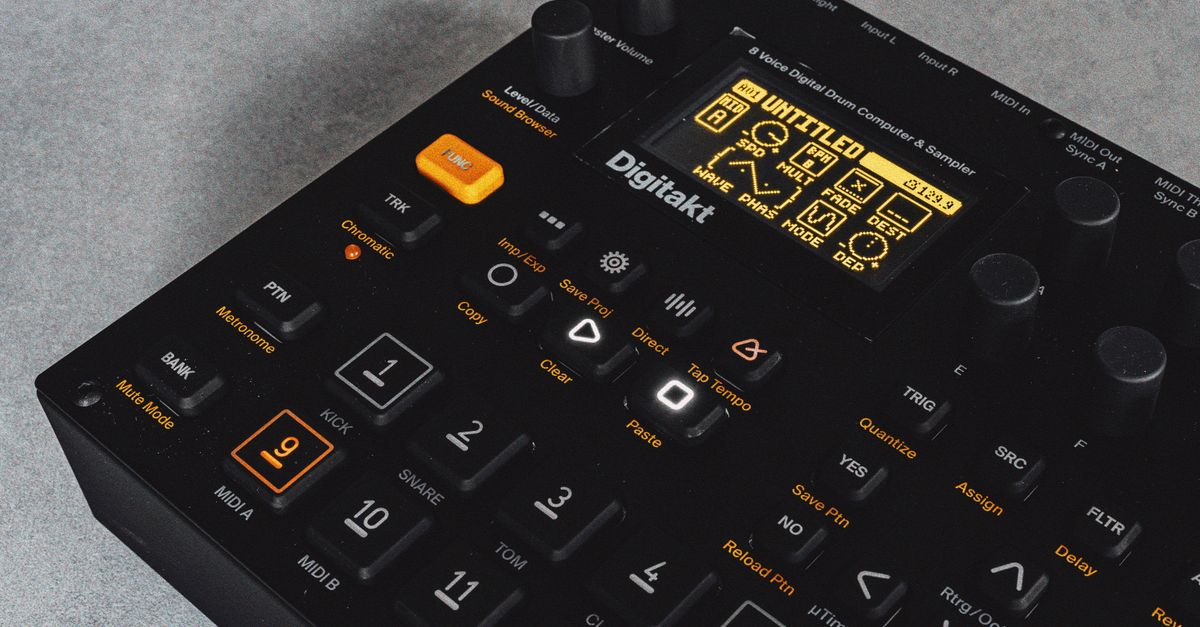
Why an iPhone User Picks a Browser Beat Maker
App Store drum kits can be powerful, but they usually arrive with a price tag, a one-hundred-plus-megabyte installer, or a forced sign-up. A browser sequencer removes those checkpoints entirely. Because the Online Drum Machine page does not load any audio assets, there are no external sample files to fetch, it loads quickly even on cellular data, and the tone of the drums is created at the moment of playback using local Web Audio nodes. Each kick, snare, or hi-hat hit is generated inside the phone rather than streamed from a remote sample library.
Hand the same URL to a friend on another device and they will hear the same pattern, as long as their browser supports Web Audio. Mobile Safari, Chrome for iOS, Firefox, and most other modern iPhone browsers all qualify, so the workflow is portable across an iOS fleet without rebuilding the page for each model.
What the Drum Machine Includes on iPhone
The page presents a compact rhythm sequencer with three fixed tracks: kick, snare, and hi-hat. Each track shows sixteen on or off cells, one for each sixteenth-note step, and the cells respond to a single tap. A pressed state is visible immediately through the button styling, so it is always clear which steps are live. The grid is always four quarter-note beats in length regardless of the tempo chosen.
A BPM input sits above the grid. It only accepts whole decimal numbers from 40 to 240; anything else raises a recoverable error and leaves the previous value in place. Pressing Play schedules a loop and starts the moving step outline that traces position one through sixteen. Stop releases audio and clears the scheduler; Clear pattern turns off every one of the 48 cells so a fresh idea can be sketched from silence without reloading the page.
How to Build a Beat on Your iPhone
- Open the drum machine in your iPhone browser. Safari is the default, and the page also works in Chrome for iOS, Firefox, or any other modern browser. Keep device volume at a moderate level before pressing anything, because synthesized transients can sound louder through some headphones.
- Set a starting tempo. Tap the BPM field. The iPhone number keyboard appears; type a whole number such as 90, 120, or 140. Decimals, signs, and unit text show a recoverable error.
- Listen to the default four-on-the-floor pattern first. The page loads with kick on quarter positions, snare on beats two and four, and closed hi-hat on eighth positions. Tap Play so the AudioContext can initialize after the tap, which also satisfies the iPhone rule that audio cannot start without a gesture.
- Tap cells to edit the pattern. Each tap toggles that instrument on or off for the corresponding sixteenth-note step. The pressed state updates instantly, and edits are read by the next scheduling window, so changes are audible while the loop runs.
- Watch the moving outline. A highlighted step frame shows where the loop is in the bar. On iPhone the touch targets stay readable because the grid scrolls horizontally instead of shrinking the cells below thumb size.
- Use Stop and Clear as needed. Stop releases the audio context. Clear pattern turns off all 48 cells; rebuild from silence by tapping only the cells that match the idea in your head.
- Change BPM cleanly. Tap Stop first, edit the BPM field, then tap Play again. Editing tempo during playback intentionally stops the current run, so scheduled events at the old tempo cannot bleed into the new schedule.
BPM Math and Time Per Step
The grid treats BPM as quarter notes per minute, the same convention used by MusicXML 4.0's sound element. Each quarter note therefore lasts 60 divided by BPM seconds. Because every bar contains four quarter-note beats and each beat holds four steps, a single step lasts 60 divided by BPM divided by 4 seconds.
The product documents three anchor tempos directly: at 40 BPM a step is 0.375 seconds and the bar runs 6 seconds; at 120 BPM a step is 0.125 seconds and the bar runs 2 seconds; at 240 BPM a step is 0.0625 seconds and the bar runs 1 second. To show a mid-range figure, here is one worked example at 90 BPM:
- Quarter note length: 60 divided by 90 equals 0.6667 seconds.
- Step length: 0.6667 divided by 4 equals 0.1667 seconds (this is the 60 divided by BPM divided by 4 formula).
- Full 16-step bar: 16 multiplied by 0.1667 equals 2.6667 seconds.
This single example is the only calculated figure on the page. For exact timing at other tempos, the formula above is the source of truth, and the tool applies it directly at playback through a Web Audio scheduler rather than relying on JavaScript timer callbacks alone.
What This Tool Does Not Do (and What to Use Instead)
The drum machine is focused on sketching a pulse, not producing a final track. The table below puts the boundary in plain view.
| Included on iPhone | Not included in this tool |
|---|---|
| 16-step grid with three synthesized voices | Swing or triplet subdivisions |
| Whole-number tempo from 40 to 240 BPM | Velocity, accents, per-track volume |
| Play, Stop, Clear pattern controls | Recording, export, MIDI sync, rendered stems |
| No account, no upload, no sample download | Sample-accurate playback across multiple devices |
| Horizontal scrolling on narrow screens | Background-tab playback guarantees |
For tasks outside this scope, the same site offers focused single-purpose tools. You can sketch a click reference with the no-sign-up beat maker guide for tighter time work, or pair the drum machine with a metronome if a steady count is needed against the beat. When vocals or a full arrangement come next, move the pattern concept into a dedicated music application rather than expecting browser playback to handle production work.
Tips for a Smooth iPhone Session
Keep the page in the foreground while tweaking, because iOS may suspend background tabs and that can pause or distort the loop. If the audio feels slightly different between sessions, that is normal: each snare and hi-hat hit uses a freshly generated noise buffer, so the high-frequency character varies a touch per hit. Headphone users should start at low volume; the kick and snare use sharp transient envelopes that some output systems emphasize. The scheduler only places events up to 100 milliseconds ahead and re-checks every 25 milliseconds, so the loop stays close to the AudioContext clock rather than to finger taps. If a pattern is worth keeping, bookmark the page or take a screenshot, because the pattern lives entirely in the on or off state of the 48 grid cells, so reproducing it on another device simply means recreating those exact taps.