The Online Drum Machine is a browser-based 16-step sequencer that avoids the most common pitfalls of online rhythm tools by treating BPM as quarter notes per minute (matching the MusicXML tempo definition), rejecting every tempo input that is not a whole decimal number between 40 and 240, and synthesizing kick, snare, and hi-hat voices locally with the Web Audio API instead of loading sample files. Each bar covers four quarter-note beats divided into sixteen equal sixteenth-note steps, so step duration is always 60 ÷ BPM ÷ 4 seconds. A scheduler polls every 25 milliseconds and places upcoming events up to 100 milliseconds ahead on the AudioContext timeline, and the audible sources use their scheduled Web Audio start times rather than JavaScript timer callbacks as the beat clock. Stopping playback clears the scheduling timer, stops and disconnects every tracked AudioScheduledSourceNode, and closes the AudioContext, which prevents stuck voices or duplicate schedules. Understanding those three design decisions — strict tempo validation, fixed 16-step math, and a clean start-and-stop lifecycle — is the foundation for avoiding mistakes, because almost every error users run into traces back to one of them.
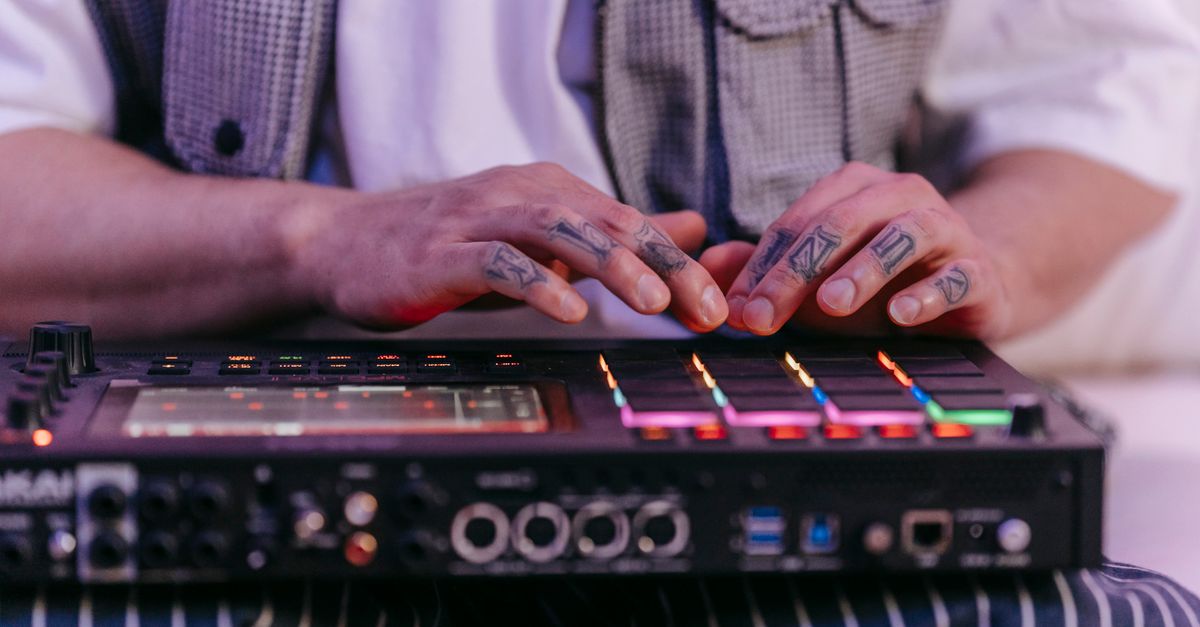
How the Online Drum Machine Actually Works
The interface is a compact 16-step grid with three rows — kick, snare, and hi-hat — plus a tempo input and three transport buttons: Play, Stop, and Clear pattern. Each cell stores a boolean, so the pattern is exactly 3 tracks × 16 steps, or 48 cells. The starting pattern is a four-on-the-floor example with kick on every quarter note, snare on beats two and four, and closed hi-hat on every eighth note; that preset exists only to give you something to edit, not a rule you have to follow. When you press Play, the tool builds an AudioContext (browsers require a user gesture before audio starts), reads the current pattern, and starts the look-ahead scheduler. A moving step outline shows the loop position so you can see whether the loop is running and where it currently is. Pressing Stop releases every audio source, clears the scheduler, and closes the AudioContext; pressing Clear pattern flips all 48 cells off without touching playback, so you can compose in silence and then audition the result.
Audio is generated at playback time. The kick is a short sine oscillator whose frequency drops rapidly while its gain decays. The snare uses a freshly generated noise buffer shaped by a high-pass filter and gain envelope. The hi-hat uses a shorter, quieter noise burst with a higher cutoff. Because none of these are recordings, the tool never contacts a sample host, never inherits a third-party sample license, and never uploads your pattern to a server. Tone will vary slightly with browser audio implementation, output hardware, sample rate, and the random noise generated for each snare or hi-hat hit — that variation is normal, not a bug, and it is one of the reasons you should verify your beat on the system you actually plan to use.
Tempo and BPM Mistakes Beginners Make
The single biggest source of confusion is what BPM means in this drum machine. Per the MusicXML specification linked above, BPM here means quarter notes per minute, not beats per measure and not sixteenth notes per minute. The grid has four sixteenth-note steps per quarter note, so a step always lasts 60 ÷ BPM ÷ 4 seconds. At the default 120 BPM, that is 60 ÷ 120 ÷ 4 = 0.125 seconds per step, and one full bar (sixteen steps) lasts 2 seconds. Beginners often assume the bar should fill 60 ÷ BPM seconds — that is only true when a bar equals one quarter note, which this tool does not do.
Tempo input is strict by design. Only whole decimal numbers from 40 through 240 are accepted. Empty input, decimal fractions, signs, exponent notation, unit text, and values outside the range raise a recoverable error and the previous tempo stays in effect. A second common mistake is changing tempo mid-playback and wondering why the beat stops. The tool intentionally stops the current run and releases its audio context before applying a new tempo, because letting an old scheduler continue with a mixture of two tempos would cause audible drift. Press Play again after entering a valid value and the new tempo starts cleanly at step one.
| BPM | Step duration (60 / BPM / 4) | Full 16-step bar |
|---|---|---|
| 40 (lower bound) | 0.375 seconds | 6 seconds |
| 120 (default) | 0.125 seconds | 2 seconds |
| 240 (upper bound) | 0.0625 seconds | 1 second |
These three values are documented reference points from the tool itself. Any BPM between 40 and 240 follows the same formula; pick the values that match your musical target, not values you remember from a metronome with a different beat unit.
Building a Clean Pattern Step by Step
The most reliable way to avoid mistakes while using an Online Drum Machine is to build the pattern in a deliberate order, separating the decisions you can change safely from the ones that force a restart. Use this checklist each time you start a new loop.
- Open the Online Drum Machine in a current desktop browser and keep the tab in the foreground so the scheduler is not throttled.
- Decide whether you want to start from the default four-on-the-floor example or from silence. Press Clear pattern to silence all 48 cells if you want a blank canvas.
- Set tempo as a whole decimal number between 40 and 240. Leave it at 120 BPM while you sketch the pattern, then adjust after the cells are set.
- Click cells in the kick row on the quarter-note positions (steps 1, 5, 9, 13) for a basic pulse, or on steps 1 and 11 for a half-time feel.
- Click cells in the snare row on beats two and four (steps 5 and 13) for a backbeat, or move them around while listening.
- Click cells in the hi-hat row on the even-numbered steps for steady eighth notes, or on every step for sixteenth notes.
- Press Play to loop the result and watch the moving step outline so you can confirm the loop position visually as well as by ear.
- Toggle additional cells while playback runs — edits are read inside the next 100 ms scheduling window, so changes take effect almost immediately.
- Press Stop to release the AudioContext when you take a break; press Play again to restart at step one with the same pattern.
- To change tempo later, enter a valid whole number and press Play again; remember that tempo edits always restart playback.
Following these steps in order keeps your decisions linear: pattern first, transport second, tempo last. That order matches the order the tool itself locks down internally, so you are unlikely to fight the scheduler.
Pattern Editing Mistakes During Playback
Edits made while the loop is running are applied to the upcoming scheduling window, not retroactively, which means a click just after a step has been scheduled will not appear until the next time that step comes around. New users sometimes click rapidly and conclude that the tool is "lagging"; the actual cause is that the look-ahead scheduler already decided what the next 100 milliseconds would sound like. If you need an immediate audible change for testing, press Stop, then Play to force a fresh schedule from step one. The tool also exposes the on/off state and a descriptive accessible label on every grid button, so do not rely on color alone to read the pattern — check the pressed state if the rows look ambiguous, and remember that color transitions are disabled when the user has requested reduced motion.
A second mistake is editing the tempo while the loop is running, which always stops the run. That behavior is the correct response to a known scheduling bug class, and trying to "trick" the tool by entering the same number in a different format will only raise the malformed-input error. Editing tempo during playback stops the current run and releases its audio context; pressing Play after entering a valid value starts cleanly at step one.
Browser Audio, Volume, and Scheduling Pitfalls
The Web Audio scheduler is robust against ordinary main-thread jitter, but it is not a digital audio workstation. Heavy browser throttling, suspended or backgrounded tabs, device changes mid-playback, high system load, and operating-system audio latency can all affect what you hear. If the beat seems to stutter, click the tab to bring it back to the foreground, close other heavy tabs, and press Play again. AudioContext construction only happens inside Play, so the tool respects browsers that require a user gesture before audio starts — that is why the first press of Play is sometimes silent on refresh until you click it a second time. Keep your device volume moderate before pressing Play, especially with headphones, because synthesized transients can sound louder on some output systems. If audio initialization or scheduling fails, the tool reports a recoverable message and lets you try Play again instead of leaving a false playing state.
Because kick, snare, and hi-hat are synthesized at playback time rather than loaded from a sample pack, the exact tone will vary slightly with browser audio implementation, output hardware, sample rate, and the random noise generated for each hit. That variation is normal; for a deeper look at how the three voices are generated locally, see how drum sounds are made in the browser. If you need sample-identical rendering across devices, transfer the pattern concept to a dedicated music application.
What This Drum Machine Cannot Do
Treating the limits as mistakes is one of the most common errors of all, so it is worth listing them up front. The Online Drum Machine is a focused 16-step loop with three synthesized voices, Play, Stop, toggle cells, and Clear pattern. It does not support swing, triplets, velocity, accents, per-track volume, effects, recording, export, MIDI synchronization, arbitrary time signatures, or guarantees for a backgrounded tab. If you need production arrangement, exact cross-device synchronization, rendered stems, or latency calibration, the right move is to capture the pattern concept and re-create it in a DAW.
| Supported in this tool | Outside this tool's scope |
|---|---|
| 16-step loop, three synthesized voices | Swing, triplets, velocity, accents |
| Whole-number tempo from 40 to 240 BPM | Fractional tempo, tempo automation |
| Click to toggle any of the 48 cells | Per-track volume, effects, EQ |
| Play, Stop, Clear pattern | Recording, export, MIDI sync |
| Local Web Audio synthesis | Sample uploads, sample libraries |
Treating these gaps as bugs leads to wasted time. Treating them as design boundaries helps you decide when to graduate to a fuller workstation. Used as intended — for sketching straight sixteenth-note ideas, learning step sequencing, or testing a basic pulse — the Online Drum Machine keeps the moving parts small enough that the mistakes you might otherwise make simply do not have anywhere to hide.
Related reading: Avoid Mistakes When You Use an Online Metronome.