Kenya 的 eTIMS——也就是由 Kenya Revenue Authority(KRA)所營運的 Electronic Tax Invoice Management System(電子稅務發票管理系統)——是向客戶開立合規發票的官方管道;此外,一款免費、以瀏覽器為基礎的發票產生器,會產生乾淨、可直接列印的 PDF,方便你在 eTIMS 紀錄之外,真正交給客戶。多數搜尋「how to generate an invoice on eTIMS」的人其實早就熟悉 KRA 的流程:用 eCitizen 帳號登入、開啟 Sales 選單、建立發票、填寫買方資料與品項,然後送出,讓這筆交易在主管機關完成登記。這個步驟處理了合規性,但它未必總是能產出一份精緻、讓你在寄到客戶信箱或會計資料夾時看了會滿意的 PDF。一款不需登入、完全在瀏覽器中運作的發票製作工具,正好補上這個缺口。你只需輸入自己的營業資料、客戶資料、品項、稅率,以及一個可選的折扣;小計、稅額與總額會即時更新;按一下即可下載一份在你本機產生的、無浮水印的 PDF——不需要上傳、不需要帳號,也沒有伺服器儲存你的資料。
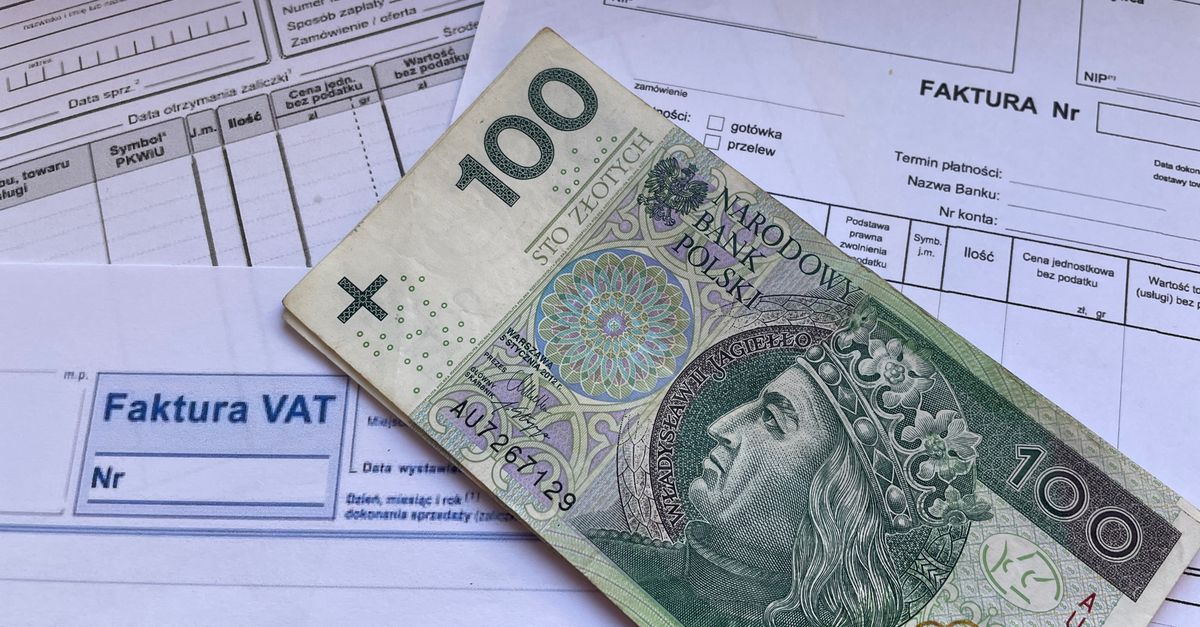
What eTIMS Is and Where a Free Invoice Generator Fits
eTIMS 的存在,是為了讓 Kenyan 企業的每一筆銷售,都能以統一格式記錄在稅務主管機關。一旦你透過 eCitizen 完成帳號初始化,就可以從 Sales 選單開立發票、選擇買方、加入品項,然後送出。入口網站會回傳一組參考編號,把該筆交易綁定到你的稅務檔案,這就是合規於 KRA 的關鍵部分。那筆紀錄正是 eTIMS 的設計目的:一張結構化、由政府登記的發票。但它不見得是你想轉寄給客戶的那一份。許多自由工作者、顧問與小型業者,仍然需要一份乾淨、帶有品牌的 PDF——版面清楚、頂端印有自己的營業地址、總額也與當初報價的數字相符。
另一款獨立的免費發票產生器,處理的是這一面,而且不會與 eTIMS 競爭。可以把 eTIMS 想成帳冊,把這款瀏覽器工具想成文件本身。你保留 eTIMS 的申報以維持合規,當你需要一份體面、可寄 email 或列印的發票 PDF 時,就使用這款產生器。
| Task or property | eTIMS (KRA portal) | Invoice Generator |
|---|---|---|
| Tax compliance registration | Yes | No |
| Account or login required | Yes (eCitizen) | No |
| Where the data lives | Uploaded to KRA servers | Stays in your browser |
| Client-facing PDF | System-generated layout | Custom layout you control |
| Watermark or third-party branding | Per KRA layout | None |
| Offline use after loading | No | Yes |
| Cost | Free per KRA terms | Free, no sign-up |
How to Generate an Invoice on eTIMS Step by Step
透過 eTIMS 開立發票的標準流程完全在 KRA 入口網站內進行,無論你是自由工作者、貿易商或登記公司,順序都相同。以下就是初次使用者通常會走過的步驟。
- Initialize your eCitizen eTIMS account. Log in with your eCitizen credentials, link your KRA PIN, and confirm the business details the portal pulls from your tax profile.
- Open the Sales menu and select Invoice. From the main dashboard, click Sales, then choose Invoice to start a new transaction.
- Select the buyer. Pick an existing customer from your saved buyer list, or add a new one with their name, PIN where applicable, and address.
- Add the line items. For every product or service, enter the description, quantity, and unit price. The portal calculates the subtotal, applies VAT or the relevant tax, and shows the total before you submit.
- Submit and note the reference number. Once the invoice is submitted, eTIMS returns a control number or invoice reference that ties the transaction to your tax file.
That reference is the compliance receipt. For the document your client actually opens, most businesses then generate a matching PDF — which is where the free browser tool comes in.
Create a Clean Client PDF With the Invoice Generator
The whole flow takes a couple of minutes the first time and much less once you know your usual line items. These four steps cover everything the tool accepts, in the order the form presents them.
- Fill in the From and Bill To blocks. In the From section, type your name or company name and your address. In the Bill To section, type your client's name and address. Then set the invoice number (it defaults to INV-001), pick the issue date, and pick the due date using the date pickers. Choose the currency symbol that matches how you bill — US dollar ($), British pound (£), euro (€), or yen (¥).
- Add a line item for each product or service. One row is already there. Type a description, the quantity (whole numbers or decimals such as 1.5 hours both work), and the unit price. Click Add item to insert more rows, or use the remove button on any row to delete it.
- Enter a tax rate and an optional flat discount. The tax field is a percentage applied to the subtotal. The discount field subtracts a flat amount before the total is calculated. The subtotal, tax, discount, and total all recalculate instantly in the live preview as you type, so you never have to do the math by hand.
- Click Download PDF. The tool lays out a print-ready invoice locally in your browser and saves the file to your device. Nothing is uploaded at any point.
For a concrete worked example, take three hours of consulting at $50 per hour and one logo design at a flat $200. The subtotal is (3 × 50) + (1 × 200) = 150 + 200 = $350. At a 16% tax rate, the tax line becomes 350 × 0.16 = $56. Subtract a $25 discount and the final total is 350 + 56 − 25 = $381. The preview shows exactly those numbers as soon as you finish typing.
What the Downloaded PDF Contains
The PDF mirrors the live preview, so there are no surprises between what you see on screen and what your client receives. The first page opens with a bold INVOICE heading, your From block in the top-left, and the Bill To block beside it. Below those sits the invoice number, the issue date, and the due date. The middle of the page is an itemized table with four columns: Description, Qty, Unit Price, and Amount. The lower-right corner carries the Subtotal, Tax, and Total summary, in the currency symbol you chose.
Long lists flow onto additional pages automatically, which means a 40-row invoice looks the same as a four-row one in structure. There is no watermark and no branding from the tool itself — the page is yours to send as-is. Any notes you add at the bottom of the form appear above the final rule. If your PDF font cannot represent a particular character (for example an emoji or some non-Latin scripts), the tool substitutes a safe glyph so the file still generates without errors.
Privacy, Accuracy, and Offline Use
Because the entire flow runs in JavaScript on your own machine, your client names, addresses, rates, and totals never leave the device. There is no server receiving a copy, no account tied to an email, and no analytics tracking the invoices you raise. This is one of the practical reasons freelancers use a local generator alongside eTIMS — anything they have not yet submitted to KRA stays private until they choose to send it.
The math is also more accurate than a quick spreadsheet. Every figure is computed in integer cents rather than floating-point dollars, which removes the tiny rounding drift that can otherwise leave an invoice a cent off. The discount is automatically clamped so that the final total never goes negative, even if you type a discount larger than the subtotal plus tax. Four currency symbols are supported and always render correctly in the downloaded PDF. If you bill in a currency that is not on the list, you can still edit the symbol or the description text after the PDF is generated.
The tool also works offline once the page has finished loading. If you invoice from a location with patchy internet — a client's office, a market stall, a remote site — you can still open the page, fill in the invoice, and download the PDF without a connection.
Practical Tips for Daily Invoicing
A simple workflow keeps the two tools from stepping on each other. Raise the invoice in eTIMS first so the transaction is registered with KRA and you have the compliance reference number. Then open the Invoice Generator and replicate the same buyer details, line items, and totals. The PDF you download is the document you attach to the email you send to the client. The eTIMS reference goes in the description, the notes field, or the email body so the client can match your paper invoice to your registered transaction.
For readers who invoice the same clients every month, bookmark the generator page: it loads instantly and keeps every billing detail on your own machine. If you want a logo on the final PDF, the current version of the tool does not support image upload — generate the document first and then add the logo in any free PDF editor. The result still has no watermark or third-party branding.
For small businesses that need a longer walkthrough of the invoicing basics — numbering, payment terms, late fees — the small business invoicing guide covers the surrounding decisions in more depth. The generator itself handles the document; the guide covers everything around it.
Whichever way you split the work, the principle is the same: eTIMS keeps the tax authority informed, and a browser-based invoice generator keeps the client informed. Used together, they give you a registered transaction and a professional PDF without forcing you to upload client data to a third-party server.
For a deeper look, see Are the Totals Accurate When Using an Invoice Generator?.