A key press counter on Mac runs entirely inside a Safari or Chrome tab and tallies each browser keydown event the focused capture area receives, defaulting to one count per physical hold and excluding browser-detected repeats unless you turn that policy on. The counter does not see hardware switch state, polling rate, scan codes, or the text of any input field; it sees the browser's KeyboardEvent.key label, the repeat flag the browser attaches, and the order in which events arrive while your capture zone is focused. macOS intercepts several system shortcuts — Cmd + Q, Cmd + W, Cmd + Tab, Cmd + Space — before any web page can see them, so the counter reports what JavaScript actually receives in the focused tab, not every physical key action that happened on the keyboard. That contract is what makes the tool reliable for measuring browser-side activity, even when the underlying hardware is more complex than a single switch.
If you want a quick, no-install way to inspect how many keystrokes a focused tab actually records — and which labels appear most often — open the Key Press Counter in your default macOS browser, click the capture area to give it focus, and start pressing neutral test keys. Tab leaves the area at any time, so keyboard users never get trapped.
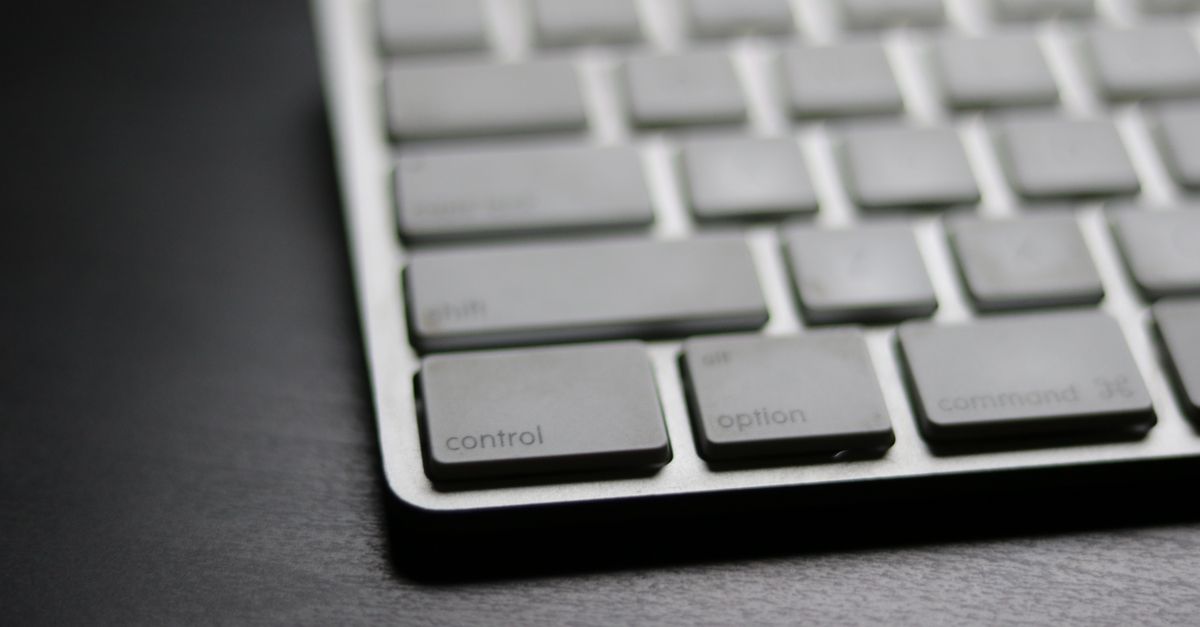
What a Mac Key Press Counter Measures
The counter is built around three live views that update together: a running total of accepted keydown events, the most recent ten labels in the order they arrived, and a per-key frequency table sorted from the most-pressed label down to the least. Labels come from the browser's KeyboardEvent.key value. A literal space becomes Space, a single visible character is shown in uppercase where the locale supports it, and named values such as ArrowUp or Enter stay readable. Control characters, surrogate code points, and Unicode line or paragraph separators are removed; an empty label becomes Unknown; and any label longer than forty Unicode code points is trimmed before storage.
That label-cleanup pipeline is what makes the table stable to read on macOS, where Cmd-based shortcuts, function-key overlays, and press-and-hold accent pickers can otherwise produce confusing strings. It is also the boundary that defines the counter as a software instrument, not a hardware diagnostic. macOS exposes modifier keys such as Meta and OS depending on the browser, and those appear as plain strings rather than as scan codes or HID usage IDs.
Run the Counter in Safari or Chrome on macOS
The setup is the same on macOS whether you prefer Safari, Chrome, Firefox, or Arc: focus lives inside the dashed capture area, and keystrokes typed anywhere else on the page do not count. The browser tab is the entire scope of the tool, so there is nothing to install and nothing to grant.
- Open the Key Press Counter in your macOS browser. No installer, no extension, no account.
- Click the dashed capture area so it has keyboard focus. A clear focus ring confirms the area is the event target.
- Press neutral test keys inside the area. Avoid passwords, recovery codes, or anything sensitive.
- Press Tab at any time to leave the capture area. Tab is intentionally uncounted so keyboard users do not get stuck.
- Decide whether to leave the held-key repeat toggle off (one count per physical hold) or on (count every browser event marked repeat).
- Watch the total, the recent ten labels, and the frequency table update with each accepted event.
- Select Reset counter when you want a fresh session. The total, the frequency map, and the recent history all clear at once.
Because everything runs in the current tab, accepted labels and counts stay local to that session and are not uploaded, copied, or saved across refreshes. There is no document-wide event listener wired to the page outside the visible focusable area, so typing anywhere else does not change the numbers.
macOS Keyboard Behavior That Affects Your Counts
macOS has several built-in shortcuts and accessibility features that interact with how a browser delivers keydown events. Knowing what is intercepted before the page matters when you interpret the numbers, because the tool explicitly does not claim to record hardware truth.
| macOS situation | What happens to the event | What the counter sees |
|---|---|---|
| Cmd + Q, Cmd + W, Cmd + Tab, Cmd + Space (Spotlight) | macOS intercepts the shortcut system-wide | No keydown reaches the counter |
| Other Cmd-based shortcuts the browser does not handle | Browser decides whether to pass them through | Variable; depends on browser and shortcut |
| Sticky Keys enabled in Accessibility settings | macOS serializes simultaneous key presses into a sequence of releases | One keydown per released key |
| Press-and-hold for accent or dead keys | macOS opens the accent picker overlay | Most labels are suppressed while the picker is open |
| Standard typing with repeat off (default) | Browser delivers an initial keydown; repeats are ignored | One count per physical hold |
| Standard typing with repeat on | Browser delivers initial keydown plus repeat-flagged events | Every event marked repeat increments the total and that key's frequency |
The contract is consistent: the counter trusts the browser's repeat flag rather than measuring the physical debounce interval, and it has no way to observe events macOS intercepts before the browser. For a deeper look at how the counter increments, normalizes labels, and sorts rows, see the counting and sorting walkthrough.
Read the Totals, Recent Labels, and Frequency Table
Once you have pressed a few keys, three regions of the counter update together. Learning what each one means prevents misreading the numbers.
- Total — the running count of accepted events for the session. With repeat off, holding a key adds one. With repeat on, each browser event marked repeat adds one.
- Recent ten labels — the last ten accepted labels in arrival order. This is the only place the order is preserved, so you can confirm sequences like A → A → Space → B.
- Frequency table — every accepted label and its count for the session, sorted by descending count and then by label for stable ties.
The frequency table does not preserve order; it only preserves quantity. If you need both, use the recent list alongside the table. The recent list holds exactly ten entries — older labels fall off the end — while the frequency map covers the whole session and grows without bound until you reset.
Key Press Counter vs. a Mac Keyboard Tester
These two tools answer different questions, and macOS users often need both at different times. Picking the right one saves you from drawing the wrong conclusion.
| Question you want answered | Key Press Counter | Mac Keyboard Tester |
|---|---|---|
| How many keydown events did the browser record? | Yes — total, recent, frequency | Not the focus |
| Which label appeared most often? | Yes — sorted frequency table | No |
| Does a physical key produce any event at all? | Indirectly — an empty count shows the key was not received | Yes — lights the layout |
| Is a switch sticky, chattering, or dead? | No — the counter trusts the browser flag | Yes — that is the tool's purpose |
| Words per minute or accuracy score? | No — the tool does not measure words | No |
| Hardware scan codes, polling rate, latency? | No — those are not exposed to a page | No |
| Runs locally in the current browser tab? | Yes | Yes |
If your real problem is "is this key producing events at all," a dedicated keyboard tester is the faster answer because it draws a layout. If your real problem is "how many accepted events happened and which label dominated," the key press counter is the right tool.
Fix Common Counting Problems on macOS
Most unexpected counts come from a small set of macOS-specific causes. Walking through them in order usually resolves the confusion.
The capture area has no focus
Click directly inside the dashed area before you press. If you clicked a button, an input, or anywhere else on the page, the handler does not fire, and the total will not move. Tab is the cleanest way out of the area when you need to navigate without losing your place.
Repeat counting does not match what you expected
By default the counter ignores browser events marked repeat, so a held key adds one. Toggle "Count held-key repeat events" on if you want every browser event to add. The tool trusts the browser flag rather than measuring physical debounce, so chatter, automation, accessibility software, and held keys can all produce more events than you might expect.
Cmd-based shortcuts are missing from the count
macOS handles system shortcuts such as Cmd + Q, Cmd + W, Cmd + Tab, and Cmd + Space system-wide. The page simply never receives a keydown for them, so the counter cannot record what did not arrive. This is by design and not a bug.
You typed something sensitive
Refresh the page. Everything clears, including the frequency map and the recent list. Going forward, stick to neutral test keys so you do not accidentally capture private data in a session that lives only in the current tab.
External keyboards, on-screen keyboards, and input methods
External keyboards, on-screen keyboards, input methods, accessibility tools, and remote-desktop software all influence which KeyboardEvent.key value the page sees. Composed text from an IME may not map one-to-one with physical switches, and mobile keyboards can deliver different label strings. The counter reports what the browser reports, which is the safest contract for a software instrument running in a tab.
For a deeper look, see Get Started With a Knitting Row Counter Before Row One.